User’s Manual 1PH HYD3000-HYD6000-ZSS
Rev. 1.1 16/03/2021
Identification: MD-AL-GI-00
Rev. 1.1 of 16/03/2021 - Application: GID
Using an Android mobile phone as a modem
a) Check that the 3G/LTE connection is active on your smartphone. Go to the Settings menu of the
operating system (the gear icon on the screen with a list of all the apps installed on the phone),
select “Other” from the Wireless and networks menu and make sure that the Network type is set
to 3G/4G/5G.
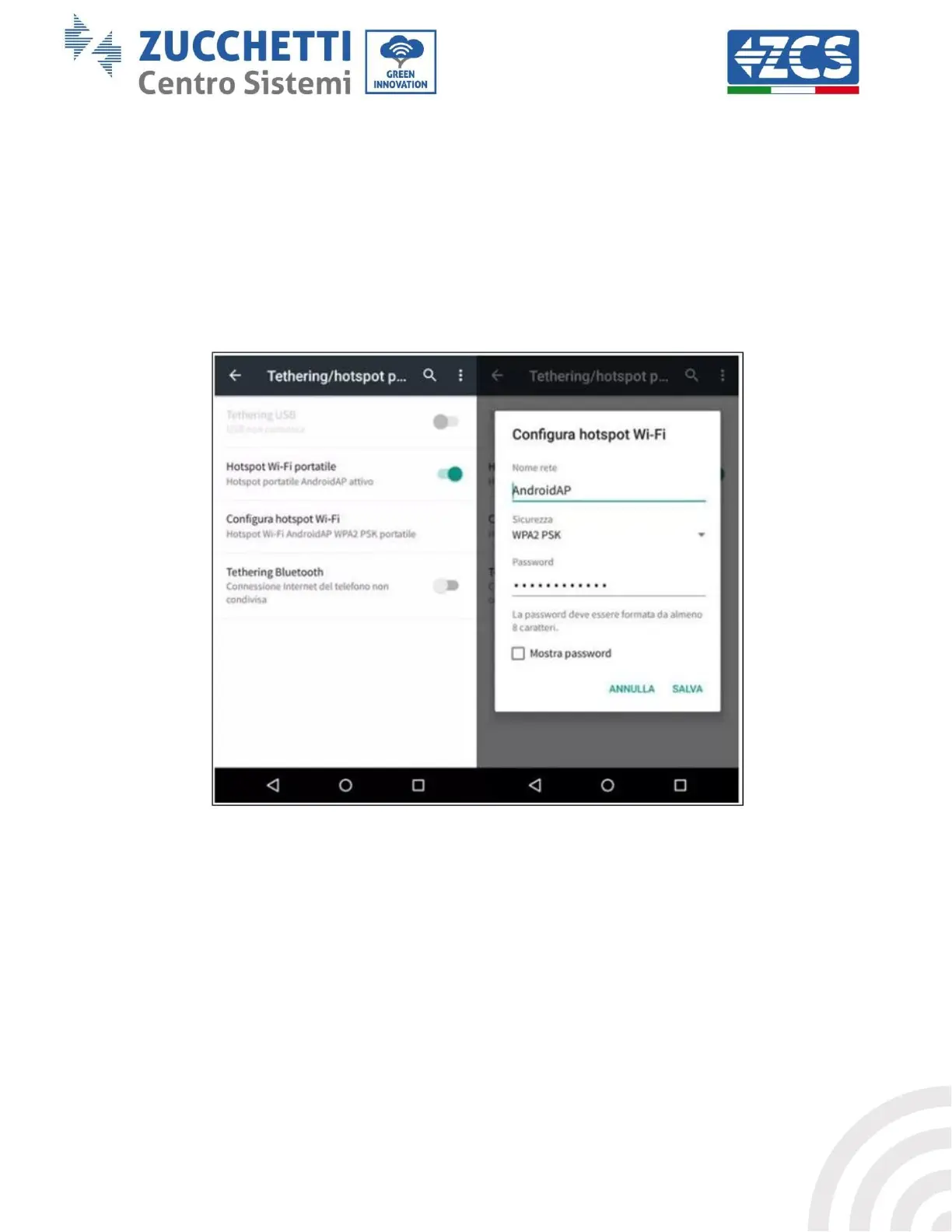
b) In the Android settings menu, go to Wireless & networks > Other. Select Mobile
Hotspot/Tethering, and then enable the Wi-Fi mobile hotspot option; wait a few seconds for the
wireless network to be created. To change the name of the wireless network (SSID) or your
password, select Configure Wi-Fi hotspot.
Figure 63 – Configuration of an Android smartphone as a hotspot router
• Using an iPhone as a modem
a) In order to share the iPhone connection, verify that the 3G/LTE network is active by going to
Settings > Mobile Phone, and making sure that the “Voice and data” option is set to 5G, 4G or 3G.
To enter the iOS settings menu, click the grey gear icon on the home screen of your phone.
b) Go to the Settings menu > Personal Hotspot and turn on the Personal Hotspot option. The hotspot
is now enabled. To change the password of the Wi-Fi network, select Wi-Fi password from the
personal hotspot menu.




 To Next Page