98
C
HAPTER
4: C
OMMAND
R
EFERENCE
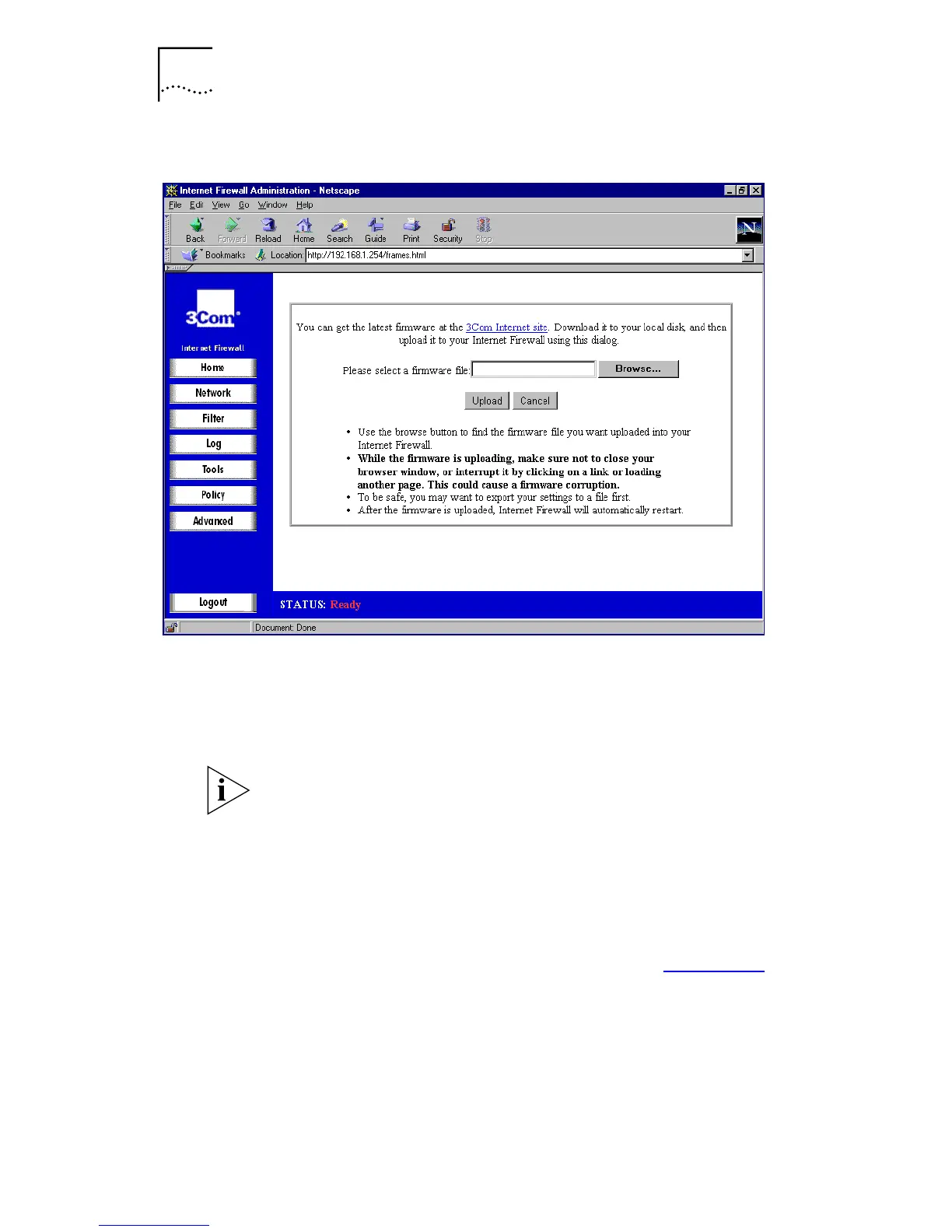
Figure 42
Firmware Upload Window
3
Click
Browse...
and select the software file you have
downloaded from the 3Com FTP site to a local hard drive or
server on the LAN.
4
Click
Upload
to begin the upload.
Make sure that your Web browser supports HTTP uploads.
When uploading the firmware to an Internet Firewall, it is
important not to interrupt the Web browser by closing the
window, clicking a link, loading a new page, or removing
the power to the Internet Firewall. If the Internet Firewall is
interrupted this way, it may result in the Internet Firewall
not responding to attempts to log in.
If your Internet Firewall does not respond, see Appendix G
.
5
Restart the Internet Firewall for the changes to take effect.



 To Next Page