Chapter 11: Monitoring Your Storage Space ● 119
4 Enter the “From” address to appear in email notifications.
If email recipients will be replying to email notifications, be sure that
the “From” address belongs to a computer that is actively
monitored.
5 Click OK to save the settings.
Disabling Email Notifications
Email notifications are enabled by default, but can be disabled, if
required.
Note: If you disable email notifications, events will be generated but
email notices won’t be broadcast.
To disable email notifications:
1 Open the Email Notification Manager. (See page 111.)
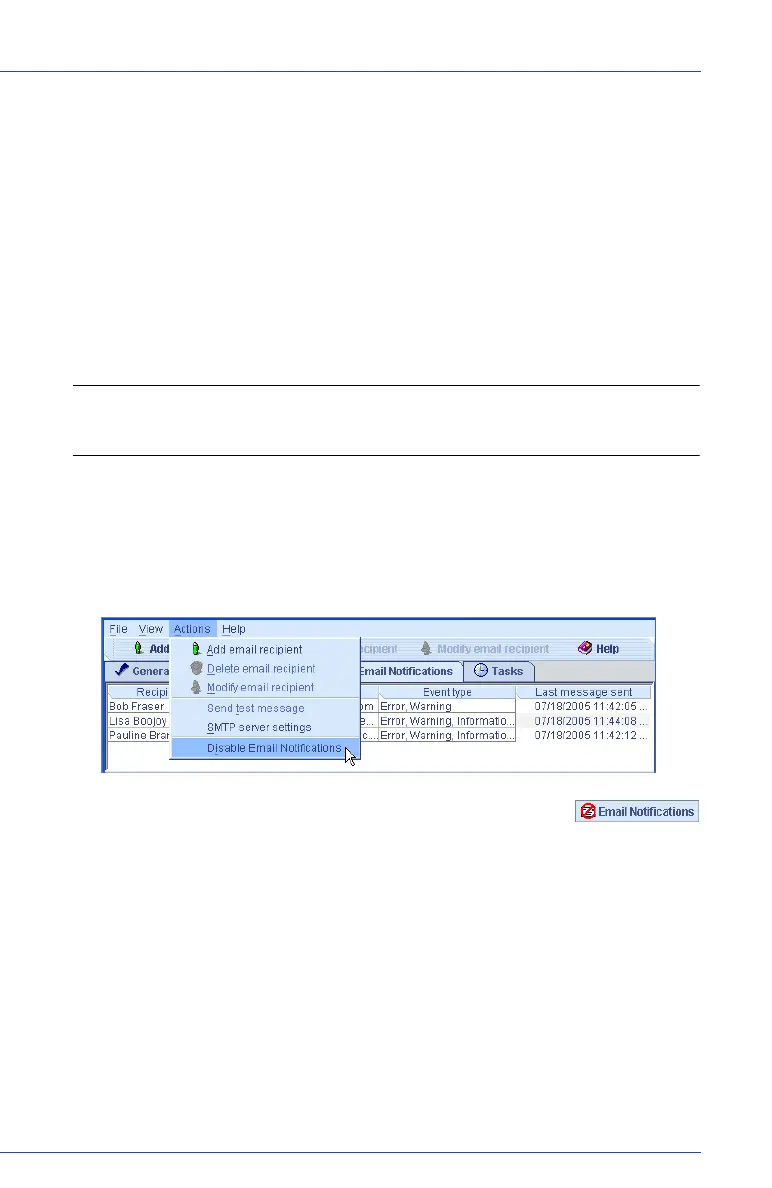
2 In the menu bar, click Actions, then click Disable Email
Notifications.
Email notifications are disabled. The Email
Notifications tab (shown at right) shows the red
‘disabled’ icon.
Re-enabling Email Notifications
To re-enable email notifications, repeat steps 1 and 2 in Disabling Email
Notifications above, selecting Enable Notifications during Step 2.


 To Next Page