Chapter 9: Managing Logical Drives and Hot Spares ● 91
Designating a Global Hot Spare
This section describes how to designate a global hot spare before or
after you build a logical drive.
Note: To designate a global hot spare while you’re creating a logical
drive, see Step 6 on page 53.
To designate a global hot spare:
1 In the Enterprise View, click the controller on which you want a
global hot spare.
2 In the Physical Devices View, click the disk drive you want to
designate as a hot spare. (See Hot Spare Limitations on page 90 for
help selecting a disk drive.)
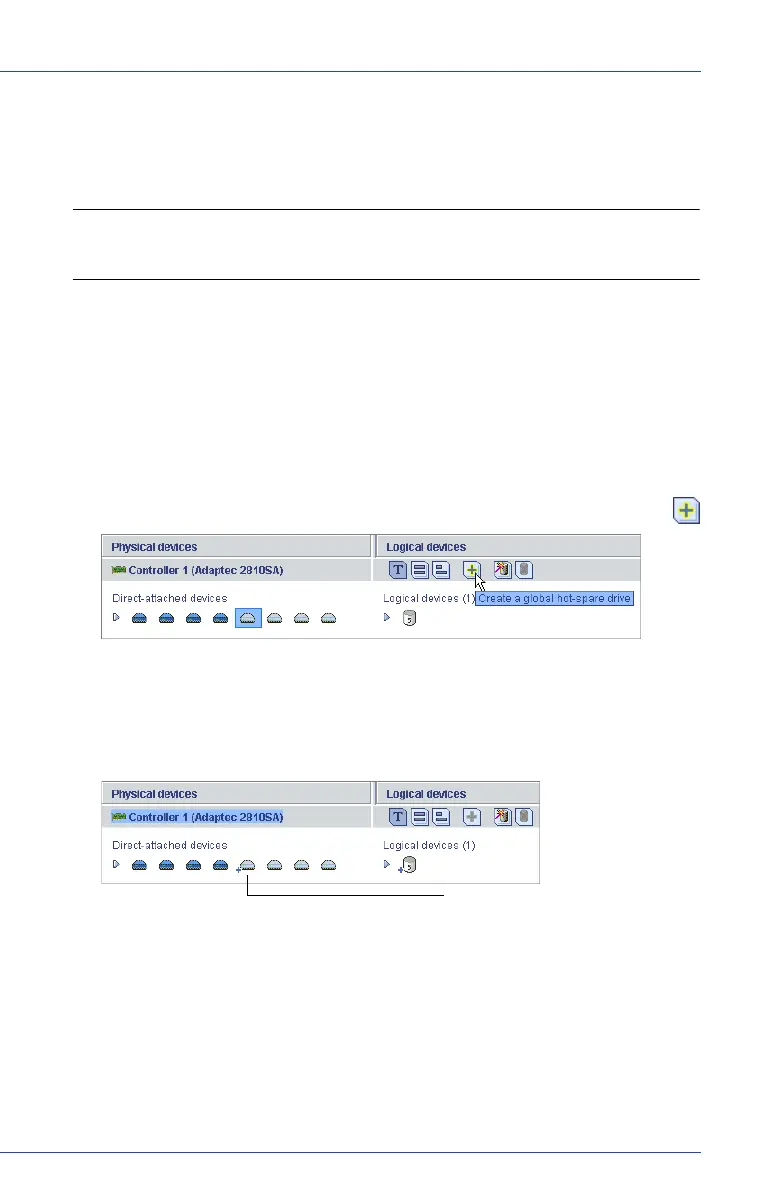
3
Click the
Create global hot-spare drive
button (shown at right)
.
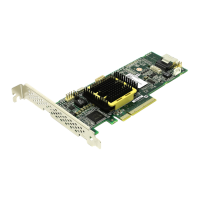
A plus sign appears beside the selected disk drive, indicating that it’s
designated as a hot spare. (A yellow plus sign indicates an error. See
What Do the Hot Spare Icons Mean? on page 93 for help solving the
problem.)
Any other logical drives created on the controller will automatically
be protected by that global hot spare.
Hot spare


 To Next Page