Step 3: Exploring Adaptec Storage Manager ● 41
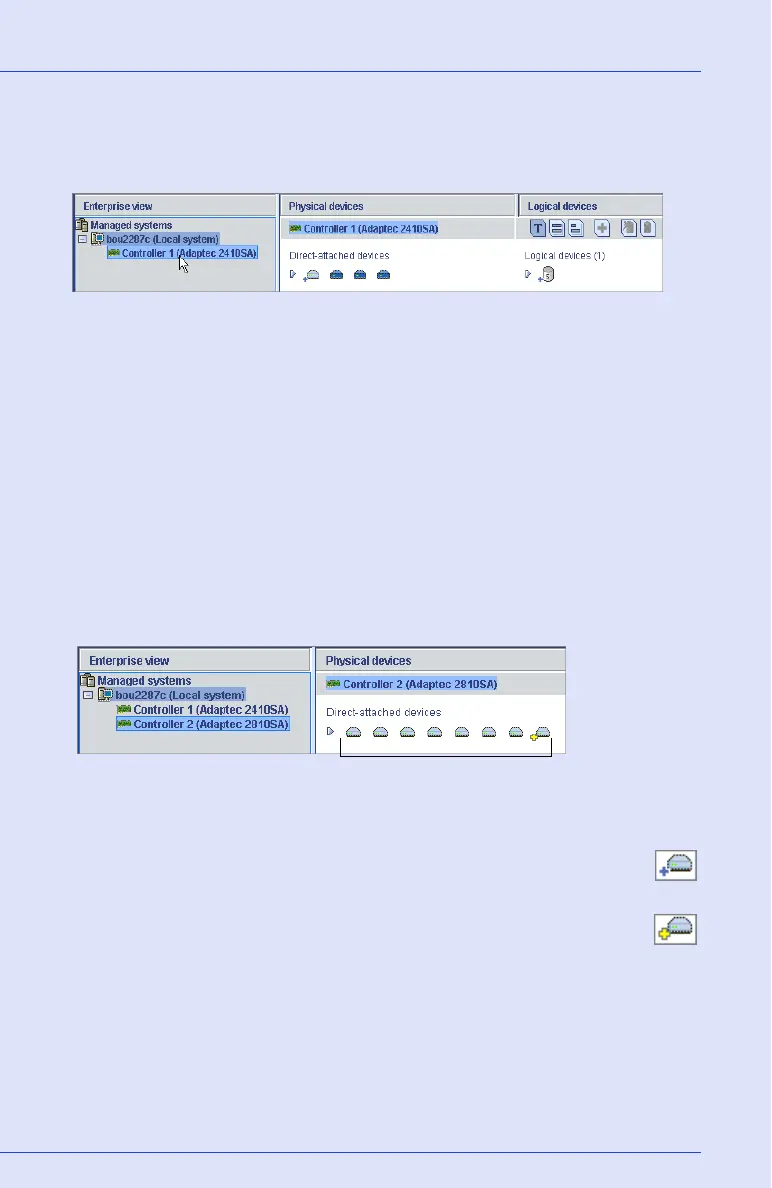
When you select a component in the Enterprise View, the disk drives
and logical drives (“devices”) associated with it appear in the Physical
and Logical Devices Views, as shown below.
You can perform most tasks by selecting a controller in the Enterprise
view and working with its associated devices in the Physical and Logical
Devices Views.
Using Physical Devices View
When you select a controller in the Enterprise View, information about
the physical disk drives connected to that controller appear in the
Physical Devices View.
Disk drives designated as hot spares have plus signs (+) beside them:
● A blue plus sign (shown at right) means that the spare is
protecting at least one logical drive.
● A hot spare with a yellow plus sign (shown at right) may not
be large enough to protect the logical drive it’s assigned to, or
may not be assigned to a logical drive.
See Working with Hot Spares on page 90 for more information.
y selecting Controller 1
n the Enterprise View...
...the disk drives connected to Controller 1 an
the logical drives created with those disk
drives appear in the Physical and Logical
Devices Views.
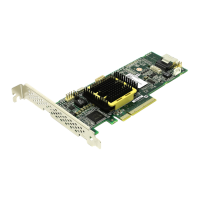
...eight disk drives.Controller 2 is connected to...


 To Next Page