48
Fwd/Rev Button: This button controls the direction that the beams will follow
along the path. This will only affect a closed path that is looping. An open path
that is bouncing will automatically change direction at the endpoints.
Play/Stop Button: This is used to end drawing mode and to run the effect. For
shapes that are finished, you can start and stop the animation. A white dot will
simulate each fixture’s beam on the drawing area.
Speed Fader: Speed can vary depending on the size of the shape and distance
between points. Speed can also depend on the responsiveness of the light fixture.
Some moving heads cannot move at high speeds. Adjust the speed fader based
on how the lights react rather than the screen animation.
Phase Fader: This allows you to spread fixtures out along the shape path. For
this to work, you need to select more than one fixture. The selection order will
determine the order of the beam positions inside the shape. With phase at 0, all
beams will follow the same point in the path. With the phase at full, the beams
will be spread out evenly along the entire path. Adjust the phase slider to see the
relative beam positions in the editor.
Fan Fader: This will fan the beams apart horizontally. You will need to have more
than one fixture selected for it to work. Adjust the control to your liking while
observing the lights rather than relying on the screen animation. Fan order will
follow the order that the lights were selected from the Fixtures view.
Helpful Hints: When drawing, the speed that you move your finger will affect the
speed of the effect. The slower you draw, the more points will be included in the
path making it run slower. Experiment until you get the feel for what works best.
Don’t worry about the initial size or location of the path as you can resize or move
it later. The fade time between points is always equal so keep point to point
distances close when using the point draw method. This will make the effect
appear more even looking. The phase control uses the number of points to set the
distance between beams so more points means finer control over the phase.
Link Controller
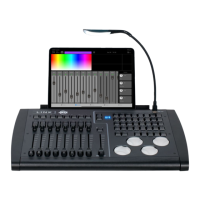
The faders, wheels and buttons on the Link controller can be used with this editor.
Buttons 1-8 (top row of matrix) will select the shape presets. Buttons 9-14
(second row of matrix) will duplicate the bottom row of buttons on the screen.
Faders 1-3 and wheels 1-3 will control the screen faders.


 To Next Page