9
App Navigation
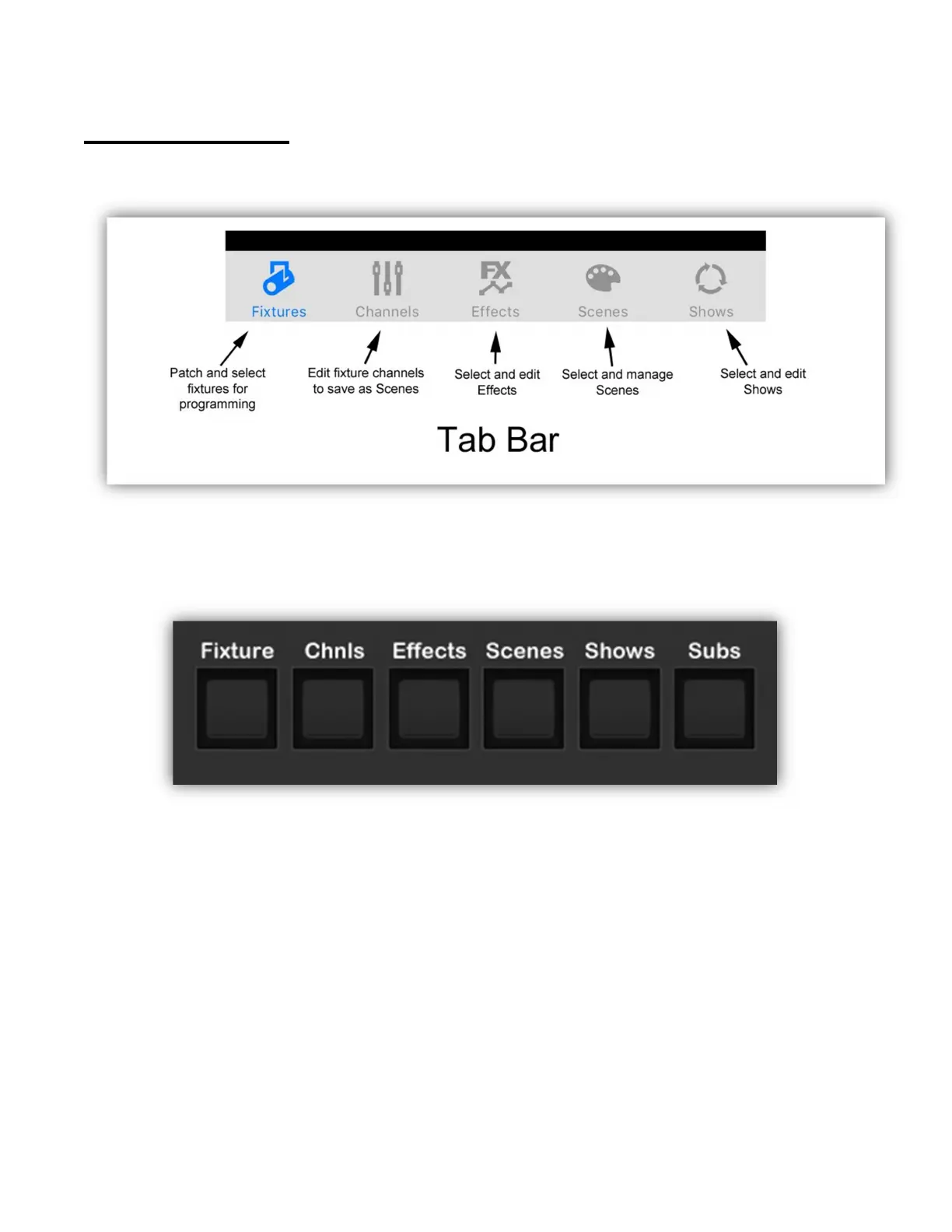
The app uses a tab bar at the bottom of the screen that’s always visible.
The tabs divide the app into five major sections of workflow. You can move from
tab to tab from anywhere within the app by touching a tab icon at the bottom of
your screen or by pressing one of the six screen selection buttons on the Link.
There is one additional screen button on the Link that is not included in the tab
bar. The “Subs” button will take you directly to the sub masters view in the app.
The sub masters view is an alternate view that’s accessible from the scenes view.
From within each view, you can navigate to various sub views by tapping the pull-
down menu button in the upper left of the view and then tapping one of the menu
items shown.


 To Next Page