Chapter 7 Diagnostics
49
OsmoTECH® Single-Sample Micro-Osmometer User Guide
7.5 Barcode
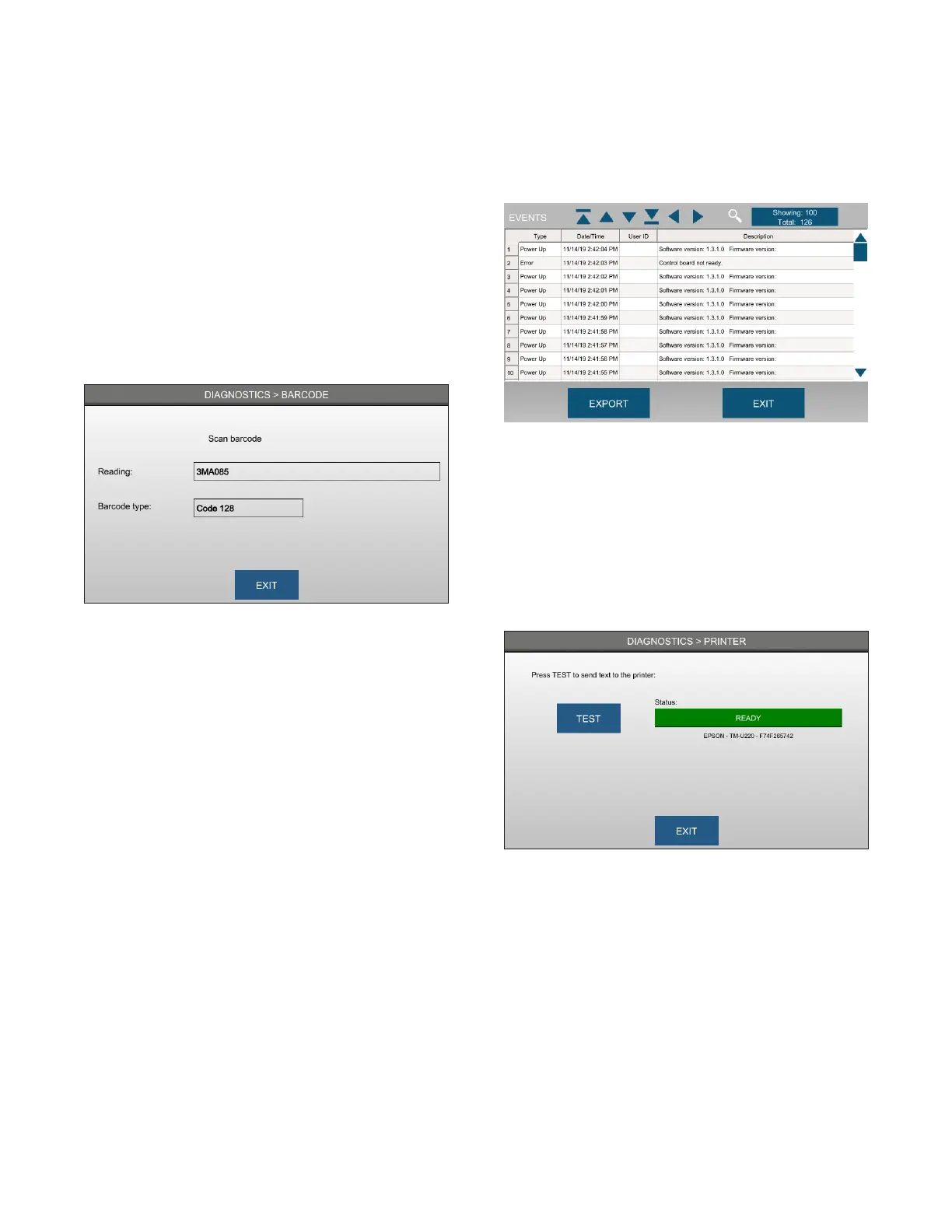
From the Diagnostics menu, select Barcode to open the
Barcode diagnostics screen.
To test if the barcode scanner is working properly, place
any barcode of a supported type a few inches in front of
the barcode scanner. If successful, you will hear a beep
and the barcode information displays on screen.
Press Exit to return to the Diagnostics menu.
7.6 Events
From the Diagnostics menu, select Events to open the
Events log.
An “event” is defined as any action that occurs with the
instrument, including (but not necessarily limited to):
• System errors
• Settings changes
• User added or deleted
• Power up
• Controls added or deleted
• Calibration results
• Consumables box (test kit) not placed correctly
You can scroll or navigate through the Events log using
the icons at the top of the screen, create a filter to
narrow to events of interest, and/or export the events in
the .csv file format.
Press Exit to return to the Diagnostics menu.
7.7 Printer
From the Diagnostics menu, select Printer to open the
Printer diagnostics screen (Figure 4).
From the Printer screen, press Test to initiate a built-in
print test of all alpha-numeric characters. The status
display is Ready if the printer is functioning properly.
Press Exit to return to the Diagnostics menu.










 To Next Page