Contact: AIRSYS North America Phone: (855) 874-5380 Page 37 of 112
Email: ASNSupport@air-sys.com Web: http://airsysnorthamerica.com Rev 1.15
Set IP Addresses for Controller (Optional for Remote Monitoring)
This step is needed if user intends to communicate to the device via IP. This step can be skipped and
returned to later if user does not immediately intend to communicate to the system remotely.
1. Hold the Esc button until the main screen is displayed.
2. Hold Alarm and Enter for 3 seconds to enter the hardware configuration menu.
3. Press Down until the cursor is over “Settings” and press Enter.
4. Press Down until the cursor is over “TCP/IPv4 Settings” and press Enter.
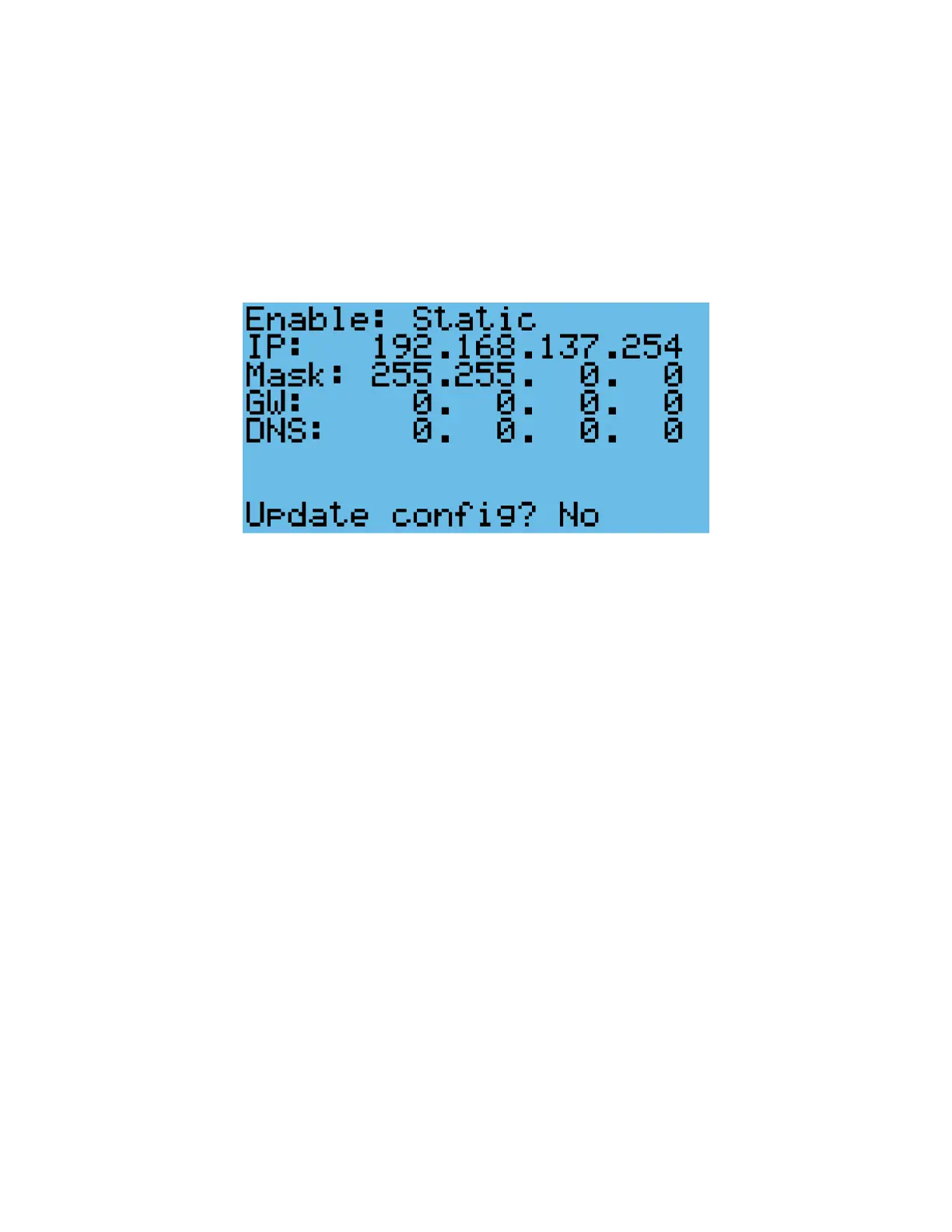
Figure 17: IP Configuration
5. Press Enter until the cursor is over the relevant fields of the IP address and Mask. Use the Up or
Down buttons to change them to the desired values.
IP: Use the IP given by end user for remote monitoring
Mask: Always use 255.255.0.0
Gateway and DNS: Use values specified by end user or leave at 0.0.0.0
6. Press Enter until the cursor is over “Update Config” and press Up to change “No” to “Yes”.
7. Press Enter.


 To Next Page