Contact: AIRSYS North America Phone: (855) 874-5380 Page 91 of 112
Email: ASNSupport@air-sys.com Web: http://airsysnorthamerica.com Rev 1.15
Remote Software Upgrade:
Required Equipment
1. Upgrade Files. Download the latest software from https://support.airsysnorthamerica.com/.
Search for “ASMUC Software Download”.
2. PC/Laptop, needed for remote connection to controller.
3. Remote IP/HTTP connection to all HVAC units and multi-unit controller to be upgraded.
4. If upgrading webpages: FTP software/connection.
Step 1: Upgrade HVAC units
1. Download and unzip both the HTTP and the upgrade files.
2. Navigate to the IP address of the HVAC unit (not the multi-unit controller).
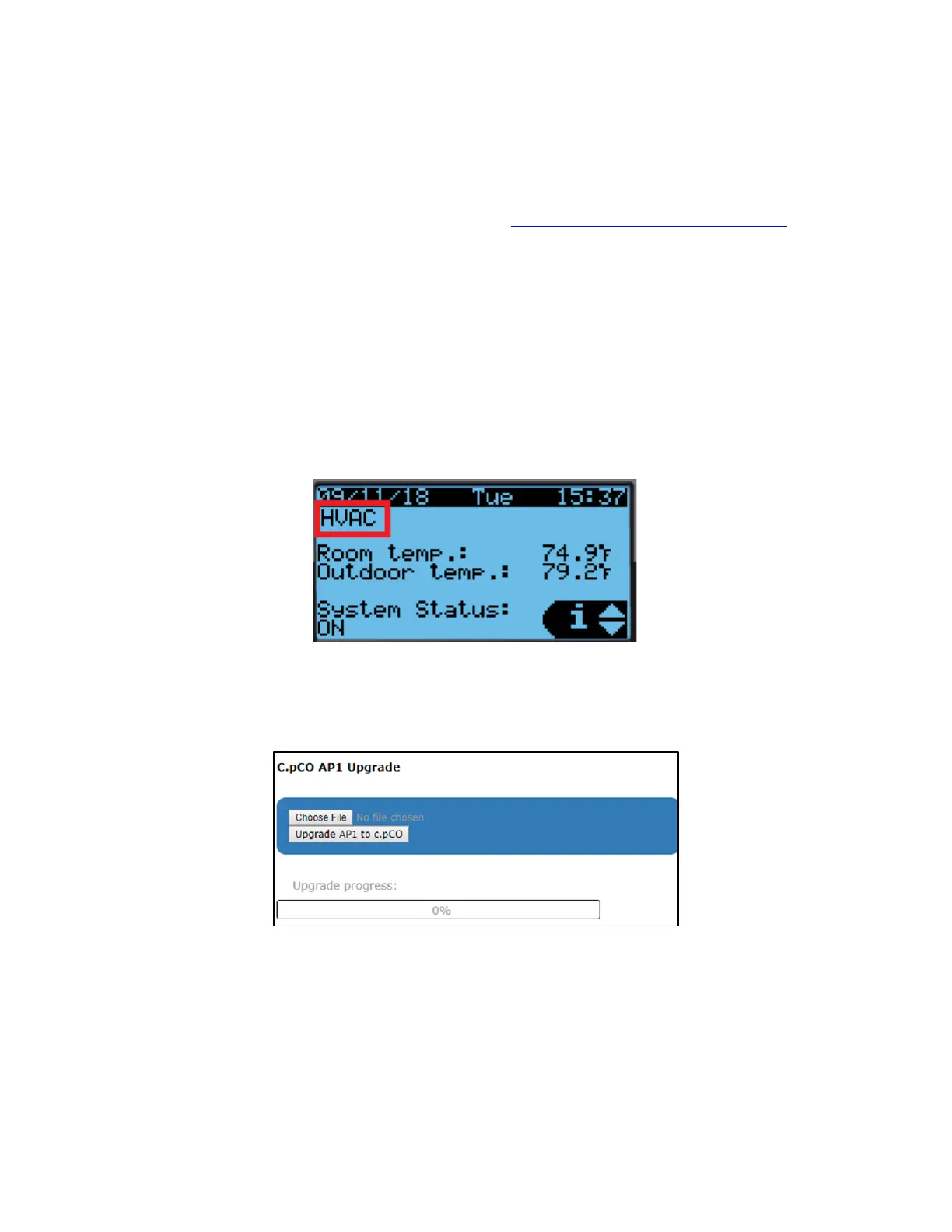
a. If unsure, navigate to “Controller Interface” tab. Master Controller/HVAC status will be
displayed on the main page
Figure 43: Master/HVAC Status
3. Select “Upgrade” tab on the left.
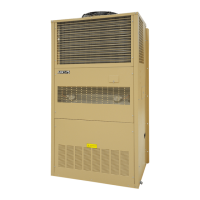
4. Click “Choose File” under “C.pCO AP1 Upgrade” and select the previously downloaded AP1 file.
Figure 44: File Selection Screen
5. Click “Upgrade AP1 to c.pCO”, the upgrade process will start.
6. Once the upgrade is complete, the status will display “Upload successful”. This may take up to 5
minutes.
7. Repeat steps 1-5 for all HVAC units.


 To Next Page