Contact: AIRSYS North America Phone: (855) 874-5380 Page 87 of 112
Email: ASNSupport@air-sys.com Web: http://airsysnorthamerica.com Rev 1.15
Chapter 7: System Update
Both the ASMUC.6 controller and the WPUs can gain additional functions and improvements by updating
the control software and operating system. All required software and upgrade packages will be provided
by AIRSYS. To request an update package, contact AIRSYS Support at ASNSupport@air-sys.com.
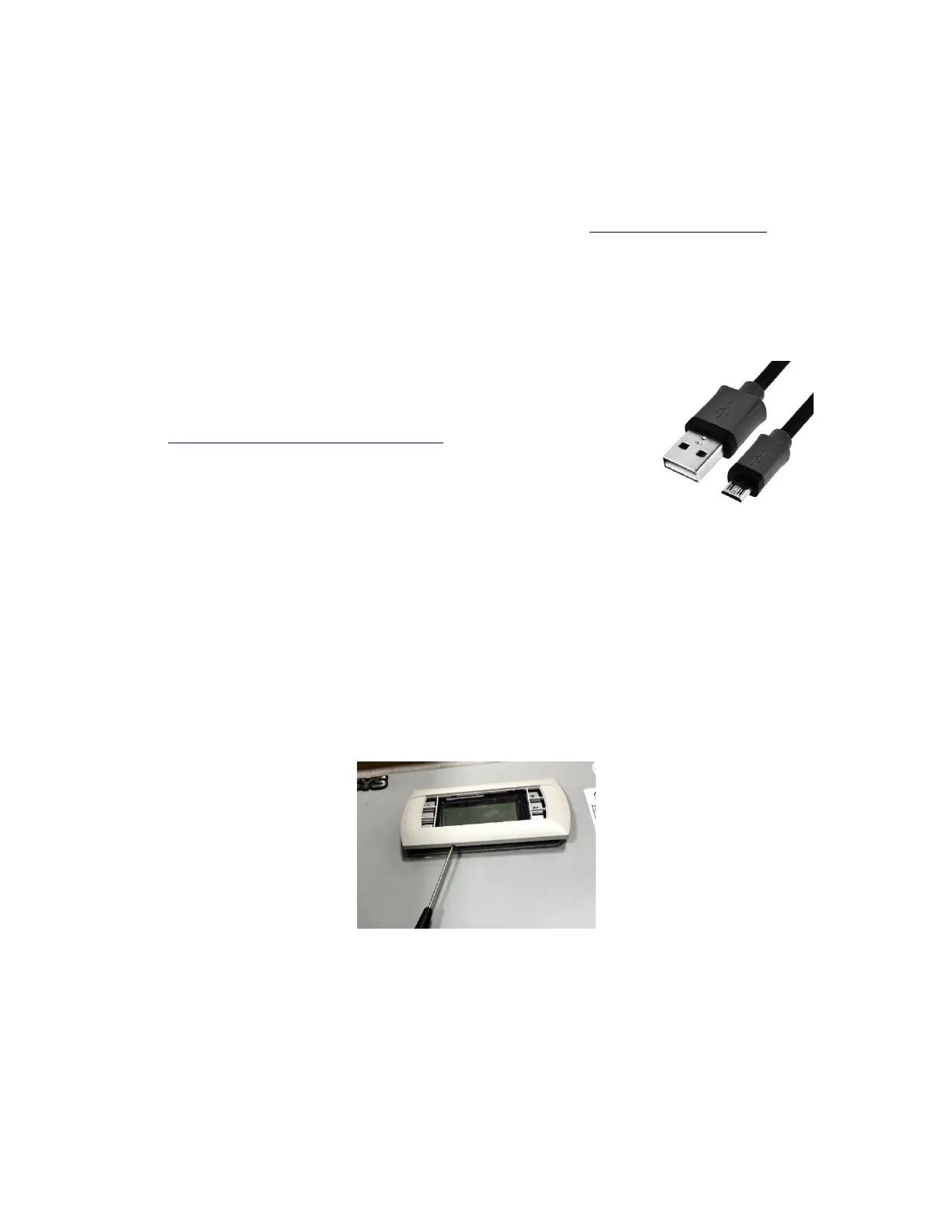
Updates can be performed via the web interface or the USB connection. A microUSB to USB cable is
required to perform the update.
Local Software Update:
Required Equipment
1. Upgrade Files. Download the latest software from
https://support.airsysnorthamerica.com/. Search for “ASMUC
Software Upgrade”.
2. Laptop/PC. A computer is required to upload the update files.
3. MicroUSB cable.
Step 1: Upgrade HVAC Units
Note: An external display must be connected to the unit being upgraded. If an extra display is unavailable,
the one installed in the controller can be detached using the instructions below. Skip a-d if an external
display is available.
1. Download and unzip both the upgrade and HTTP files.
2. Open the controller box and disconnect the plug on the rear of the display.
3. Using a flathead screwdriver or similar tool, remove the PGD frame. See Figure 39.
4. Remove the screws securing the PGD to the ASMUC door.
5. Install the display on the HVAC unit. See Figure 40 for cable location.
6. Connect the computer to the micro USB port on the controller board inside the unit. The
controller should become visible as external storage “USB Drive” on the PC.
7. Copy the AP1 file to the “Upgrade” folder.


 To Next Page