5
When
the
setting
is
complete,
press
and
hold
[
~
]
for
at
least
2 seconds.
• Only
when
tw
o subw
oof
ers are connected in
"Selling
the Speaker
System (Sy
st
em
Sele
ct
)"
(page 37)/"Setting
th
e Spe
ak
ers (
Sp
eaker
Setup)"
(page 38), is this item able to
be
set.
•
If
[
~
] is
pr
essed during setti
ng,
the unit returns to the
pr
evi
ous
item.
•
After the settin
g,
it is recommended to store
th
e setting contents on
the unit. For detail
s,
refer to
"Storing
the
Pr
eset Values
(Preset
Stor
e)"
(page 36).
Setting
the
AUX
Input
System
(AUX
Input
Setup)
This step sets the six channel Analog
(
RCA
)
input of the unit.
The
input
volume levels c
an
also
be
set.
At
the initial
startup,
the
AUX
Input
System Select screen is
displayed automatically af
ter
the
s
peaker
s are s
et
. Go to S
tep
3.
1
Press [FUNC.].
2
Rotate
the
[Rotary encoder]
to
select
"Input
Setup,"
and
then
press
the
[Rotary encoder].
3
Rotate
the
[Rotary encoder]
to
select "AUX
Input
Setup,"
and
then
press
the
[Rotary encoder].
Th
e AUX
Input
se
tu
p screen is
displayed.
4
Rotate
the
[Rotary encoder]
to
select
the
desired
system,
and
then
press
the
[Rotary encoder].
I
' '
~
'tl.'~
5.1ch Input:
AUX1
(Fr
on
t Left. Front Right. Rear Left.
Rear Right, Center, Subwoofer)
4ch&2ch
I
np
ut:
AUX1 (F
ro
nt Left, F
ro
nt Right, Rear Left,
Rear
Ri
ght)/AU
X2
(Left.
Ri
ght)
2chx3
I
np
u
t:
AUX1 (Left,
Ri
ght}/AUX2 (Left, Right)/AU
X3
(Le
ft
. Right)
•
Refer to
Tab
le
2
(In
pu
t Configuration)
in
"System Configu
ra
ti
on"
(page
60).
5
Select
"OK"
by
rotating
the
[Rotary
encoder]
when
a
confirmation
message appears, and press
the
[Rotary
encoder].
The AUX
IN
Ga
in
Set
up
sc
reen is
displayed.
•
When
"OK"
is
se
lected, the audio output is stopped until the ignition
key is tu
rn
ed
on/off
6
Select
either
"High"
or
"Low"
for
each AUX
by
rotating
the
[Rotary
encoder]
, and press
the
[Rotary
encoder].
IIAUX
1
' ·
High
·
..
'
Hi
gh:
Wh
en the volume level
of
th
e
exte
rn
al
i
np
ut is high.
Low:
Wh
en the
volume level of
th
e
external
input is
low.
From
the
Commander
7
The
"Turn ACC
Off"
screen
will
be
displayed.
Turn
the
ignition
key
to
and
then
on
again.
The settin
gs
become effective.
•
If
[
~
1
is
pr
essed during setting, the unit returns to the pr
ev
io
us
ite
m.
• Gain can also be set in
"Setting
the
AUX
Volume Input Level
(
AUX
IN
Gain)"
(page 40).
•
When the AUX
input system is change
d,
all the setup values for
AUX
input will be restored to the initial setup values.
• After the settin
g,
it is recommended to
st
ore the setting contents on
the unit. F
or
details, re
fer
to
"S
toring
the Preset
Va
lues
(Preset
Stor
e)"
(page 36).
Setting
the
AUX
Input
(AUX
IN)
A
TV
or
V
CR
with
RCA
audio output can be connected to
th
e unit.
Select
OFF
for the external input not
co
nne
cted
(Initial setting:
"ON").
1
Press [FUNC.].
2
Rotate
the
[Rotary encoder]
to
select
"Input
Setup,"
and
then press
the
[Rotary encoder].
3
Rotate
the
[Rotary encoder]
to
select
"AUXIN,"
and
then
press
the
[Rotary
encoder].
The AUX
selec
ti
on
screen
is di
sp
layed.
4
Select
the
AUX
you
want
to
set
by
rotating
the
[Rotary
encoder]
,
and
press
the
[Rotary
encoder].
Settings item: AUX 2/AUX 3/Ai-N
ET(
HU}/Ai-NET(CHG)
•
AUX
I
cannot be
se
t.
•
If
yo
u connect
Ai
-N
ET
IRCA
Interface cable (KC
A-
121 B) to the
terminals
of
the device Head
U
nit
input terminal (Ai-NET input)
I
Changer
input terminal (Ai
-N
ET input), you can use it
as
AUX
.
•
The number
of
AUX
vari
es
depending
on
the
AUX
Input Setup
(page 39).
5
Rotate
the
[Rotary encoder]
to
select "
ON"
or
"OFF",
and
then
press
the
[Rotary encoder].
IIAUX2
.'·»"
,.
1
ON
Xr;
ft -
# '
6
To
set
another AUX, press [
~
]
and
repeat Steps 4
and
5.
7
When
the
setting
is
complete,
press
and
hold
[
~
]
for
at
least 2 seconds.
•
When an Ai-
NET
compatible head unit is connected, external input
of
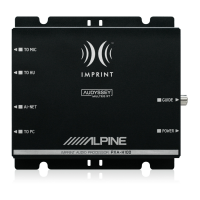
the PXA-H800
becomes
unavailabl
e,
and this setting will be
disabled.
•
If
[
~
1
is pressed d
ur
ing setti
ng,
the unit returns to the previous
item.
•
After
the setting, it is recommended to store the setting contents on
the u
ni
t.
For details, refer to
"Storing
the Preset
Va
lues
(Preset
Store)" (page 36).
39
-EN




 To Next Page


