From
the
Commander
Multi
Channel
Function
Adjustment
Procedure
Make the adjustments described below
in
order to reproduce Dolby
Digital and
DTS
sound with greater accuracy.
Setting
the
2-Channel
Signal
Playback Mode (Mode) (page 52)
This sets the 2-channel signal playback mode.
•
Adjusting the Acoustic Image (81-PHANTOM) (page 55)
Adjusting the acoustic
im
age to achieve a sound as if the
center speaker were directly in front of the listener.
•
Setting
the
Linear PCM (PCM Mode) (page 56)
You
can choose either 2ch or 3ch for the playback output of a
disc
re
corded on the linear
PCM
.
•
Mixing the Low Range Audio of
the
Center with the Front
LJR
(Center Bass
Split)
(page 56)
Turning this feature on makes the audio signals emitted from
the front
UR
spe
ak
ers mix
ed
with the center audio si
gna
ls
(l
ow range).
•
Mixing the Low Range Audio for the Rear (Rear Mix) (page 55)
Ac
hi
eving s
mo
oth
so
und
in
the rear seat by mixing the fr
on
t
audio signals with
th
e rear speaker signal
s.
•
Achieving Powerful High Volume
Sound
(Listening Mode)
(page 56)
Ac
hi
eving energetic sound with even greater power,
li
ke the
so
und
in
a movie theate
r.
•
Adjusting the DVD Level (DVD Level) (page
57)
Adjust the volume signal level
in
each of the Dolby Digital,
Dolby Pro Logic
II
, DTC
and
PCM
modes.
•
Adjusting
the
Speaker
Volume Level (Output Level) (page 54)
Adjust each speaker's volume so they are the same level.
•
Storing
the Preset Values (Preset
Store) (page 36)
Storing all the set
ti
ngs and adjustments made on the
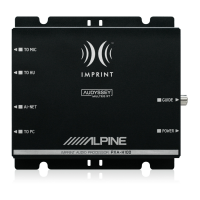
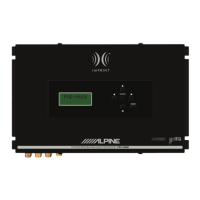
PXA-
H800 (not only the above settin
gs
/adjusts)
in
th
e memor
y.
In
case of combining the Automatic adjustments, etc.
We r
ec
om
me
nd to m
ake
th
e A
ut
omatic adjus
tm
e
nt
s bef
ore
th
e Dolby
Surround adj
us
tments
54-EN
Adjusting
the
Speaker
Volume
level
(Output
level)
The
test tones help to make the volume adjustments
of
the different
speakers. When levels are equal, a strong sense
of
presence can be heard
from the different speakers
at
the listening position. (Initial setting:
"±OdB")
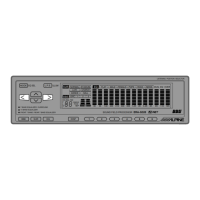
1
Press
[FUNC.]
.
2
Rotate the [Rotary encoder] to
select "Multi Ch.
Setup,"
and then press the [Rotary encoder].
3
Rotate the [Rotary encoder] to select
"Output Level,"
and then press the [Rotary encoder] .
OUTPUT
LEVEL screen
wi
ll
be displayed and the test tone
is produced from the left front speaker.
4
Select the channel by pressing [CHANNEL].
Test tone
is
output from the selected channel.
l"3. •
OUTPUT
LE
'..,'
EL
~
.
tl
L
EJf
t
IIi
E
L
ev
et
+
J[]
dE:
ch.: Left/Center/Right/R-Surround/L -Surround
•
Channels to be set
vary
depending on the system
se
t in
"Setting
the
Speaker System (Sy
st
em Select)
(page
37)."
5
Adjust the speaker volumes for each channel to
make them equal
while the test tone is output from
each channel. Adjust the
level
by rotating the
[Rotary encoder].
LEV
EL:
-10 t
o+
10
dB (in 1
dB
steps)
Adjust based on the front speakers.
6
To adjust another channel, repeat
Steps
4 and 5
.
7
When the setting is
complete,
press and
hold
[
~
]
for at
least
2 seconds.
•
lf
[
~
]
is pressed during settin
g,
the un
it
re
turns to the previous
ite
m.
•
Avoid sto
pping, pausin
g,
switching the disc, cueing,Jast-
forw
ar
ding
or
switching the audio channel
of
this unit while maki
ng
this
ad
ju
stment. The setting is cancell
ed
if
the decode mode is switched
•
After
th
e setting, it is reco
mm
ended to store the setting co
nt
ents on
the unit. For detail
s,
refer to
"Storing
the
Pr
eset
Valu
es (
Pr
eset
Store
)"
(page 36) .



 To Next Page


