·Update Software
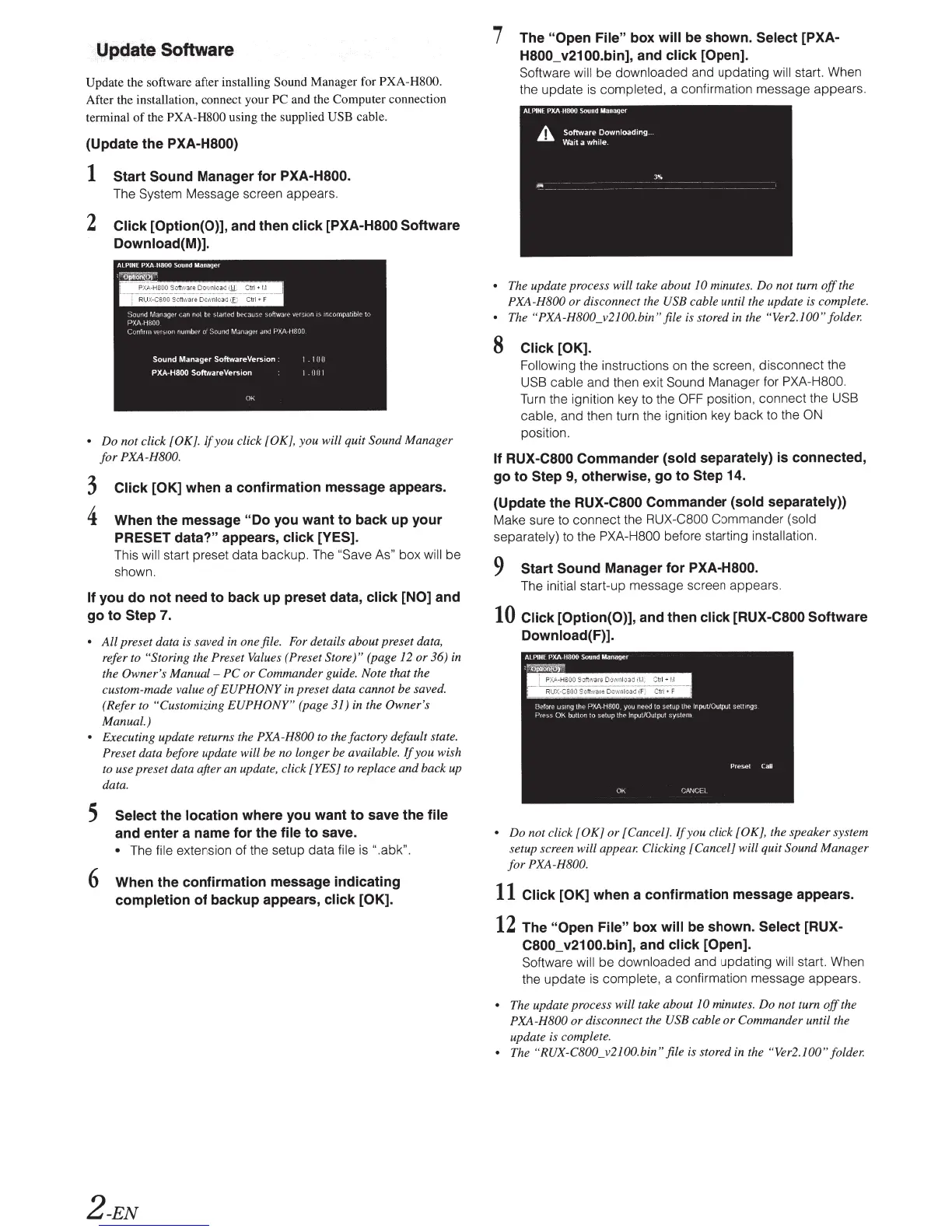
Update the
sof
tware after installing
Sound
Manager for
PXA-H800.
After the installation, connect your
PC
and the Computer connection
terminal
of
the
PXA-H800 using the
supplied
USB
cable.
(Update the
PXA-H800)
1
Start Sound
Manager for
PXA-H800.
The System Message screen appears.
2
Click [Option(O)], and then click [PXA-H800
Software
Download(M)].
AL
PUlE
PXA
H800
Sound
Manager
'
0ptton(p)
~-
=-
~
.0._
H£00Sv~
3!:_i
oo
_
,
~~a
.
:
t!!
-
~~
~
-
-
~~
~
J
1
RUX
CBOO
So
tt
~
\
3
1 .;
DY'IInl)a
~
(£
Ctrl
+
F
S
oLJ!ld
lltbfl3ge1
.::
an not
br
sta
rtM
b
£>
c:Ju:;('
'
:i
t
•
ftwa
•
~
·
•·
UO:hJ
rl
IS
mcompat;I:JI
L"
tc•
PXA
HHOO
Cvr
rfi1111
vr:r-;r(W
ro
umbtr
ol
Smmd
M~n:.tg
r•!
,111(1
P;<J\ "18J!)
Sound
Manager
Softw.areVersion
:
PXA-H800
Software-Version
Oh
1 1
un
1 .
11
1!1
• Do
not
click
[OK].
If
you click
[OK],
you will quit Sound Manager
for
PXA-H800.
3
Click [OK]
when a confirmation message appears.
4
When the message
"Do
you want
to
back up your
PRESET data?"
appears,
click [YES].
This will
start preset data backup.
The
"Save A
s"
box
will
be
shown.
If
you do not need to back up preset data,
click [NO]
and
go to
Step
7.
•
All
preset data is saved in one file.
For
details about preset da
ta,
refer to
"Storing
the Preset Values (Preset
Store)" (page 12
or
36) in
the
Owner
's
Manual-
PC
or
Commander guid
e.
Note that the
custom-made value
of
EUPHONY in preset data
ca
nnot
be
saved.
(Refer
to
"Customizing
EUPHONY"
(page 31) in the Owner's
Manual.)
•
Executing update returns the
PXA-H800
to the factory
default state.
Preset data before update will be no long
er
be available.
If
you wish
to
use preset data after an update, click
[YES] to replace
and
ba
ck up
data.
5
Select
the
location
where you want to save the
file
and enter a name for the
file
to save.
•
The file extension of the setup data f
il
e
is
".abk
".
6
When the confirmation message indicating
completion
of
backup appears,
click [OK].
2-EN
7
The
"Open File"
box
will
be shown.
Select
[PXA-
H800_v2100.bin], and
click
[Open].
Software
will
be
downloaded and updating
wi
ll
star
t.
When
th
e update
is
completed, a
co
nfirmation message appears.
•
The update process will take about
10
minutes.
Do
not turn
off
the
PXA-H800
or
disconnect the
USB cable until the update is
co
mplete.
•
The
"PXA-H800_v2100.bin"
file is stored in the
"Ver2.
JOO"
folder.
8
Click [OK].
Fol
lowing
th
e instructions on the screen, disconnect the
USB cable and then e
xi
t Sound Manager for PXA-H800.
Turn
the ignition key to the
OFF
position, connect the USB
cab
le, and then turn the ignition key
back
to the
ON
positio
n.
If RUX-C800 Commander
(sold separately) is connected,
go to
Step 9, otherwise, go to
Step
14.
(Update the
RUX-C800
Commander
(sold separately))
Make sure to connect the
RUX
-C800
Commander (sold
separately) to the PXA-H800 before starting installa
ti
o
n.
9
Start Sound
Manager for
PXA-H800.
The
ini
tial start-up message screen a
pp
ears.
10
Click
[Option(O)], and then click [RUX-C800
Software
Download(F)].
• Do not click
[OK]
or
[Cancel]. If you click
[OK]
,
the
speaker system
setup screen will appear. Clicking [Cancel] will quit Sound Manager
for
PXA-H800.
11
Click [OK]
when a confirmation message appears.
12
The
"Open File"
box
will
be shown. Select
[RUX-
C800_v2100.bin],
and
click
[Open].
Software will
be downloaded and updating
wi
ll
star
t.
Wh
en
the update is
comp
lete, a
co
nfirmation message appears.
•
Th
e update process will take about
10
minute
s.
Do not turn
off
the
PXA-H800
or
disconnect the
USB c
ab
le
or
Commander until the
update is complete.
•
The
"R
UX
-C800_v2100.
bin"
file is stored in the
"Ver
2.
100"
fold
e
r.



 To Next Page