45
Chapter 2 Setup
2
Registering the Media Layout
If the paper size to use is not in Media Layout, register the user defined media.
The registered layout will be stored in [Favorite Setting] to use from application of users.
(For details on how to register the favorite setting, see Favorite Setting on page 83.)
1
Display the printer driver window.
(See How to Display the Printer Driver on page 43.)
2
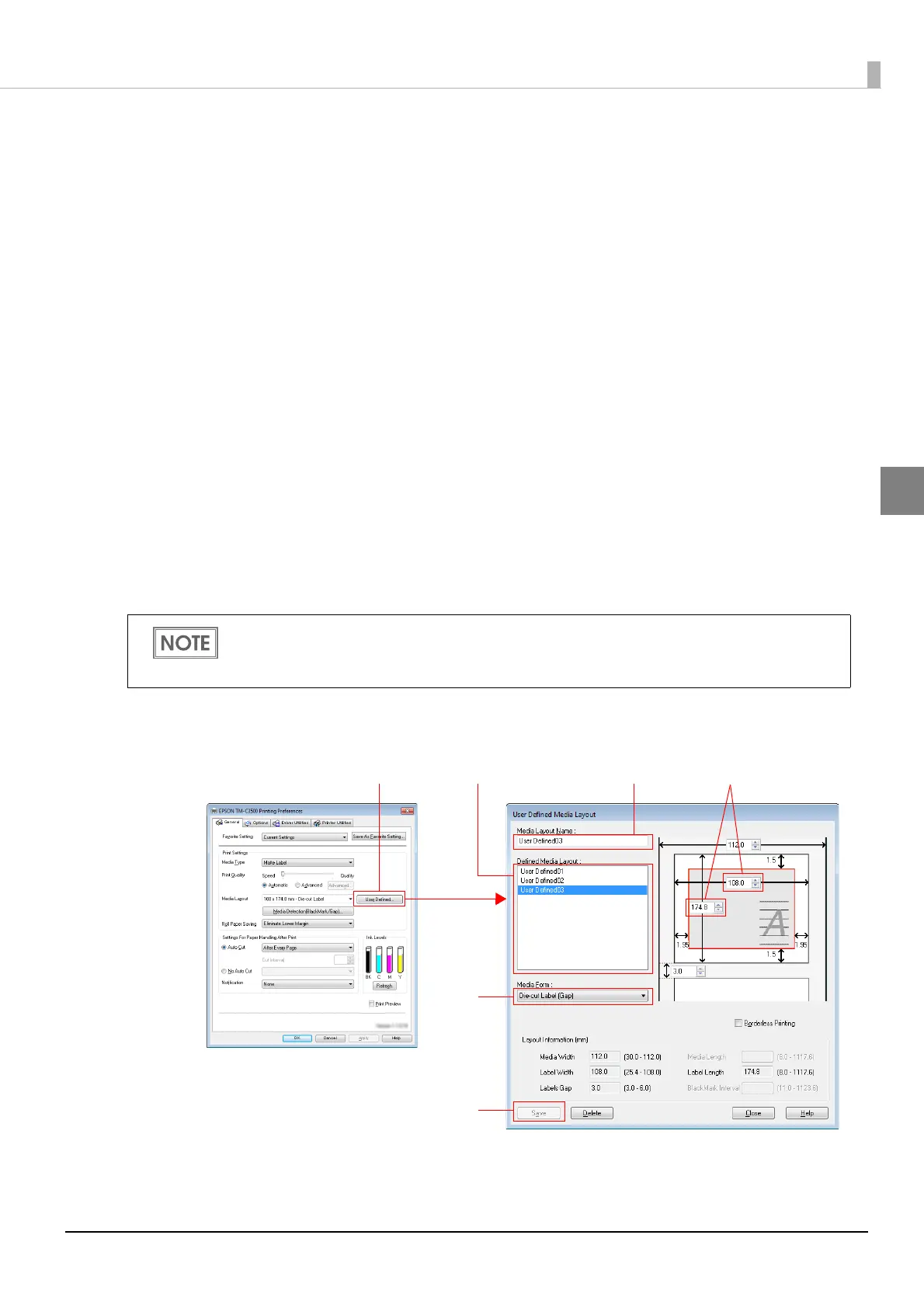
From [Print Settings], click [User Defined...].
"User Defined Media Layout" screen appears.
3
Enter Media Layout Name. This is User Defined Media.
If there is an existing defined media layout, you can create a new layout based on the defined
media layout.
4
Select [Media Type].
5
Enter the size of the paper (unit: mm).
6
Click [Save]. User Defied Media will be registered and displayed on the list
of [Defined Media Layout].
To extend the printable area, selecting [Borderless Printing] will set no margins.
When the margin is zero, printing may occur out of the paper/label. Use this option according to
the usage.
(5)(3)
(4)
(6)
Registered paper(2)


 To Next Page