10 MaxCommunicator Manual
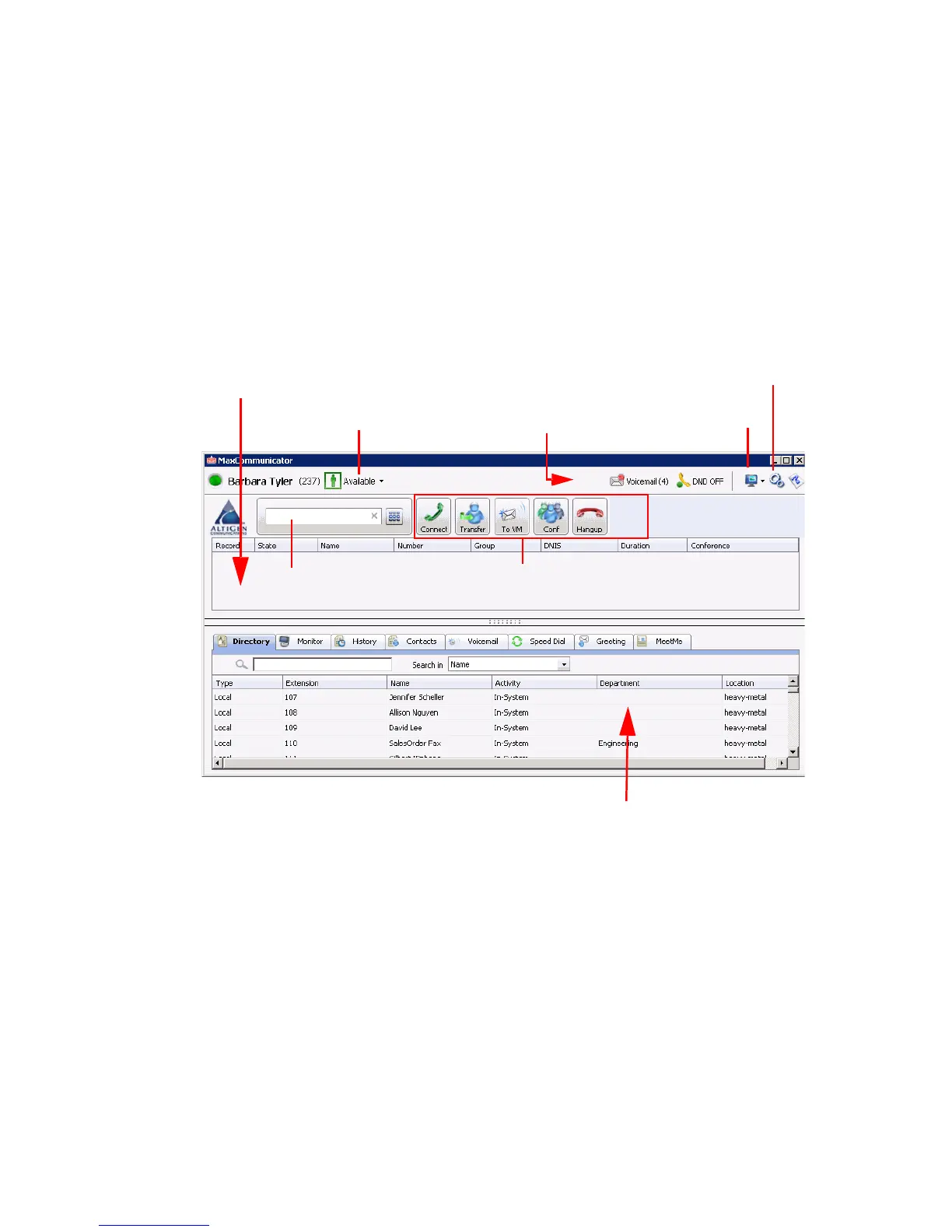
Overview of the Main Window
Once you log in to MaxCommunicator, the main window appears, providing
tools to manage and monitor calls, and to facilitate management of your
personal contacts.
You can customize the MaxCommunicator display: select the theme; the
toolbar buttons, tabs, and columns you need and their order of appearance;
the sort order; and so on. See “Customizing the Display” on page 17.
Click a Number to Make a Call
All phone numbers become underlined when you pass the cursor over them.
Click an underlined number to make a call to that number.
Right-click a call to see a context menu.
Call control tool bar
Call Information panel Configuration button
Your activity state Status bar
Tabbed pages
Shrink window
Dialer box



 To Next Page