MaxCommunicator Manual 15
Getting Started
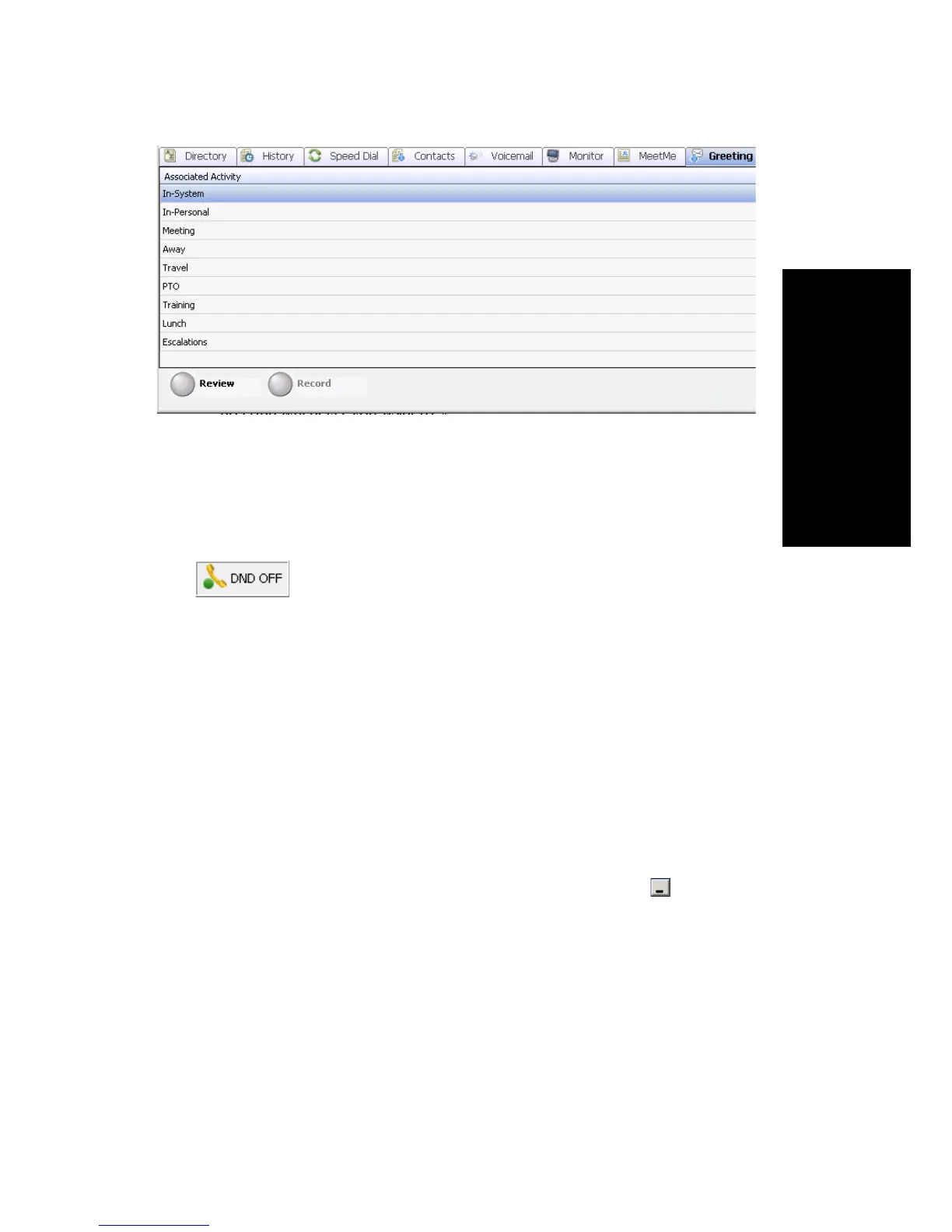
To hear the greeting played back, click the Review. button. Change your
greeting whenever you want to.
Turning Do Not Disturb On and Off
The button is a toggle that turns Do Not Disturb on and off.
When Do Not Disturb is on, all incoming calls are forwarded according to
your Enable Busy Call Handling settings.
Note: If the system administrator has disabled the Do Not Disturb feature
for the extension, the DND feature will not be available to you. If
you select DND, an alert pops up informing you that DND is not
allowed.
Minimizing, Shrinking, and Exiting
MaxCommunicator
To minimize MaxCommunicator, click the Minimize button in the top
right corner of the screen. MaxCommunicator shrinks to an icon in the tray
in the lower right corner of your screen.
To shrink MaxCommunicator to a strip at the top or bottom of your screen,
click the Arrange Window button and select Top or Bottom. The strip
displays the MaxCommunicator status bar, plus the call control buttons and
the dialer field (if your MaxCommunicator is configured to display the
dialer field):



 To Next Page