16 MaxCommunicator Manual
To restore MaxCommunicator to full view, click the Arrange Window
button and select Normal.
To exit MaxCommunicator, click the button. To exit
MaxCommunicator when you have shrunk it to a single toolbar, first
restore it to normal size, then click the exit button. To exit
MaxCommunicator when it is minimized, right-click the
MaxCommunicator icon in the tray and select Exit.
Using the Windows Tray Phone Icon
After you log in, the MaxCommunicator icon is displayed in the Windows
tray, normally at the bottom right of your screen.
When you have new voice mail, the icon changes to show you have voice
mail.
If MaxCommunicator is not on your Windows desktop, but either icon
appears in the Windows tray, double-click it to open the
MaxCommunicator main window, or you can right-click it to pop up a
menu, then select the MaxCommunicator window you want to open.
Searching in the Tabbed Windows
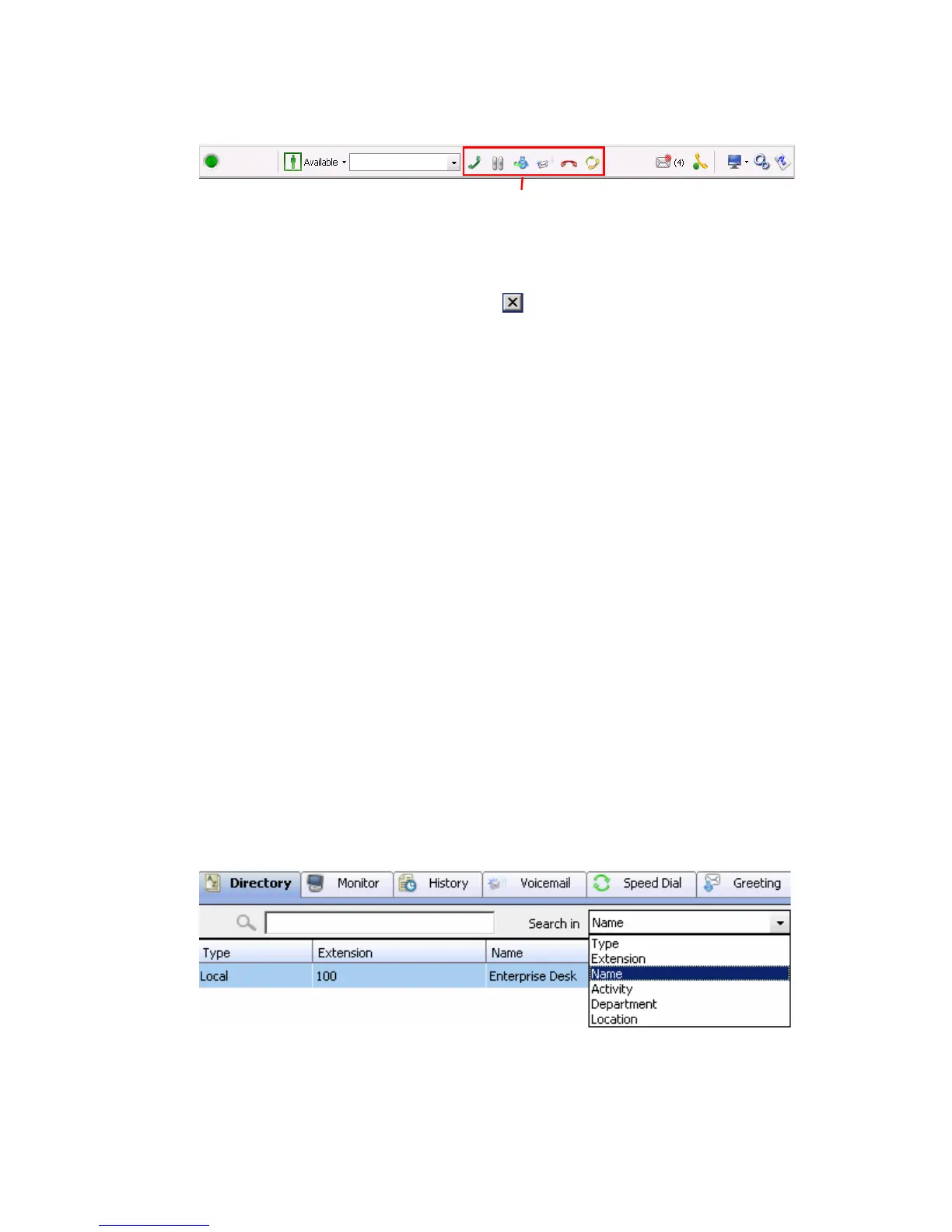
Searching is available in these tabs: Directory, History, Contacts, Voice
Mail, and Speed Dial.
To search,



 To Next Page