MaxCommunicator Manual 11
Getting Started
Status Bar
From the status bar you can do the following:
• Change your activity state from the drop-down list (see “Changing
Activity Status and Recording Activity Greetings” on page 14).
• See the number of unopened voice mails .
• Turn Do Not Disturb (DND) on and off (see “Turning Do
Not Disturb On and Off” on page 15).
• If you’re using IPTalk, you can mute the call (using the Mute toggle
button) and control the volume using the volume control
• Shrink MaxCommunicator to a single tool bar and restore it to normal
size by selecting from the drop-down menu .
• Configure MaxCommunicator (see “Configuring Your
MaxCommunicator” on page 49).
• Open help .
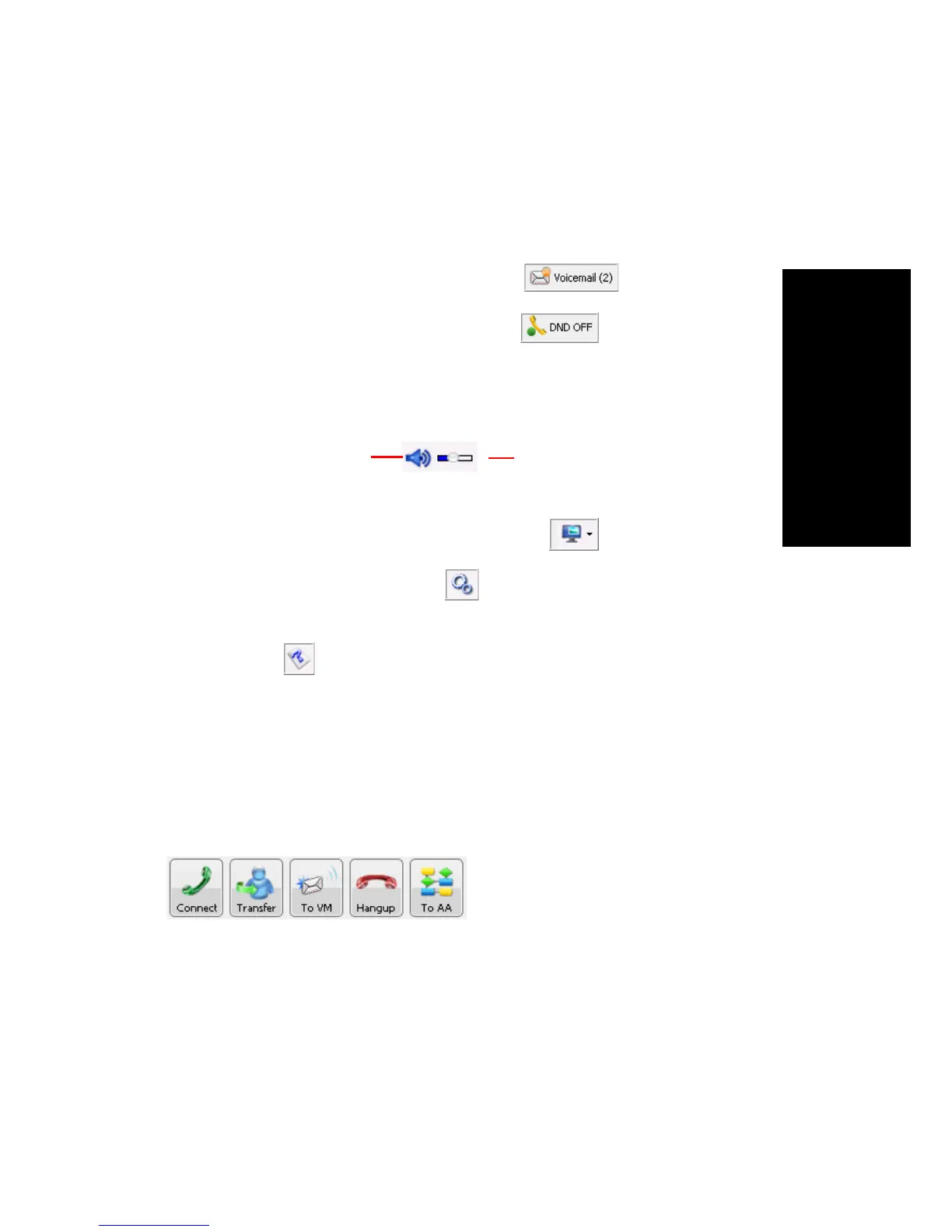
Toolbar Buttons
Toolbar buttons provide single-click functions to connect, hangup,
transfer, send to voicemail, hold, unhold, conference, send calls to AA
(auto attendant), flash, record, redial, intercom, and enter account code.
You can choose the buttons you want and the order in which you want
them. See “Customizing the Display” on page 17.
The Dialer field and Dial button are also in the toolbar. Click the Dial
button to pop up the dial pad.
Mute button (toggle) Volume control



 To Next Page