26 MaxCommunicator Manual
Dialing—While connected to a call, in the dialing field enter the target
number you want to transfer to, then click the Transfer button.
Clicking— If the target number is on the Directory, Speed Dial,
Contacts, or Monitor tab, click it. Then click Transfer.
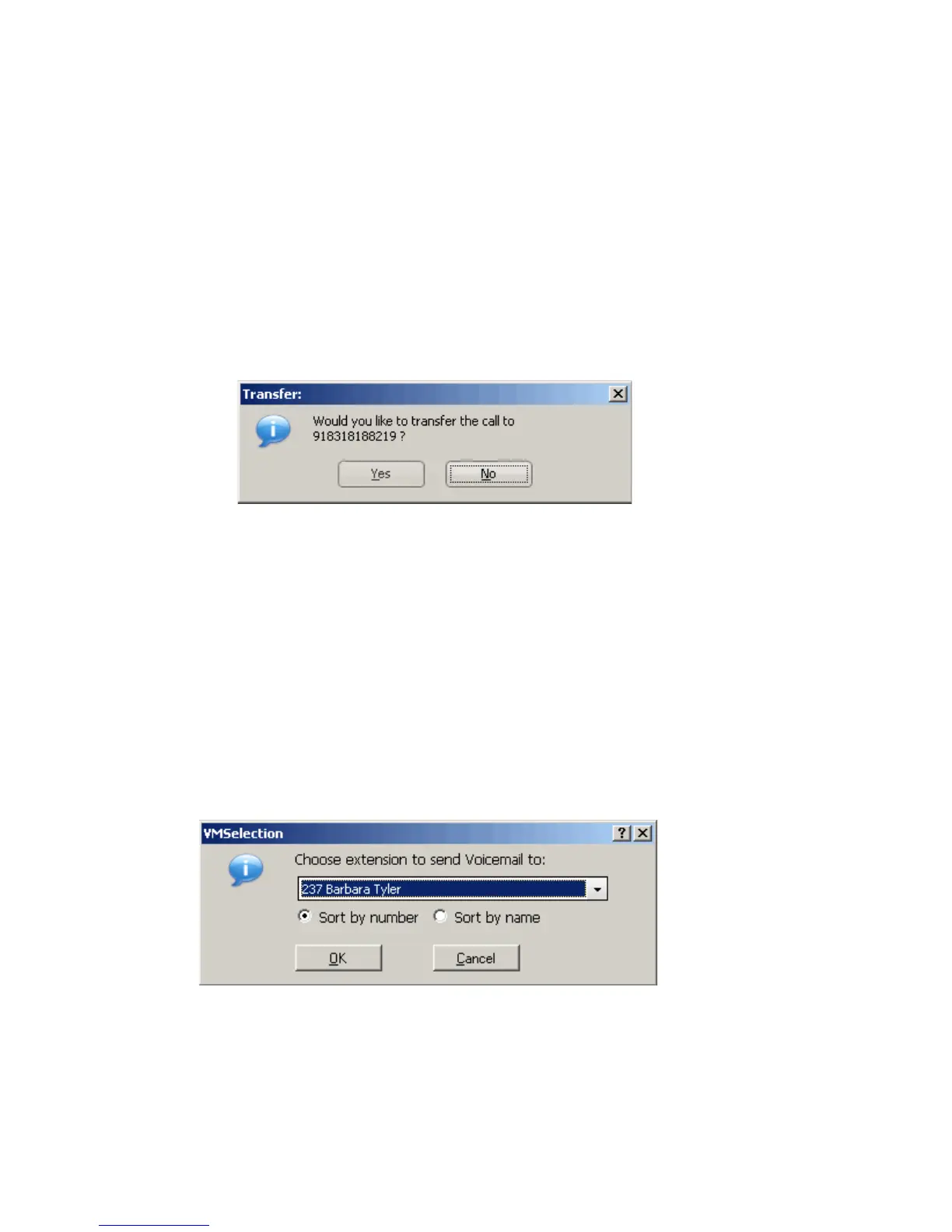
You’re asked to confirm the transfer by clicking the Yes button in a
confirmation dialog box.
You can click Yes before the party answers to do a blind transfer, or you
can wait for the person to answer and then confirm or cancel the transfer.
At any time before or after the person you’re transferring to answers
the phone, you can cancel the transfer by clicking the No button or by
closing the dialog box.
If the transfer is canceled, MaxCommunicator reconnects the call to
your extension. The call is also reconnected if the third party doesn’t
answer.
Transferring to Voice Mail
While connected to a call, click the To Voicemail button in the toolbar. In
the box that pops up, choose the extension you want to send the call to, then
click OK. (You can sort extensions by number or by name.)
Note: You can also forward a call to voice mail without answering it by
clicking the To Voicemail button while the call is ringing.



 To Next Page