MaxCommunicator Manual 41
Using
MaxCommunicator
• A paperclip symbol on the envelope indicates an attachment—a voice
mail message forwarded from another extension.
Dealing with Voice Mail
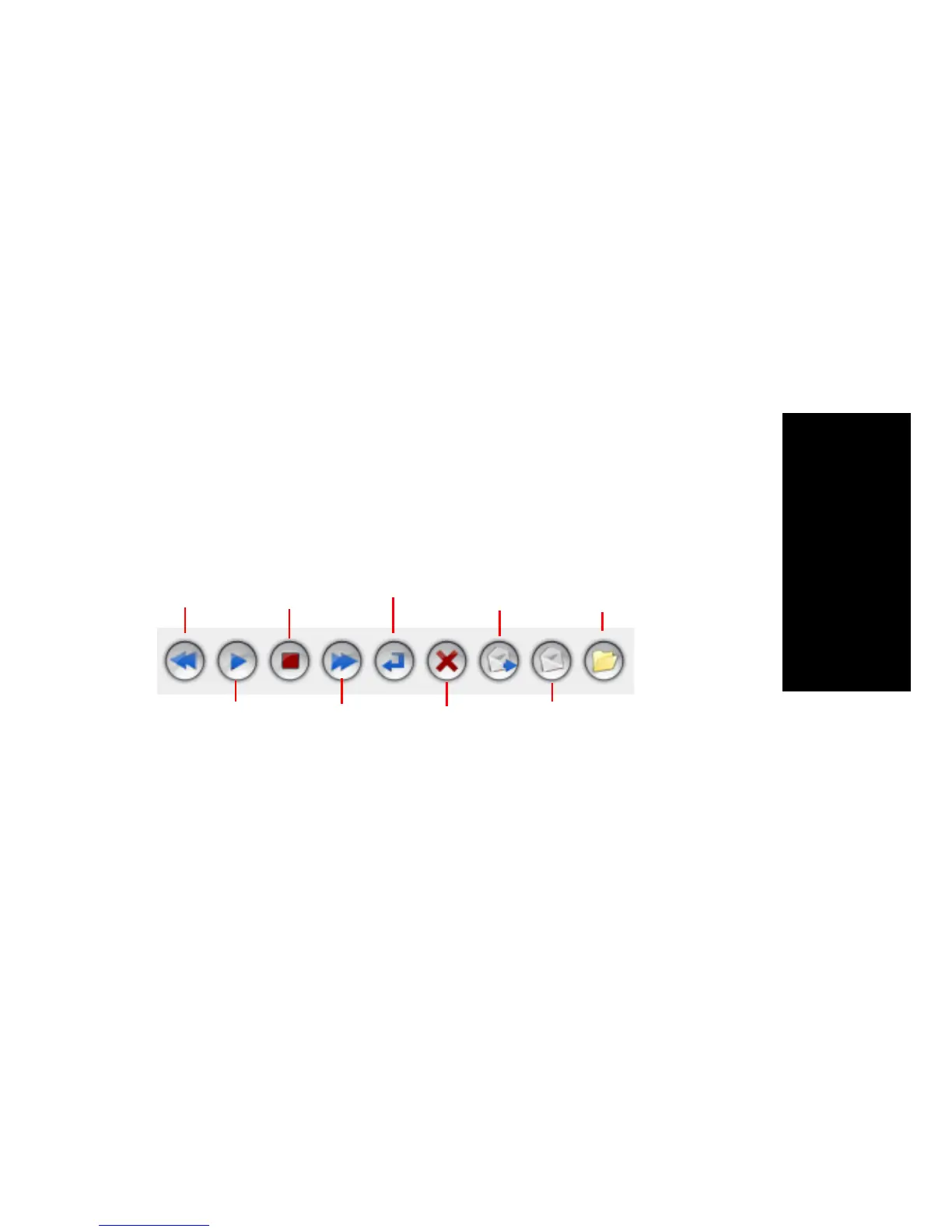
Select the message and use the voice mail command buttons at the bottom
of the Voicemail tab, as shown in the figure below. You can also access
these commands by right-clicking a voice mail and selecting a command
from the context menu.
Listening options are configurable, as described in “General Information”
on page 50. You can listen using the sound card on your PC or your phone.
You can play the message while it’s downloading or wait until it’s
completely downloaded to play it.
When you listen to a new message, the envelope icon changes from closed
to open, indicating that the message has been heard.
Use the voice mail command buttons to perform the following functions:
If you click another message in the list, the current message stops playing.
Saving Remotely or Locally
To save a message as a .wav file that you can play back later, click the Save
button or right-click the message. A dialog box opens, letting you choose
how you want to save the file.
• Save in remote saves the message on a remote server in a location
designated by the system administrator.
• Save in local lets you name the .wav file and choose a directory on
your local computer in which to store it. You can then play the .wav
file on a media player.
Return Call
Forward
Rewind
Stop
Play
Fast Forward
Save
Delete
Export



 To Next Page