v.early.1.03 – published on December 20, 2021
79
Touch & Fly: POI
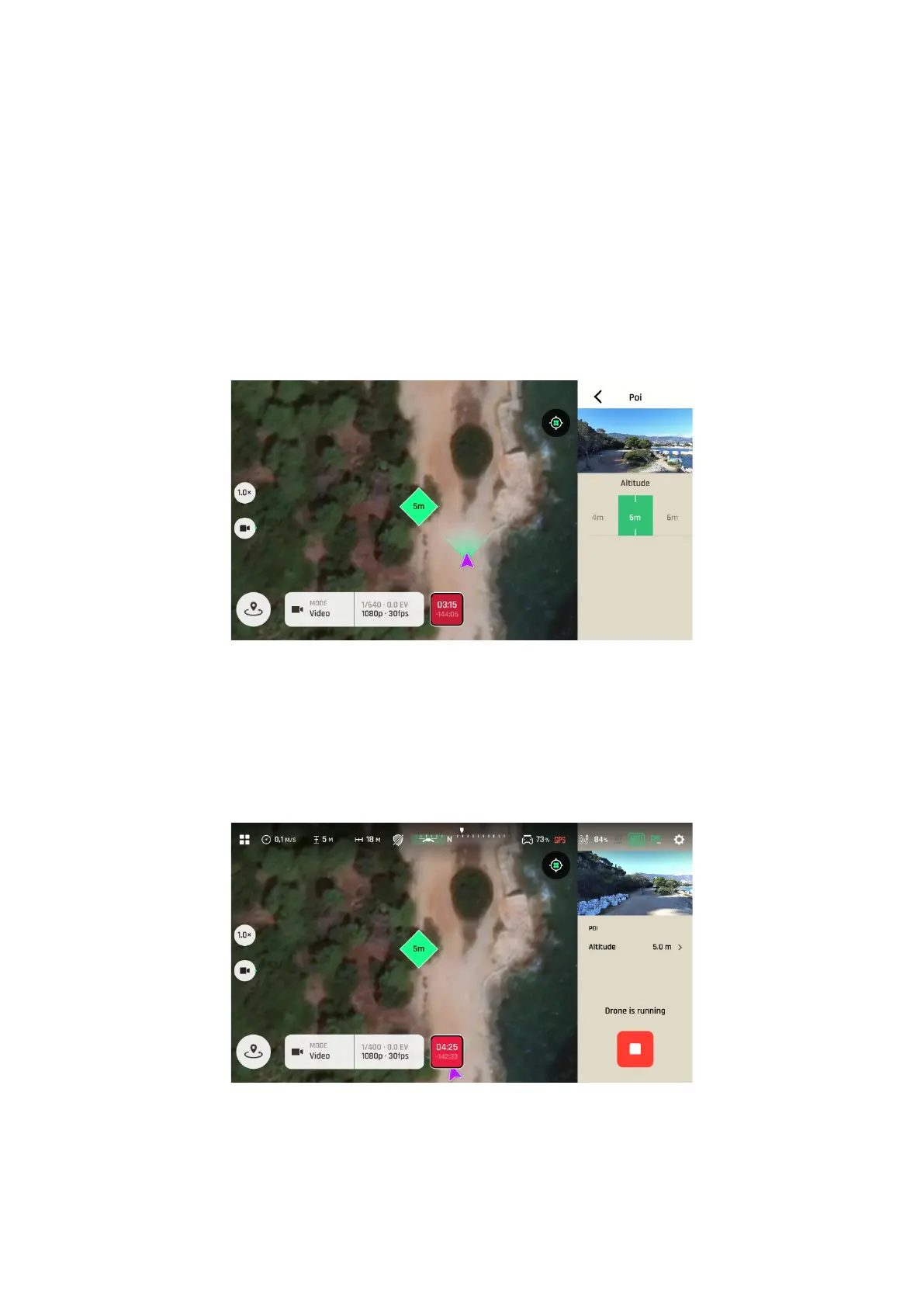
The Point of Interest (POI) “Touch & Fly” mode enables you to fly ANAFI Ai around
any point on the map, keeping this particular point at the center of the map. Tap
“Touch & Fly” from the “PILOTING MODE” box menu. The map of your surroundings
opens full screen. The live image captured by ANAFI Ai is minimized in the top right
corner of your screen.
Long press a point on the map to create a POI for ANAFI Ai: this point is marked
as a green square with a white border. Use the slider on the right of the screen to set
the altitude of the POI. Tap “<” from the top right of the interface to exit the POI
settings options.
Touch & Fly POI configuration
Fly ANAFI Ai around your POI. The drone keeps the POI at the center of the frame.
Therefore, if you push the right joystick of the Parrot Skycontroller 4 to the left,
ANAFI Ai circles around the POI clockwise. If you push the right joystick of the
Parrot Skycontroller 4 to the right, ANAFI Ai circles around the POI
counterclockwise.
Touch & Fly POI: Drone is running
When the Touch & Fly POI mode is activated, ANAFI Ai manages the gimbal tilt to
keep the POI in the frame. Therefore, the left trigger of the Parrot Skycontroller 4


 To Next Page