ANAFI Ai
58
VIDEOS, PHOTOS AND PANORAMAS
ANAFI Ai is equipped with a state-of-the-art 4K, 3-axis-stabilized camera, which
delivers astoundingly sharp motion and still pictures, through a 1/2’’ CMOS 48MP
sensor.
The lens of the camera includes low dispersion aspherical elements, that reduce
chromatic aberrations and flare, and guarantee optical excellence to such a small,
smart and versatile airborne imaging system.
Although you can film and take pictures using your device as ANAFI Ai’s only
controller, we recommend you always use the Parrot Skycontroller 4 and your
device, for the best controlled, most precise, and safest filming and photos-shooting
flights.
Making videos
By default, ANAFI Ai and FreeFlight 7 are set to start recording a video as soon as
ANAFI Ai
takes off. This literally means all you have to do, to start filming, is to fly
ANAFI Ai into the sky.
However, depending on your filming objectives, ANAFI Ai and FreeFlight 7 offer a wealth
of settings, from full auto to manual professional options, for you to make the most of every
situation.
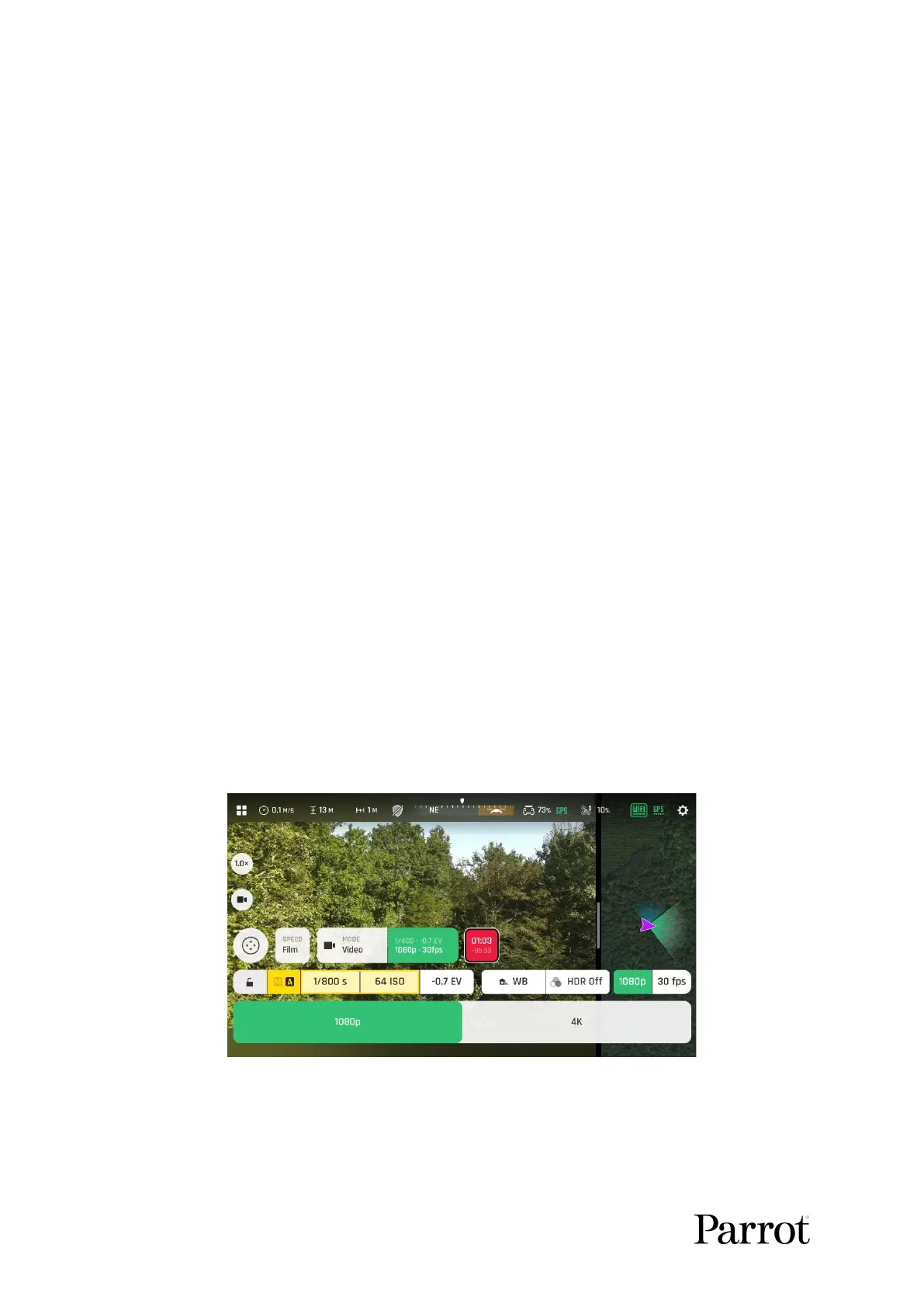
If required, tap the “Mode” box in the bottom bar of the HUD, to select the video mode.
Main filming options are twofold, and accessible from the HUD of FreeFlight 7.
First, select a video resolution by tapping the corresponding box of the HUD.
Video resolutions menu
Second, select a framerate (fps – frames per second) value from the
corresponding box of the HUD.


 To Next Page