27
Make sure that the SD card icon appears on the right side of the screen.
START
Press the [ ● ] button to start audio recording.
Once started, the [REC] icon will be displayed on the top left of the LCD.
STOP
Press the [ ● ] button to stop audio recording.
The [REC] icon will blink while data is written to the card. Once the icon is off, data write is
complete.
Note:If the data being written is large, it might take a while until data write is complete. Do
not interrupt this process.
HOW TO SKIP BLANKS
The function SQL.SKIP allows to skip blanks in your recording. If SQL.SKIP is set to ON, the
recording is paused when the squelch is closed (the recording file does not increase in size)
and the recording is performed only when the squelch is open.
1. Press [MENU]→use the cursor key [▶] to select [CONF] and press [ENT].
2. Use the cursor key [▶] to select [SQL.SKIP] and press [ENT].
3. Select ON or OFF by rotating the DIAL selector knob.
4. Press [ENT].
6.4. PLAYBACK
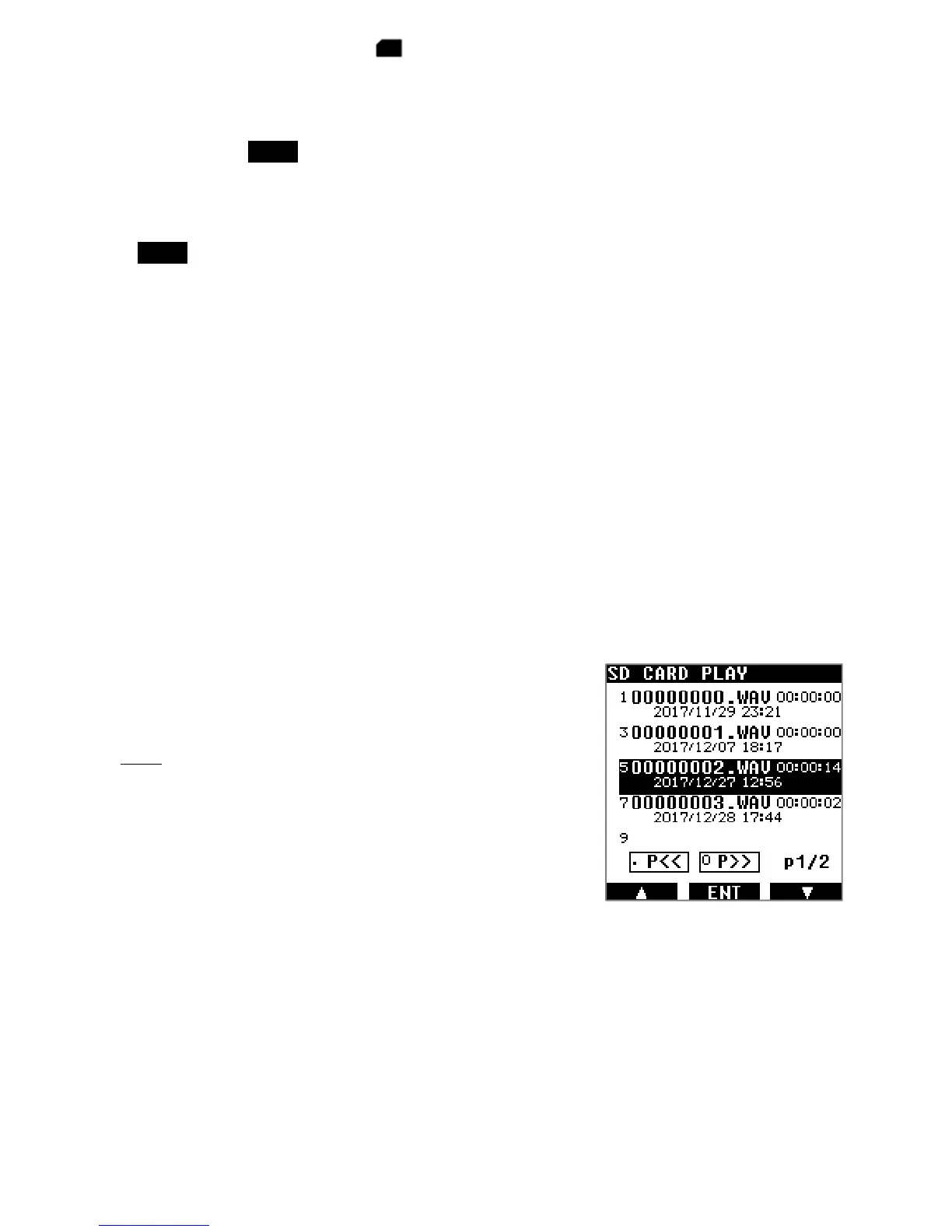
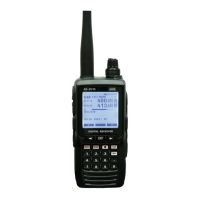
Audio which has been recorded using the AR-DV10 can
be played back directly on the AR-DV10.
1. Long press on [ ● ] followed by [ENT].
◯ The recordings file list is displayed.
◯ You can browse through the file list using the [▶] key.
2. Select the desired recording and press[ENT] to start
the playback. [PLAY] will blink on top of the screen during
playback.
3. To stop playback, press the [CLR] button.
6.5. SD CARD FORMATTING
The receiver cannot format SD cards. Should you need to format your card, use the official
SD formatting utility available at http://www.sdcard.org/downloads/formatter_4/


 To Next Page