16
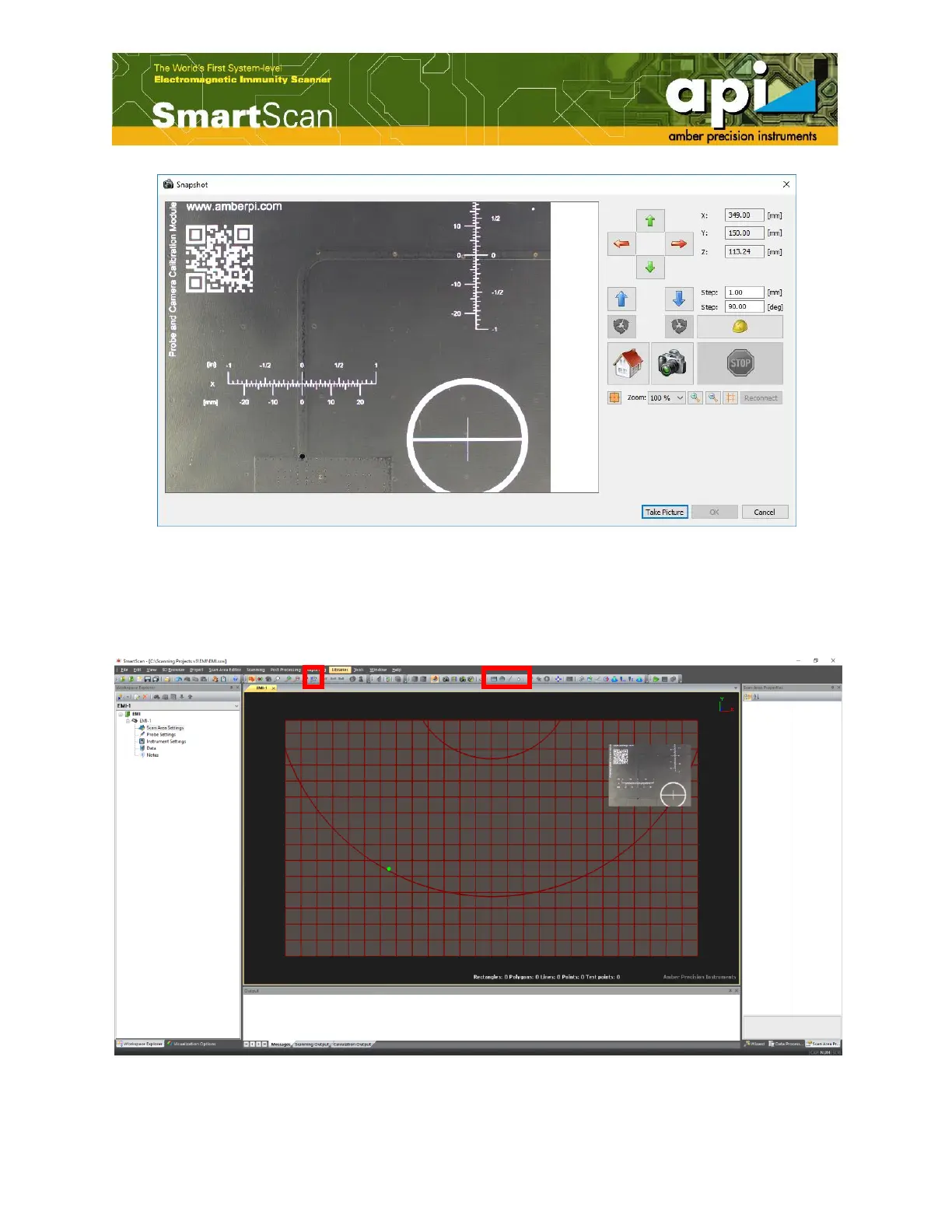
Figure 12: "Snapshot" window.
d. After moving the camera to the desired location, click on "Take Picture", then click on "OK".
Once the image of the DUT has been taken, the software will automatically super impose the
image onto a simulation of the scan table.
Figure 13: DUT picture in scan area.



 To Next Page