22
B. By manually moving the robot
a. Select a scan area (polygon area is selected in this example). Please note that the yellow dot
inside the scan area indicates the location where the probe will land. User can move this
yellow point to a different location by click left mouse button and drag the point.
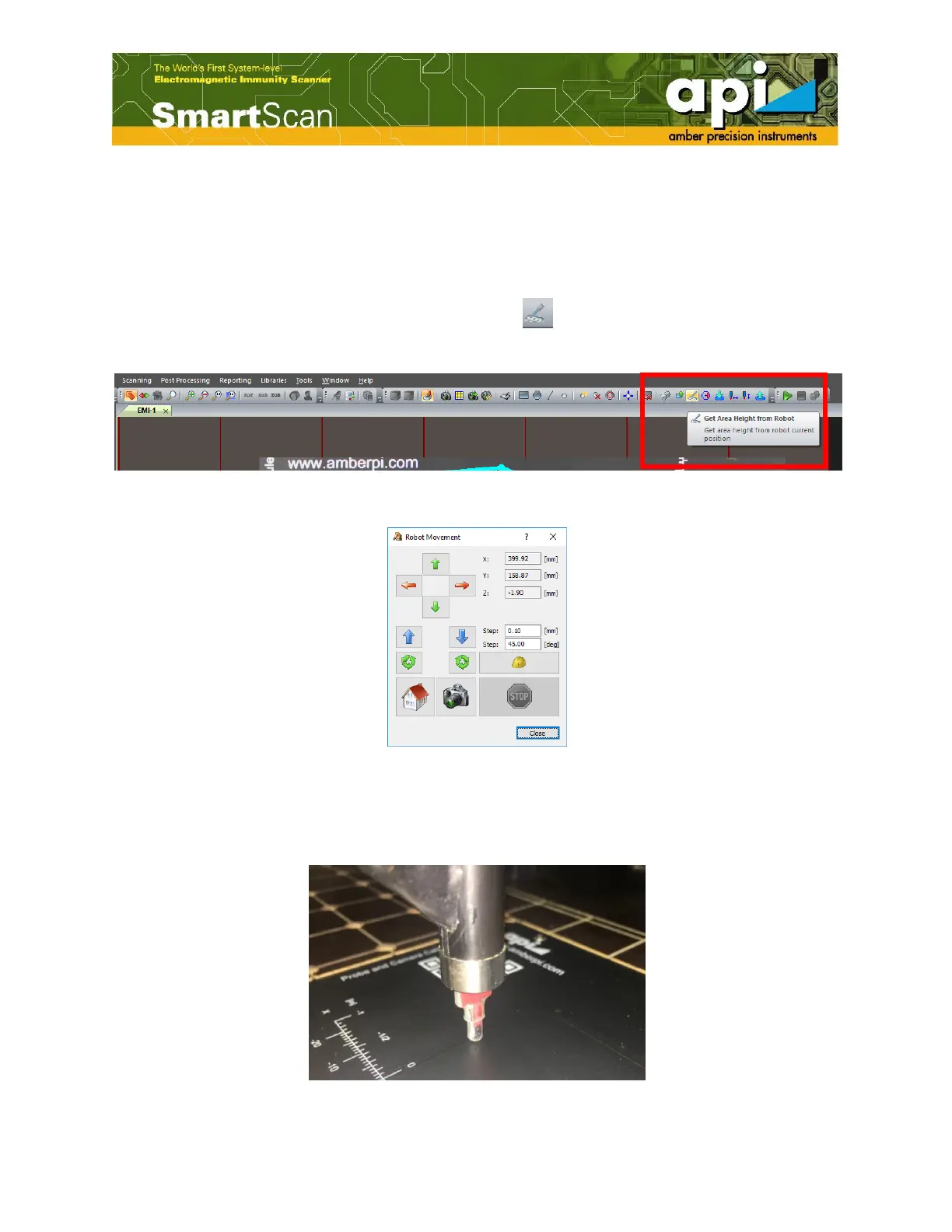
b. Click on "Get Area Height from Robot" icon ( ), from the top icon bar. The robot
movement window will pop up.
Figure 24: Get area height by moving robot.
Figure 25: Robot movement window pops up.
c. Move the probe to a point inside the polygon scan area over the DUT. Lower the probe down
until the probe tip barely touches the DUT.
Figure 26: Probe tip barely touching the DUT.



 To Next Page