19
d. When specific areas need to be excluded from the defined polygon area in the previous
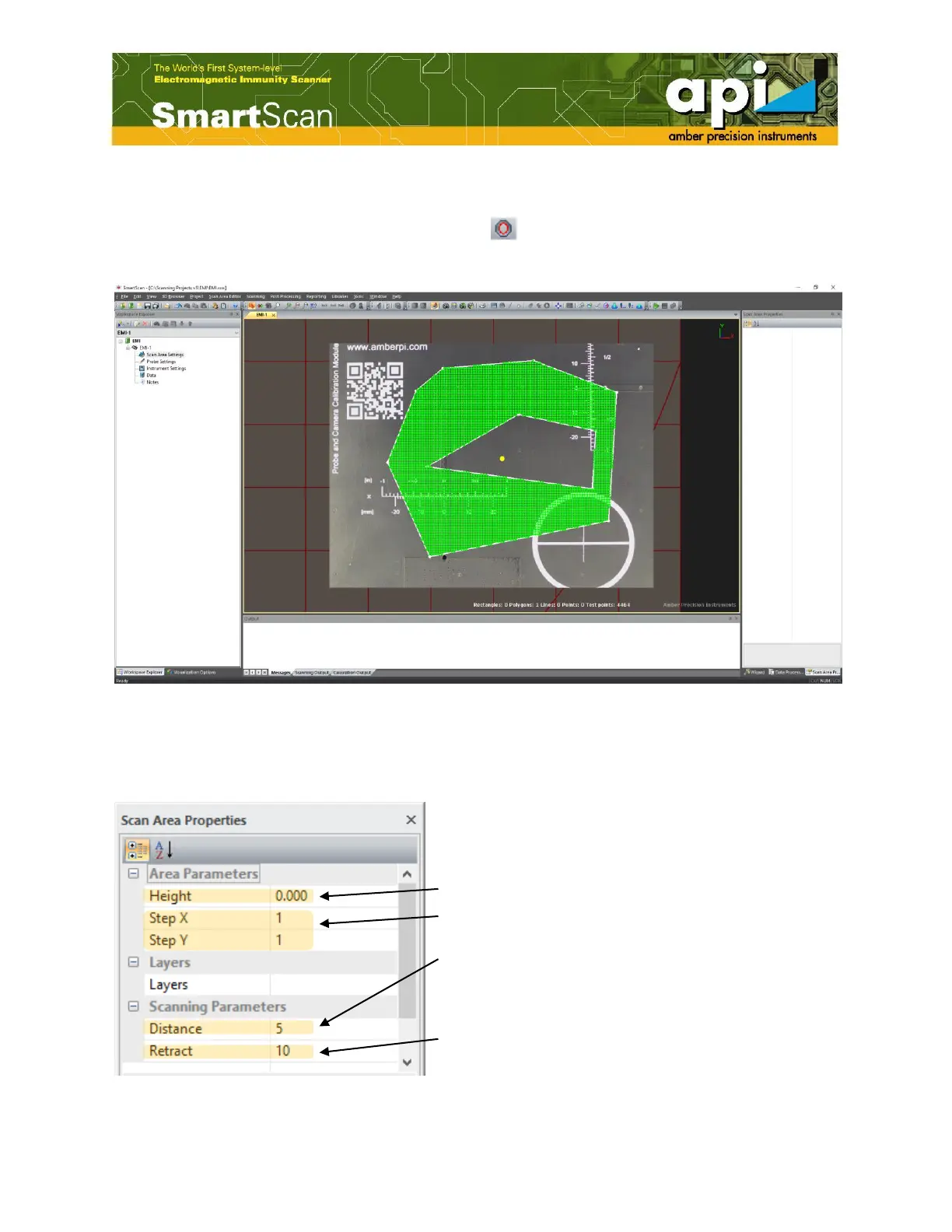
procedure, "Cut Area from Polygon" feature can be used to do so. Click the polygon area,
and click on "Cut Area from Polygon" icon ( ). Define the exclusive area the same way
the polygon area was assigned.
Figure 17: Cut out polygon area.
e. Click inside of the defined polygon area, "Scan Area Properties" pane will be activated and
will be shown on the right window.
Figure 18: Scan Area Properties pane.
Scan steps in X and Y direction
Distance – scan height. The distance between probe tip and
DUT surface.
Retract – How far the probe moves up when it moves from
one point to next measurement point. This is important to
prevent probe colliding with components at DUT surface.
Set it to pull up higher than the tallest component on the
DUT.



 To Next Page