10. At this point you may add more tests to the sequence, insert tests, insert
prompts, perform the test sequence, or store the sequence to the file name you
created.
Adding More tests to the Sequence
To add more tests to the sequence simply repeat steps 5-10 of this section.
Performing a Test from the Setup Test screen
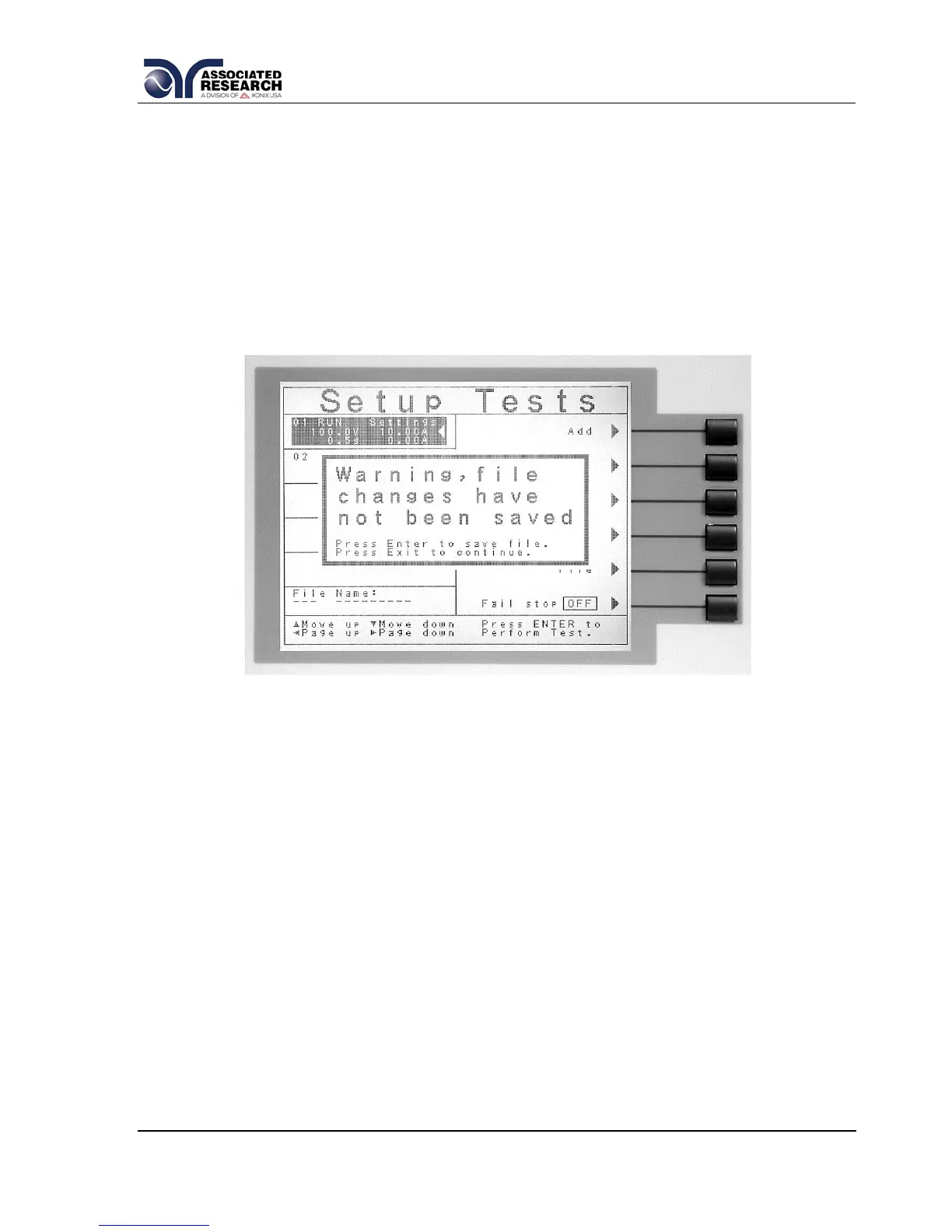
To perform the test you have just created press the ENTER key. The Setup Test
screen will now be displayed along with a pop-up message that appears as follows:
Pressing the ENTER key will store the file with the file name you gave it and go to the
Perform Test screen. You may now perform a test (refer to section 5.3. Performing a
Test).
Press the EXIT key to return to the Main Menu without saving the file. Even though
the file has not been saved, the file will be retained in RAM until another file is loaded
or created, or until the instrument is powered down.
Saving the Test File
From the Setup Tests screen press the “File” soft key. The File Setup screen will now
be displayed.
From the File Setup screen press the “Save” soft key. The file will save with the name
you created and the Setup Tests screen will be displayed with the new file loaded.
The instrument is now ready to perform tests with the new file. You may press the
ENTER key to go to the Perform Tests screen or press the EXIT key to return to the
Main Menu.


 To Next Page