User's Manual 48 Document #: LTRT-71405
MediaPack Series
6.4.1 Toolbar
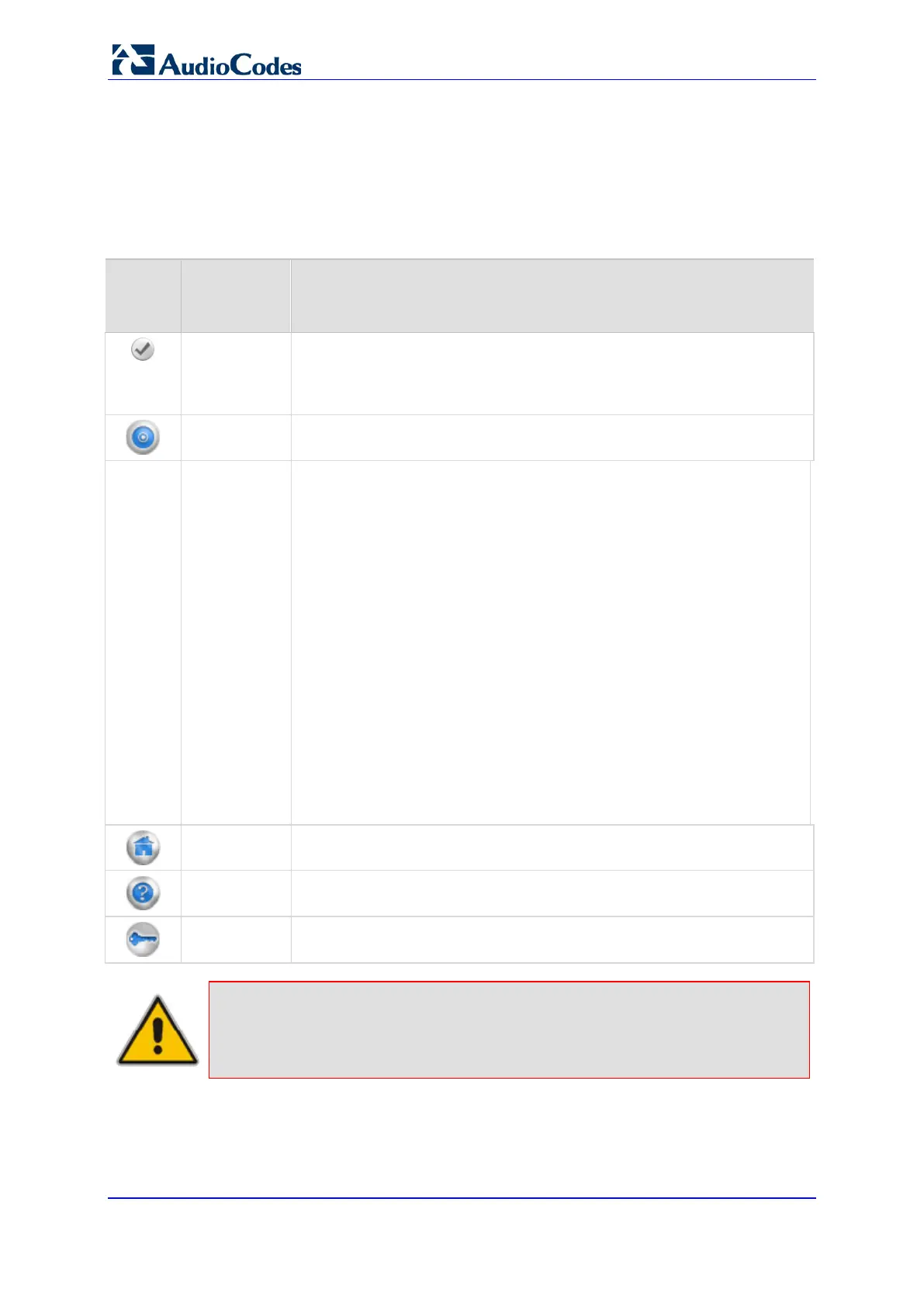
The toolbar provides command buttons for quick-and-easy access to frequently required
commands. The toolbar buttons are described in the table below:
Description of Toolbar Buttons
Icon Butto
n
Name
Description
Submit
Applies parameter settings to the device (refer to Saving Configuration
Changes on page
55).
Note: This icon is grayed out when not applicable to the currently opened
page.
Burn
Saves parameter settings to flash memory (refer to Saving Configuration
Changes on page
55).
-- Device
Actions
Opens a drop-down menu list with frequently needed commands:
Load Configuration File: Opens the 'Configuration File' page for loading
an ini file (refer to 'Restoring and Backing Up the device Configuration').
Save Configuration File: Opens the 'Configuration File' page for saving
the ini file to a PC (refer to 'Restoring and Backing Up the device
Configuration').
Reset: Opens the 'Maintenance Actions' page for resetting the device
(refer to Maintenance on page 122).
Restore Defaults: Opens the 'Configuration File' page for restoring the
parameters default values (refer to Restoring Networking Parameters to
their Default Values on page 18).
Software Upgrade Wizard: Opens the 'Software Upgrade Wizard' page
for upgrading the device's software (refer to Software Upgrade Wizard).
Switch Over: Opens the “High Availability Maintenance” page for
switching between Active and Redundant Boards (refer to High
Availability Maintenance).
Reset Redundant: Opens the "High Availability Maintenance" page for
resetting the Redundant Board (refer to High Availability Maintenance).
Home
Opens the Home page (refer to Using the Home Page).
Help
Opens the Online Help topic of the currently opened configuration page in
the Work pane (refer to Getting Help on page
58).
Log off
Logs off a session with the Web interface (refer to Logging Off the Web
Interface on page
57).
Note: If you modify parameters that only take effect after a device reset, after
you click the Submit button, the toolbar displays the word "Reset" (in red color). This
is a reminder for you to later save ('burn') your settings to flash memory and reset
the device.



 To Next Page