User's Manual 62 Document #: LTRT-71405
MediaPack Series
To delete all the alarms in the table:
1. Click the Delete History Table button; a confirmation message box appears.
2. Click OK to confirm.
6.4.13 Viewing Channel Information
To view Trunks and Channels Status:
1. To view the Trunks and Channel Status screen, click on the Status & Diagnostics
link on the Navigation Bar.
2. From the navigation tree on the left, click on the Trunks & Channels Status link. The
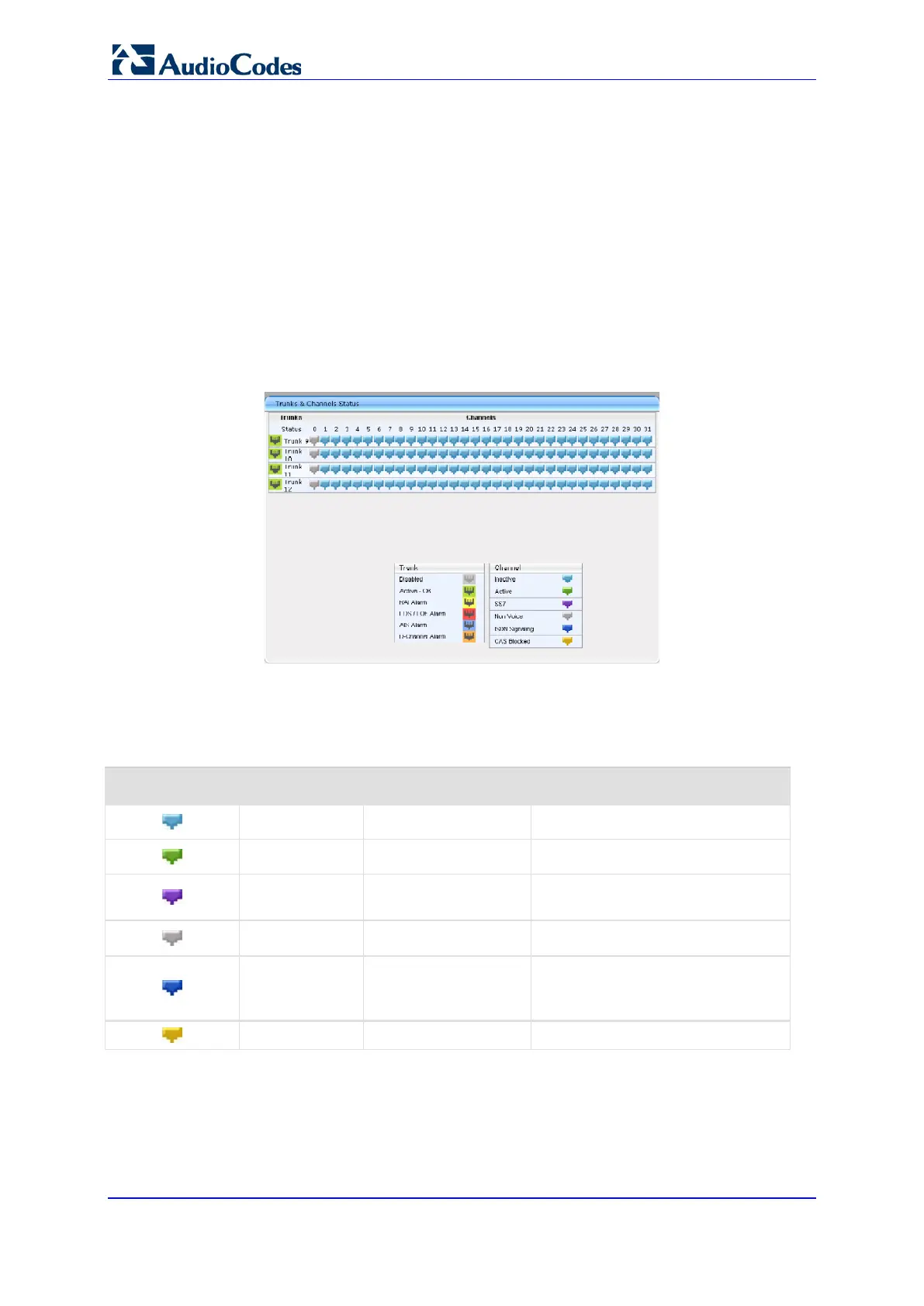
Trunks & Channels Status screen is displayed.
Figure 25: Trunks and Channels Status
The color-coding for the trunk's status is described in the table above. For color-coding
of the trunk's channels, refer to the table below:
Color-Coding for Status Trunk's Channels
Indicator Color Label Description
Light blue Inactive Configured, but currently no call
Green Active Call in progress (RTP traffic)
Purple SS7 Configured for SS7 (Currently not
supported)
Grey Non Voice Not configured
Blue ISDN Signaling or
V5 Signaling (TP-
8410)
Configured as a D-channel
Yellow CAS Blocked --
3. To view the configuration settings of the trunk and / or to modify the trunk's settings, in
the 'Trunks & Channels Status' screen, click the Trunk icon, and then from the
shortcut menu, choose Port Settings; The 'Trunk Settings' screen appears. (For
detailed information on configuring the trunk in this screen, refer to Trunk Settings.)
4. To view information of a specific trunk's channel, in the 'Trunks & Channels Status'
screen, click the required Channel icon.



 To Next Page