USER’S MANUAL / bit Tune /
73
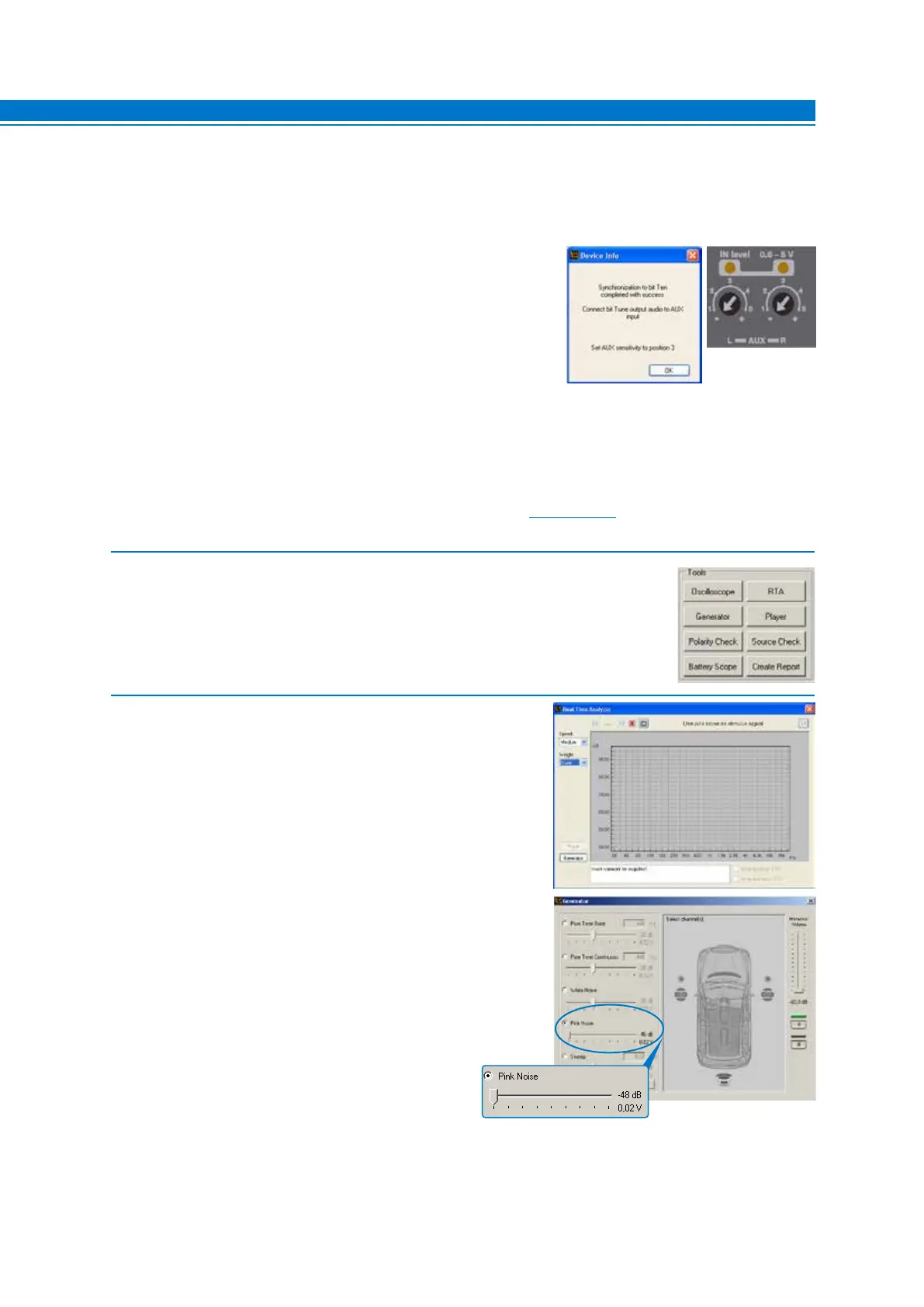
2. - Select the RTA function from the ‘”Tools” menu of the PC software or
click on RTA from the main menu.
3. - Set the resolution speed by the Speed menu.
- Set the acquisition weighing by the Weight -> A-weigh menu.
Select the Generators function from the Real Time Analyzer menu.
- Set the processor’s volume to -60 dB.
- Activate the Pink Noise generator.
- Set the generator’s volume to -48 dB.
7
1. Connect the bit Tune to the Audison bit processor, as shown in fig. 1, 2 or 3 (see points A, B and C).
The AUTO TIME ALIGNMENT procedure must be performed in an environment that is not noisy,
with the car’s engine off, air conditioning off, doors and windows tightly closed and radio frequency
devices away from the car’s passenger compartment.
- Turn the bit Tune on and connect the USB cable to the PC.
- Set the function switch of the bit Tune on PC ANALYZER.
- Turn on the Audison bit processor and connect the USB cable to
the bit Tune.
- Start the bit Tune software by clicking the icon on the PC desktop
and launch the software in bit Tune + Processor mode.
A. bit Ten: Connect the AUX Left and Right inputs of the bit Ten to
the Pre Out Left and Right outputs of the bit Tune, and set the
level of the AUX inputs to position 1.
B. bit One: Connect the AUX1 Left and Right inputs of the bit One to the Pre Out Left and Right outputs
of the bit Tune.
C. AP bit: AP bit: connect the Aux input to the L-R outputs of the bit Tune, ensuring that the AUX input is
enabled. If you want to connect the bit Tune to AP bit amplifiers to perform measurements, but the AUX
input port is already occupied, you can use the OPTICAL input (see section 4.5.6).


 To Next Page