USER’S MANUAL / bit Tune /
91
If there is any product UPGRADE available online, proceed as follows:
- Save the configuration previously set (for future reference/use).
- Connect the bit Tune to the USB port of your PC.
- Disconnect all audio inputs of the bit Tune.
- Turn on the bit Tune.
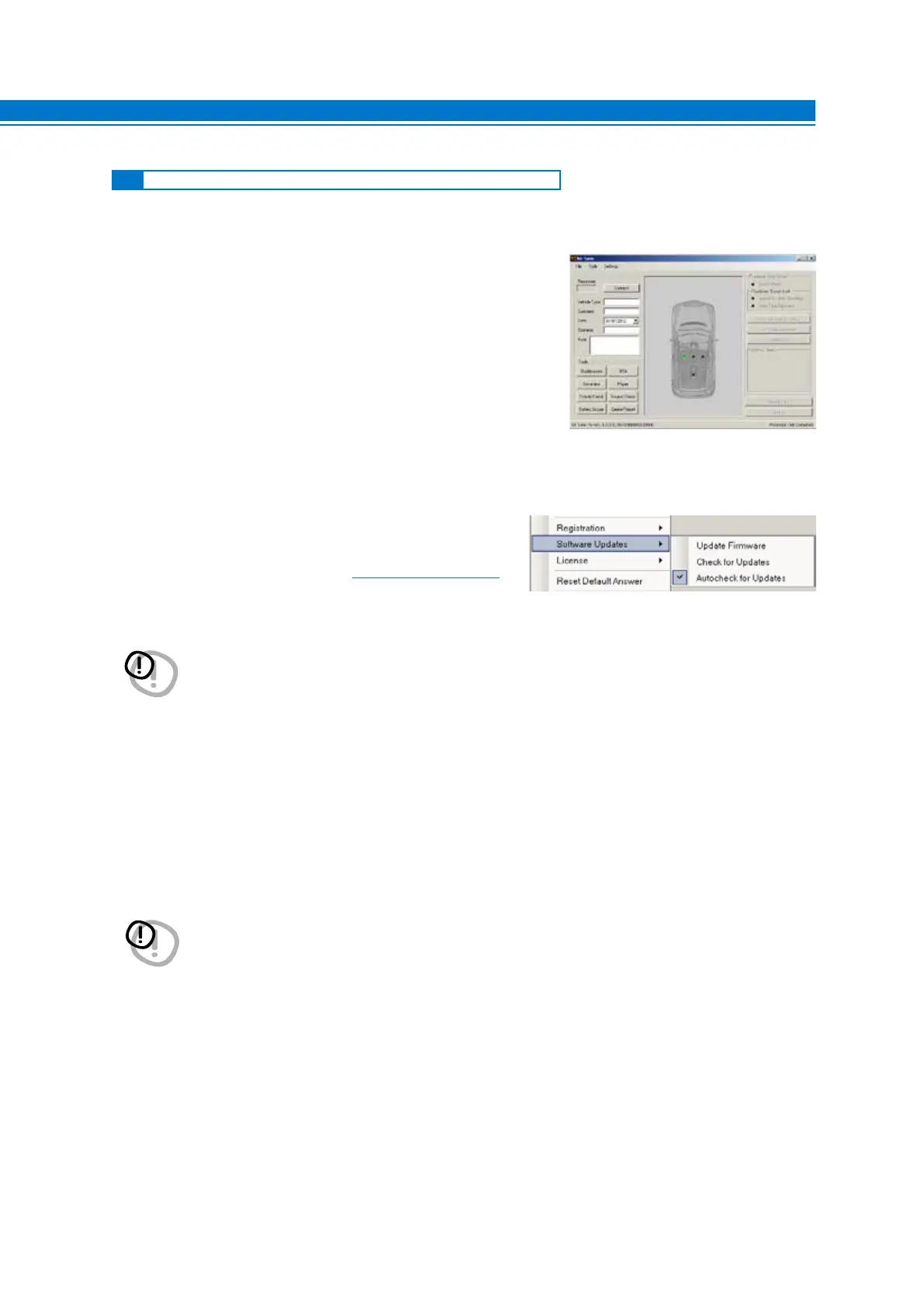
Start the PC software for the bit Tune and select the “bit Tune” mode.
1. Access the “FILE” menu of the software on your PC and
click “Check for Updates”. This will open the Internet
browser on your PC and it will automatically start to
search for the bit Drive Portal URL: www.audisonbitdrive.eu
2. In order to access the Download page with the updated versions of documentation, Software and Firmware, you
must enter the LOGIN and PASSWORD; insert bittune in both fields.
3. Find the latest file whose name contains the word Firmware followed by four digits and click on its symbol to start
the download. When prompted, save the file on your PC.
4. Exit the browser.
9
9.4 BIT TUNE and BIT TUNE + Processor MODE FIRMWARE UPGRADE
WARNING: The procedure for updating the bit Tune firmware can be tricky. It is of the utmost importance that
this is done in the best possible conditions: if the operation should be initiated but prematurely interrupted
(e.g. locked computer, power failure of the bit Tune, accidental disconnection of the USB cable during
the update), you may need to reprogram the bit Tune in “Rescue Mode”. In extreme cases, send the bit
Tune to technical assistance for its reprogramming.
WARNING: The files have to be manually downloaded from the bit Drive Portal. The access method to the software
may be different from the one described as follows. Please always refer to the instructions available on
the bit Drive Portal.


 To Next Page