34 300-002547-00 rev7
4. Click or tap the patient DICOM and the select Import.
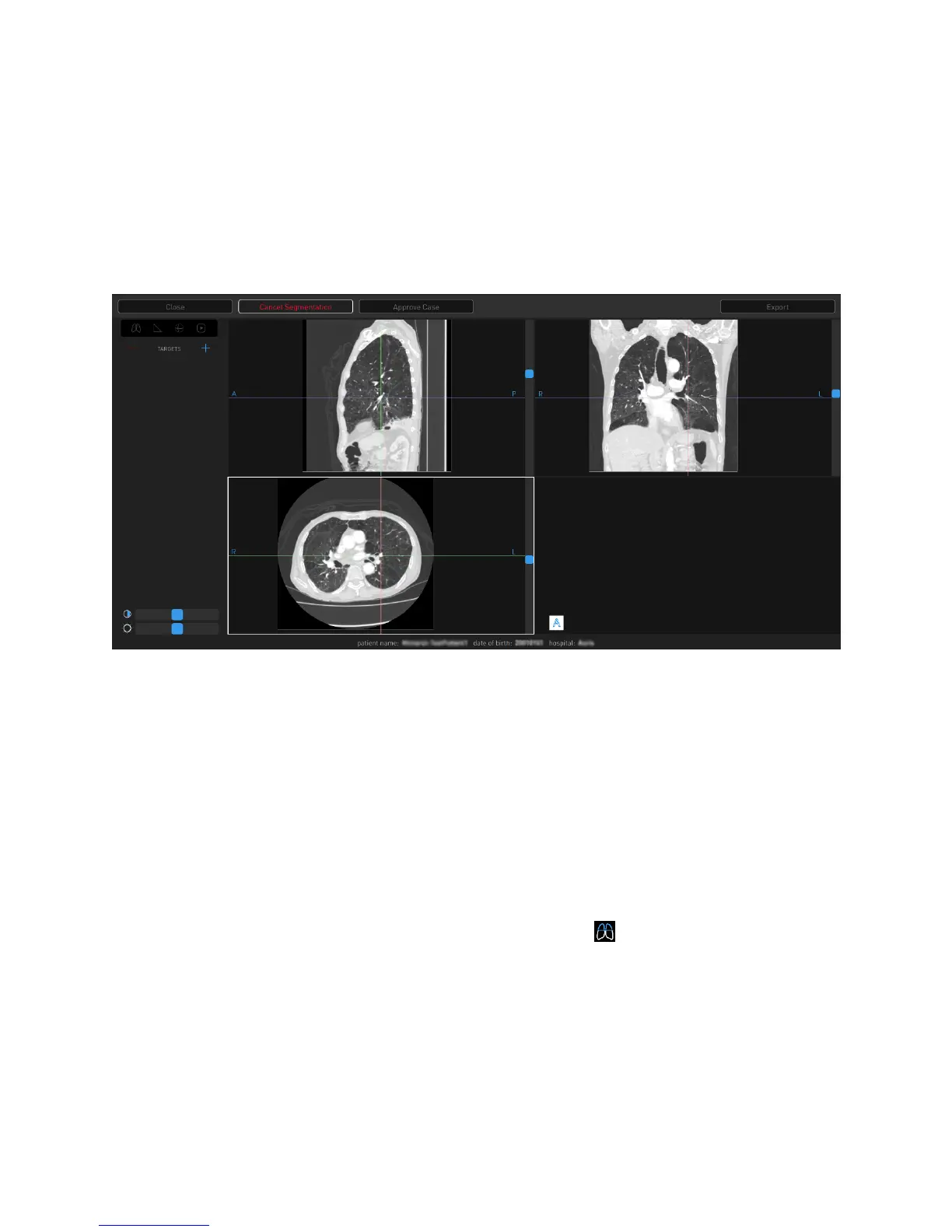
The new case automatically loads, and the Planning screen appears.
5. Click or tap a patient from the list and select Open. The Planning screen
appears.
6. Double-click or double-tap for a full screen view of any of the image view
windows. Segmentation automatically begins.
7. Click or tap Cancel Segmentation to stop.
The progress bar inside Cancel Segmentation indicates that "Segmentation"
is proceeding. When segmentation is complete, the status bar updates and
the segmented airway tree appears in the lower-right image viewer
(Segmentation view).
8. Review the segmentation results.
a. If you do not like the segmentation results, click or tap Run
Segmentation.
9. An overlay of an axial CT slice can be added to the segmented airway tree in
Segmentation view by clicking or tapping the icon. The axial slice overlay
correlates to the section of the segmented airway selected.
a. Click or tap another section of the segmented airway tree to move the
overlaid CT slice.


 To Next Page