300-002547-00 rev7 35
Identify a Target
WARNING: Increased size of nodule selection may lead to path creation to
critical anatomy. Confirm that the selected nodule is the intended target.
WARNING: Path creation provides supplemental information to navigate to
nodule. Failure to exercise clinical judgment to determine appropriate navigation
and biopsy plan may result in biopsy of unintended location.
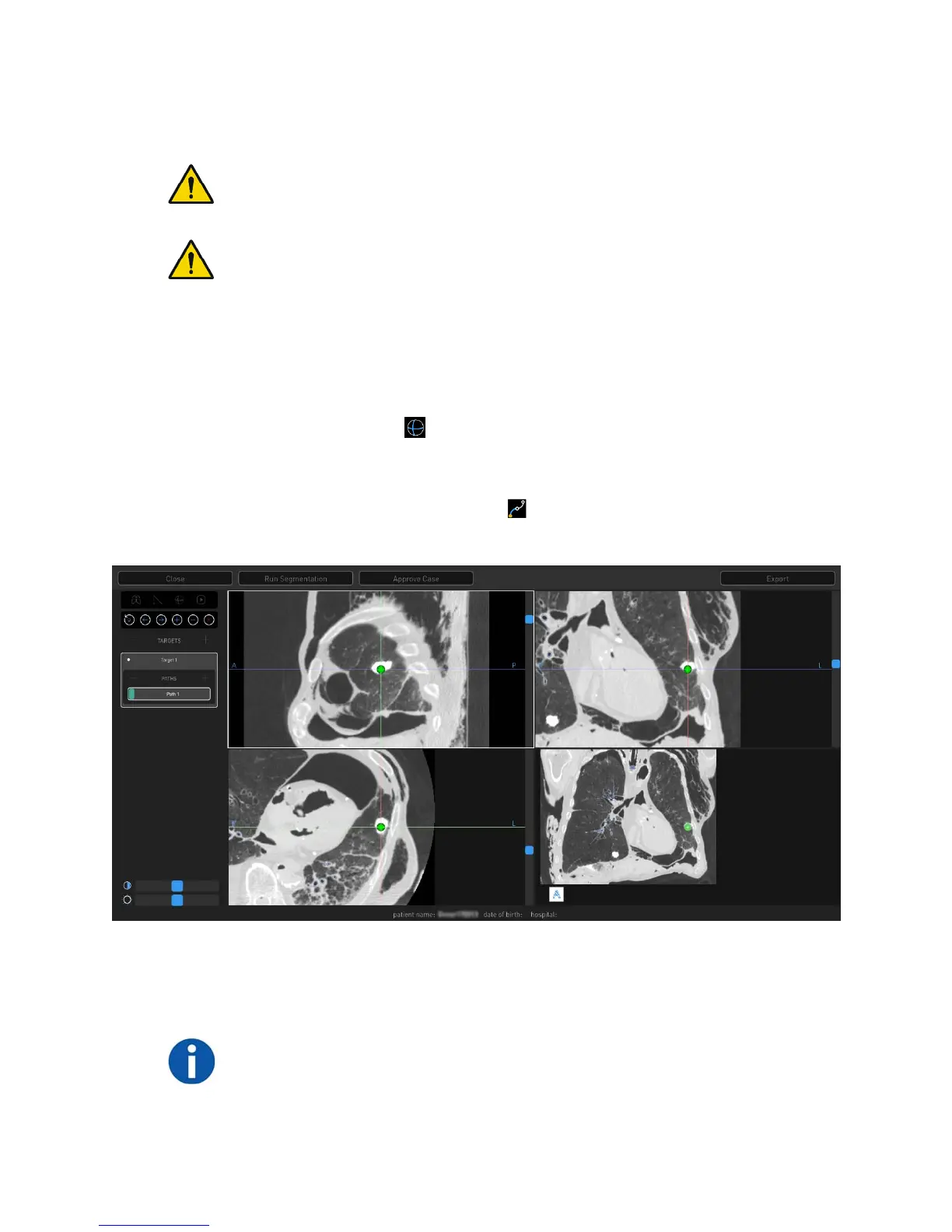
1. Place crosshairs over a region of interest in any of the CT views and click or
tap + next to Targets to create a new target. A new target and new path
appear automatically.
a. The target shape is based on the anatomy of region selected. Click or tap
the Sphere icon to change the target shape to a sphere. Right-click
and drag to adjust the sphere target size. Click or tap the Sphere icon
again to return to original target shape.
2. Click or tap the Manual Path icon if the target is beyond the default path
created during segmentation view or to create a manual path.
3. Insert drop points to create a manual path in the Segmentation view (lower-
right image viewer). Paths start at the nodule by default and work back
towards the main airway.
NOTE: Points can only be placed in the Segmentation view (lower-right image
viewer). This can be done in the small image viewer (as shown in the previous
image) or in full-screen mode. Full-screen mode is accessed by double-clicking


 To Next Page