36 300-002547-00 rev7
in the Segmentation view. To return to the small image viewer, double-click
while in full-screen mode.
To change the view angle, click (or tap and hold on the Touchscreen) and
move the cursor around on the screen.
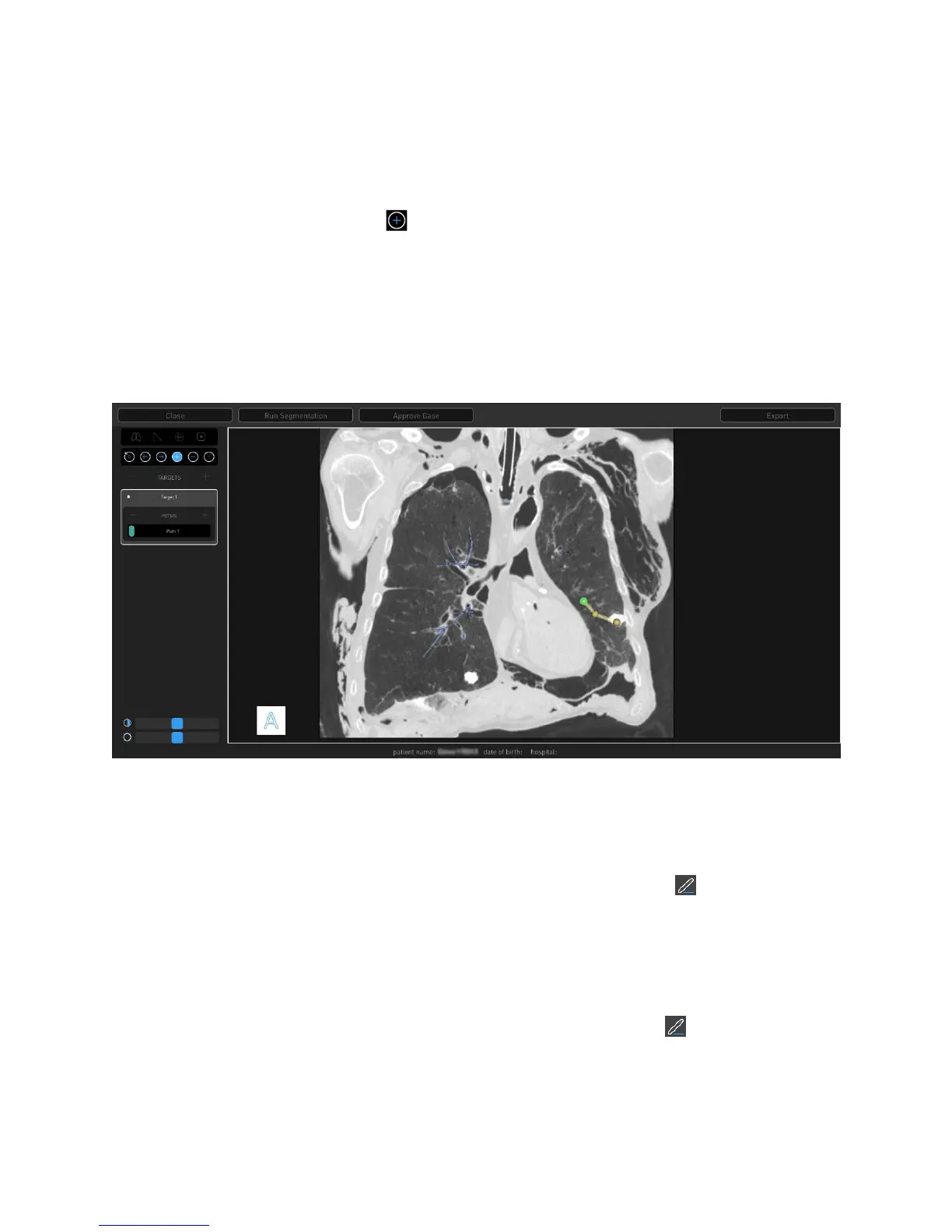
Use the Add icon and click to add points (or right-click with the mouse).
Click or tap the Add icon to switch on the ability to add points. Click or tap
the Add icon again to switch it off.
To zoom in and out, scroll or tap, followed by tap and hold on the
Touchscreen.
Double-click or double-tap on the Touchscreen for a full screen view of the
manual path image viewer.
4. When the manual path is close enough to connect to the default segmented
airway tree, the manual path snaps to connect to the automatic path and the
Manual Path screen automatically closes.
5. To name a target:
a. Select the target name and click or tap the Edit icon .
b. Delete the active name using the backspace on the keypad and type in a
new name to identify the target.
c. Click or tap the Check icon to save the new name.
6. To name a path:
a. Select the path name and click or tap the Edit icon .
b. Delete the active name using the backspace on the keypad and type in a
new name to identify the path.
c. Click or tap the Check icon to save the new name.


 To Next Page