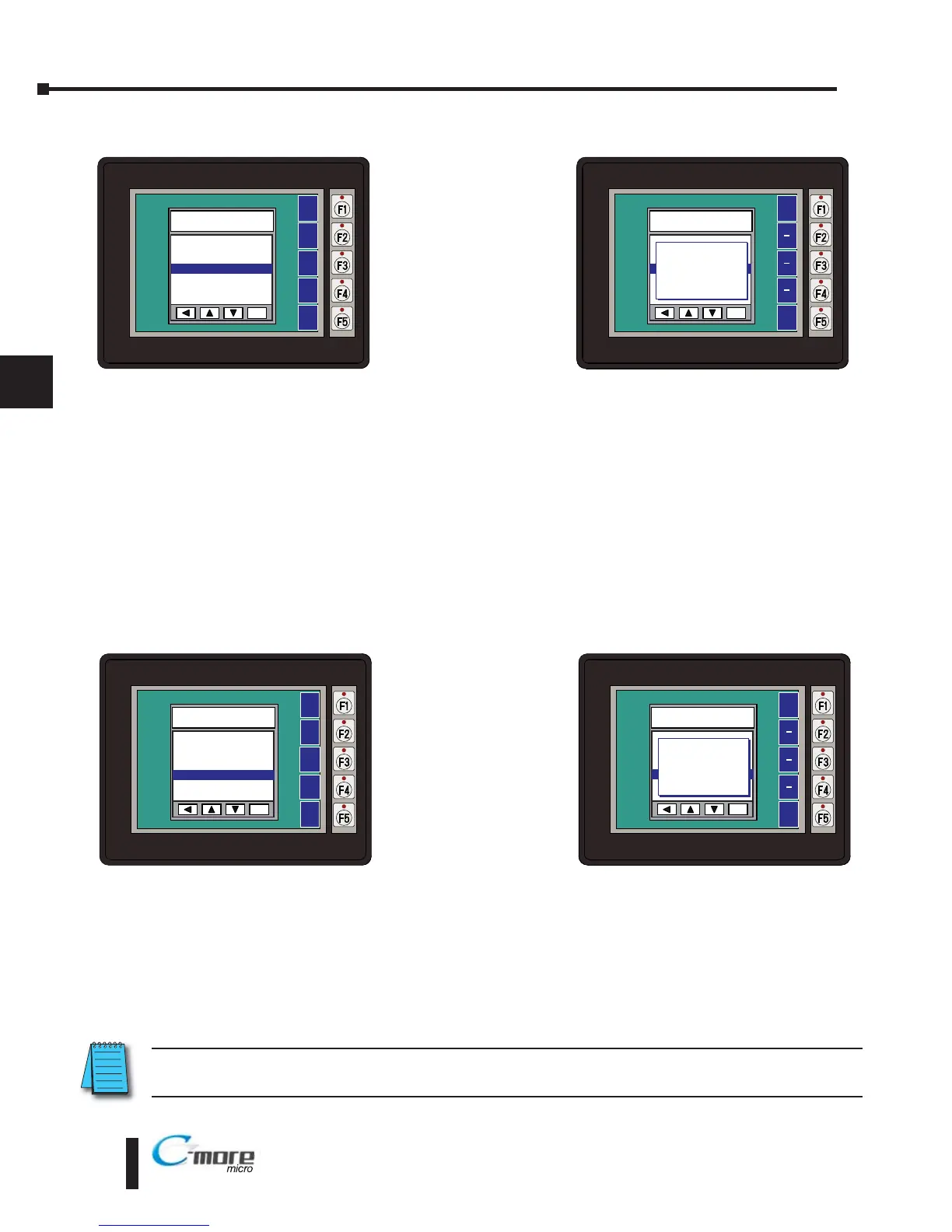
Setting – Clear User Memory
With Clear User
Memory
highlighted, press
ENT [F5]. You will
be given the choice
to either proceed
with clearing the
user memory by
pressing [F5] for
YES or allowed to
cancel by pressing
[F1] for NO.
Setting – Reset to Factory Default
With Reset to
Factory Default
highlighted, press
ENT [F5]. Press [F5]
to restore all settings
to factory defaults
and clear user
memory. Press [F1] to
cancel.
Factory default values can also be reset by pressing F2 and F4 while cycling power to the panel.
The Factory Default values are:
• Brightness value of 10
• The internal audible beeper enabled
• Forced touch panel calibration
• User program cleared from memory
• Hourglass icon delay of 350 ms.
• Horizontal orientation
NOTE: User memory is cleared when factory defaults are reset. Use the C-more Micro-Graphic
programming software to read the program from the panel iand save a backup copy.
5–10
Chapter 5: System Setup Screens
5


 To Next Page
 Loading...