4.4 | Overview Pro-Stcher User Manual
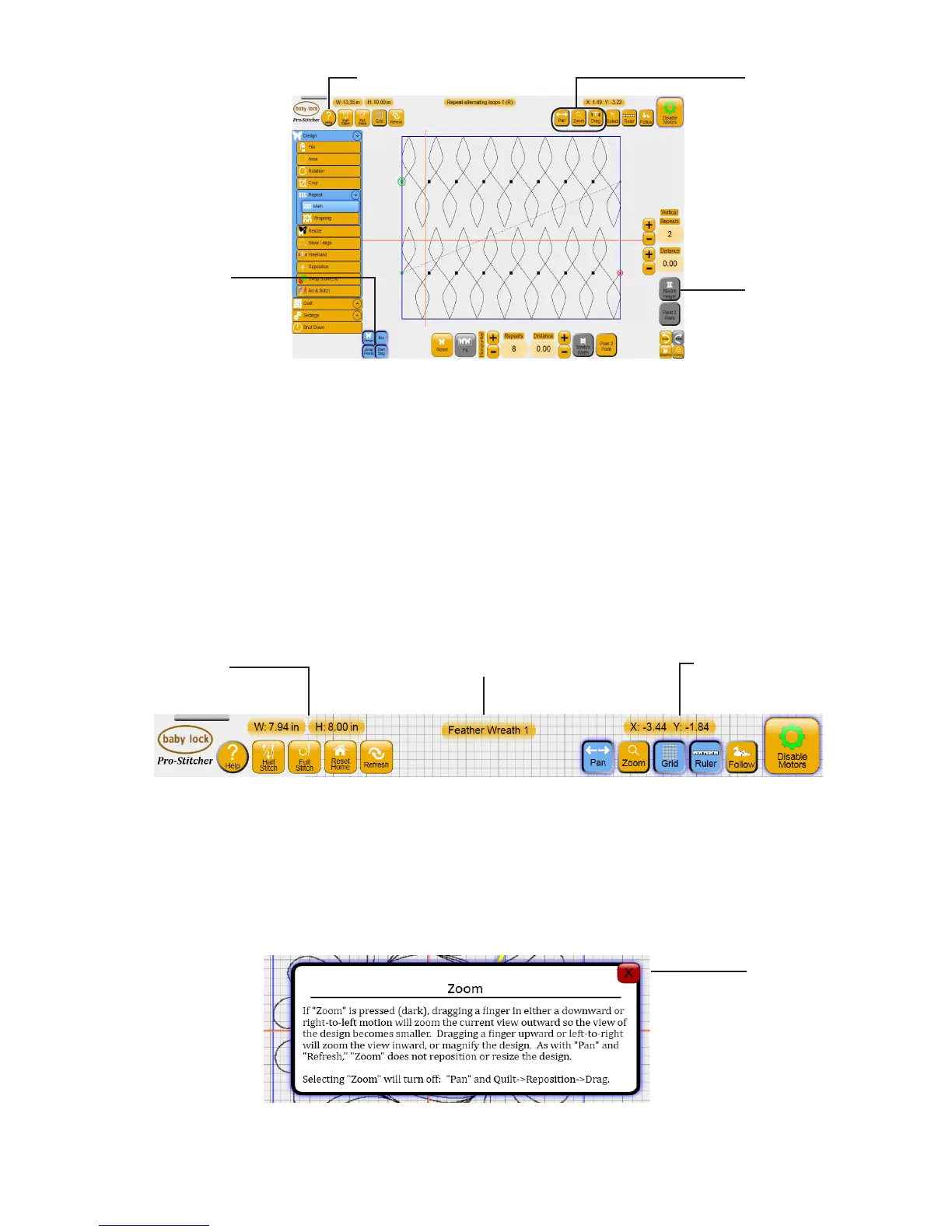
Gray Buons
Depending on the menu or sub-menu item selected, there may be certain buons that are grayed out. A
gray buon indicates that this funcon is not currently available. This typically happens because you have
started a funcon that must be completed rst or that the grayed-out funcon is not possible within the
selected funcon.
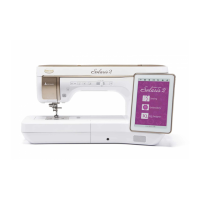
Top toolbar buons
Commonly used funcons are across the top of the screen for easy access. They are available regardless of
which menu opon you have chosen.
Also visible at the top of the screen are the name of the current design le, the size of the design, and the
posion of the crosshairs. A leer appears next to the name of the current design le to indicate what
type of design it is: (D) indicates it is a design; (G) indicates it is a grouped design; and (R) indicates it is a
repeated design.
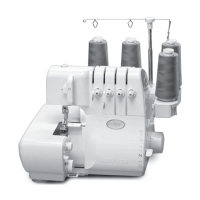
To get on-screen help
Help buon
The Grid and Ruler
buons are toggles.
Press to turn on or
o.
Selected buons and
menu opons are a
darker color.
The Pan, Zoom, Drag,
and Select buons
cannot be selected at
the same me.
A gray buon means
the funcon is not
currently available.
Design size in inches
Name of current design le
Posion of crosshairs
Press to close any
pop-up box, such as
a Help box






 To Next Page