5.6 | Design Menu Pro-Stcher User Manual
• To save a group as a design, select the group, select Save and then select Design before giving it a
lename and saving.
If you save a group of designs as a project, Pro-Stcher saves each design independently so that when you
load the project again, you will be able to modify the designs individually.
• To save a group as a Project, select the group, select Save and then select Projects. Give the group a
le name and select Save on the Save Project screen.
To save designs or projects to a new folder
• To save the design or project to a new folder, browse to the desired folder using the folder tabs on
the le side of the design library. Alternavely, use the navigaon buons at the top of the screen
to move among folders and drives.
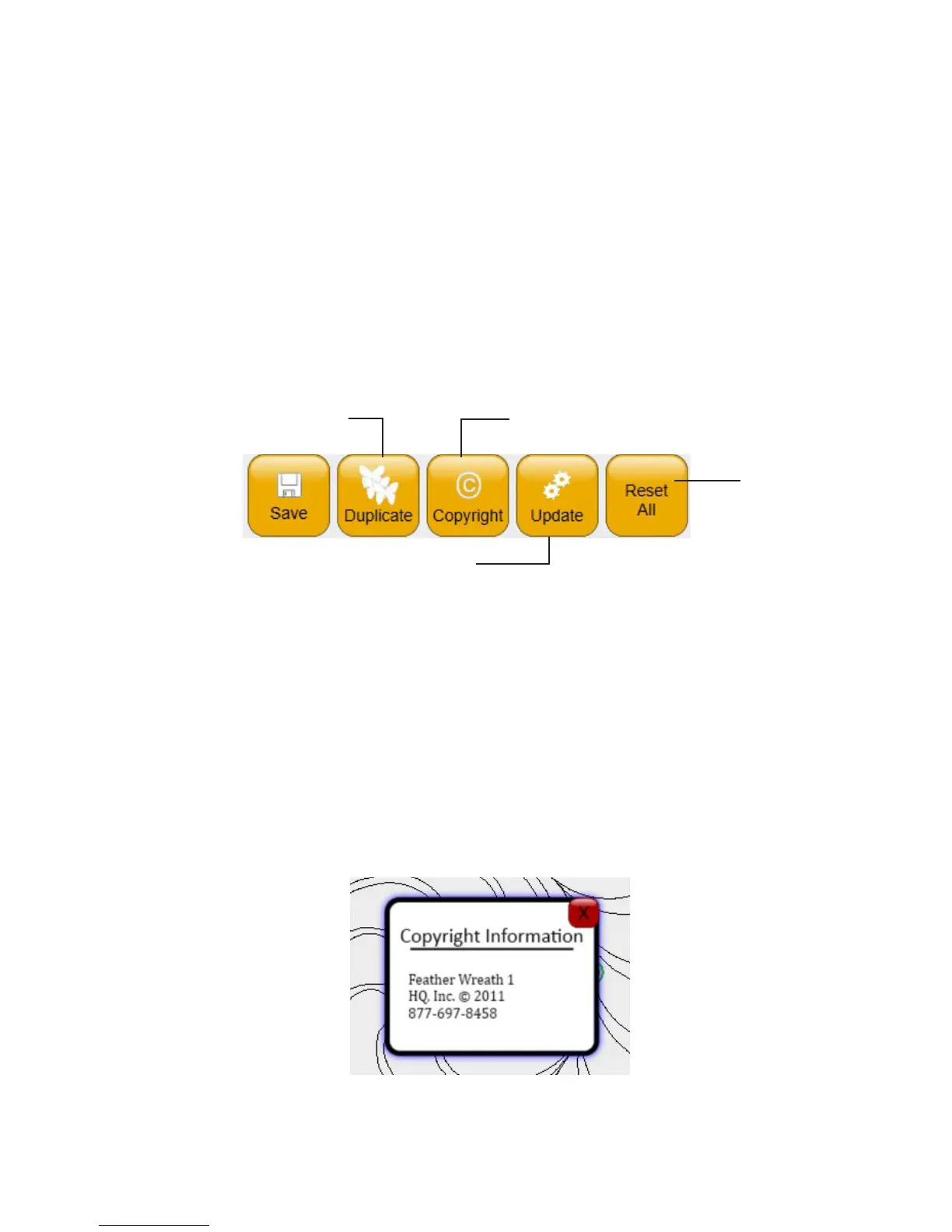
To duplicate a design
• Select the design or group you want to copy and choose Duplicate.
The duplicated design is placed at the current posion of the crosshairs. If the crosshairs have not been
moved, the duplicate(s) will be in exactly the same place as the original. Choose Reposion or Drag to
move the duplicated design to a dierent locaon in the work area. Alternately, select the design or group
and drag it to a new posion on the screen.
To view design informaon
Many designers include copyright informaon and instrucons on how to use their designs within the
design le itself.
Copies and pastes
the selected design.
Displays informaon
about the selected design.
Resets the design
to its original
design sengs.
Loads Pro-Stcher soware
updates you’ve downloaded to a
USB drive.




 To Next Page