8.8 | Sengs Menu Pro-Stcher User Manual
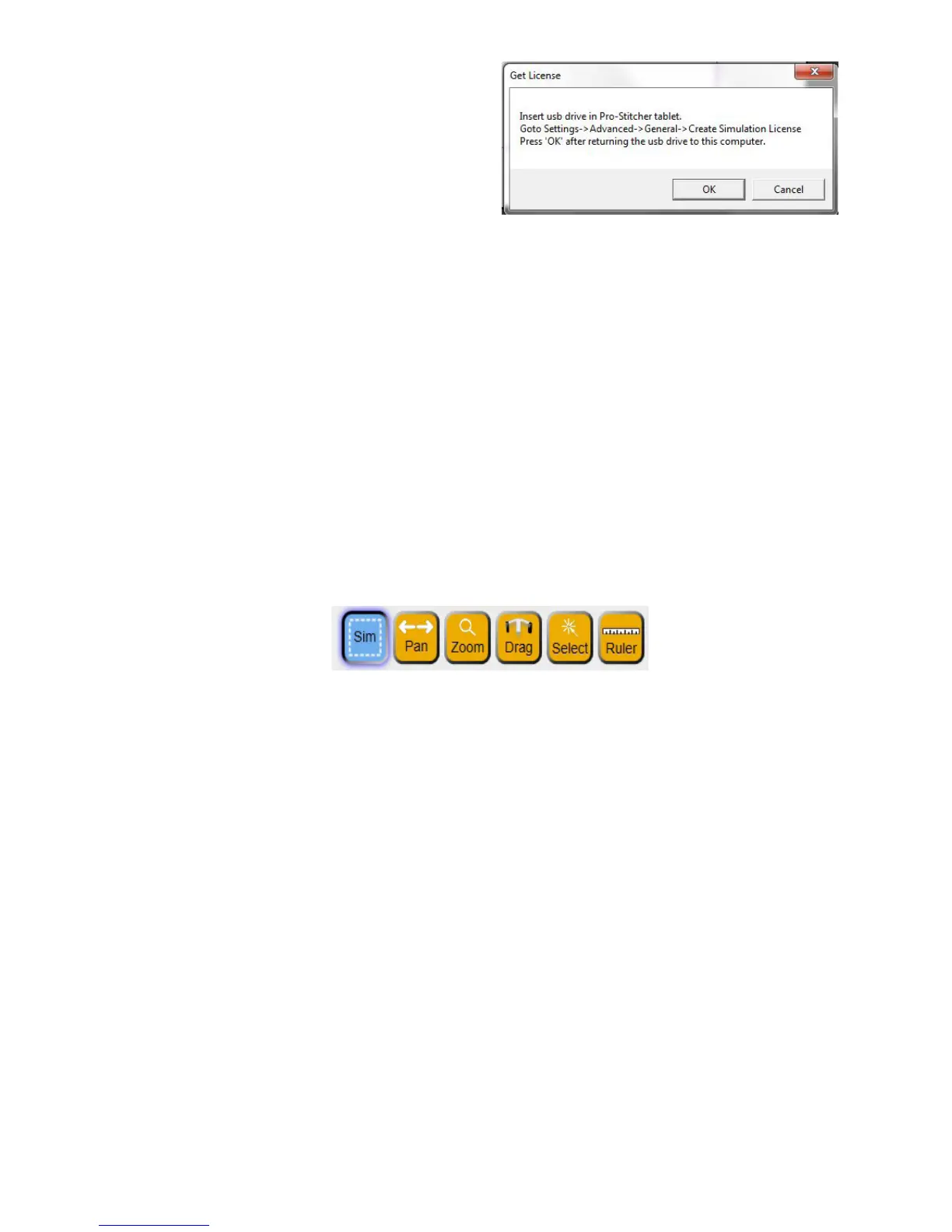
9. Return to the Windows computer you will
use for simulaon mode and insert the
USB drive back into the USB port of the
Windows computer. Now select OK
10. You can now run Pro-Stcher in simulaon mode on the Windows computer.
To use the Pro-Stcher simulaon mode
If running the simulaon mode on the Pro-Stcher tablet computer, you may switch between simulaon
mode and regular mode. However, when running Pro-Stcher on a standalone Windows computer, it only
runs in simulaon mode.
• To run Pro-Stcher simulaon mode on the Pro-Stcher tablet computer, select Sengs, Advanced,
General. Select Simulaon on/o to alternate between simulaon mode and regular mode.
• To run Pro-Stcher simulaon mode on the Windows computer, simply start Pro-Stcher.
When Pro-Stcher is running in simulaon mode, a Sim buon (for simulaon) appears in the upper right
secon of the screen and the Follow buon is removed.
When the Sim buon is selected, the mouse and the keyboard arrow keys simulate moving the quilng
machine to do things such as zoom, pan, or create areas. The other buon funcon as normal. Simply
select them with the mouse.
1. Ensure the Sim buon is selected (appears dark green) at the top right of the screen.
2. Use the arrow keys or mouse to simulate moving the quilng machine.
NOTE: Hold the shi key while using the arrow keys for faster cursor movements. You can also hold
the le mouse buon and drag the mouse and the cursors will move along with the mouse.
To verify sengs before quilng
• Press the buon next to Verify Sengs Before Quilt to have Pro-Stcher display a pop-up box with
all of the current sengs. This gives you the opportunity to verify that everything is set up properly
before stching. If you don’t want to see this box, disable the buon.
Communicaons Opons
The Communicaon sub-menu enables you to manually establish communicaons with either the quilng
machine or the Pro-Stcher motors.




 To Next Page