5.10 | Design Menu Pro-Stcher User Manual
Mul-Point
For more complex areas, use Mul-Point to mark mulple points to create triangles, hexagons, octagons,
or any shape with three or more points.
To create an area with mulple points
1. Move the quilng machine so the needle lines up with one corner of the desired area on the quilt.
It may be necessary to press the Disable Motors buon at the top-right corner of the screen. Press
Mul-Point.
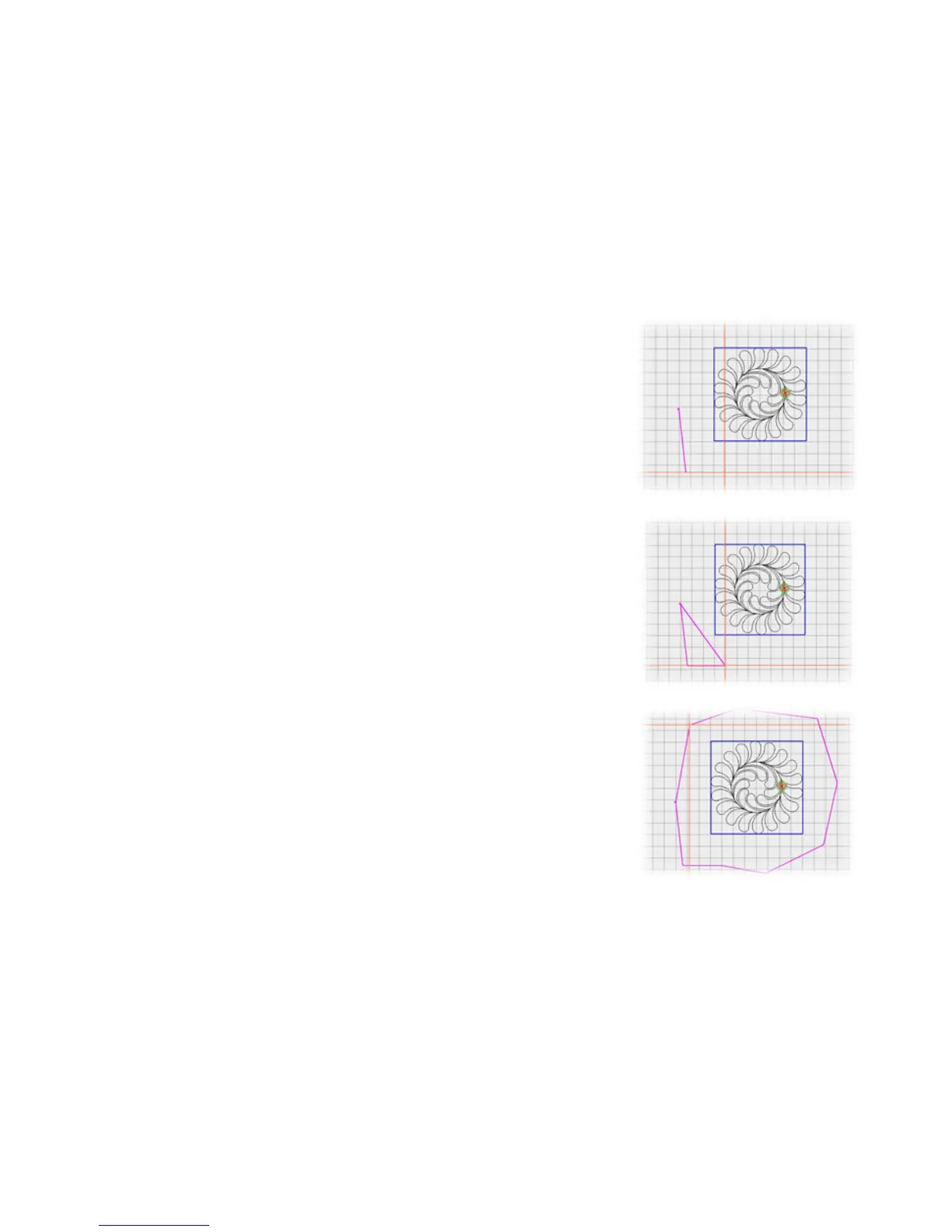
2. Move the machine to a second point along the perimeter of
the quilng area and press Mul-Point again. A purple line
joins the two marked points.
3. Move the machine to a third point along the perimeter
of the quilng area and press Mul-Point. Pro-Stcher
automacally closes the shape back to the rst point when
the third point is marked, creang a purple triangle to
indicate the mul-point area.
4. Mark other points as desired to create a detailed quilng
area.
To keep track of how many points you have marked
• The Point Count box displays how many points you have marked. When you clear the area, the point
count goes back to zero.




 To Next Page