Pro-Stcher User Manual Design Menu | 5.31
To switch to free-moon quilng
• Manually raise the levers to switch from using computer-guided quilng to free-moon quilng. To
return to using Pro-Stcher, manually lower the levers.
 IMPORTANT: If you have a newer version of the rmware running on your quilng machine, you
will have two addional buons. Select the Machine buon and free-moon quilt as desired. When
you are ready to once again quilt with Pro-Stcher, select Motors.
Record the movements of your freehand quilng
To record freehand moon
• Select Record. Begin quilng the design you want to record. When complete, select Stop. Save the
design to the computer (select File, then Save).
Machine Quilting Tip: Add recorded stitching to an existing design
Load a design and posion the crosshairs where you want to begin recording freehand
moon. A stching line connects the end point of the design and the posion of the
crosshairs when recording begins.
When adding to an exisng design, Pro-Stcher baselines the design and treats it as a single design when
performing other design funcons.
To mark and record straight lines
Mark is similar to Record, but instead of recording connuously as you move the machine, it records a
straight line between each marked point.
1. Move the quilng machine to the point where you want to begin a straight line and select Mark.
2. Move the machine to where you want to end the straight line and again select Mark. Connue
marking along the line, stch the line, or save it as a design for future use.
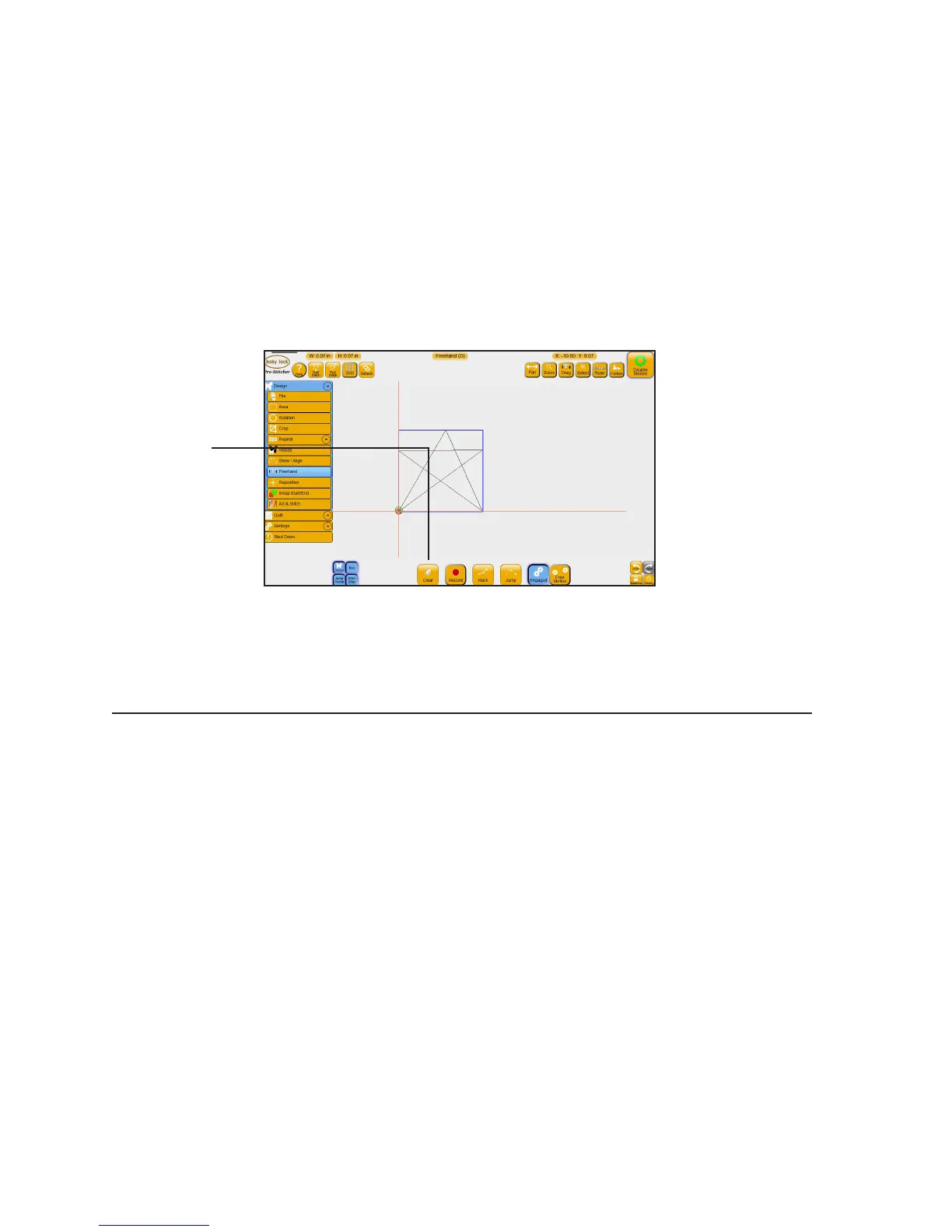
Clears any designs
from the work area,
as well as any
recorded design.
To use a recorded
design in the future,
save it before
selecng Clear.




 To Next Page