Pro-Stcher User Manual Art & Stch | 6.1
6. Art & Stch
Art & Stch is comprehensive quilng-design soware for creang and modifying quilng designs. It is
included with Pro-Stcher. Pro-Stcher can pass designs quickly and easily into Art & Stch so you can use
any of the Art & Stch tools to modify the design however necessary. Art & Stch automacally loads and
runs in the background when Pro-Stcher starts, so passing les from Pro-Stcher to Art & Stch happens
very quickly.
To pass a design to Art & Stch
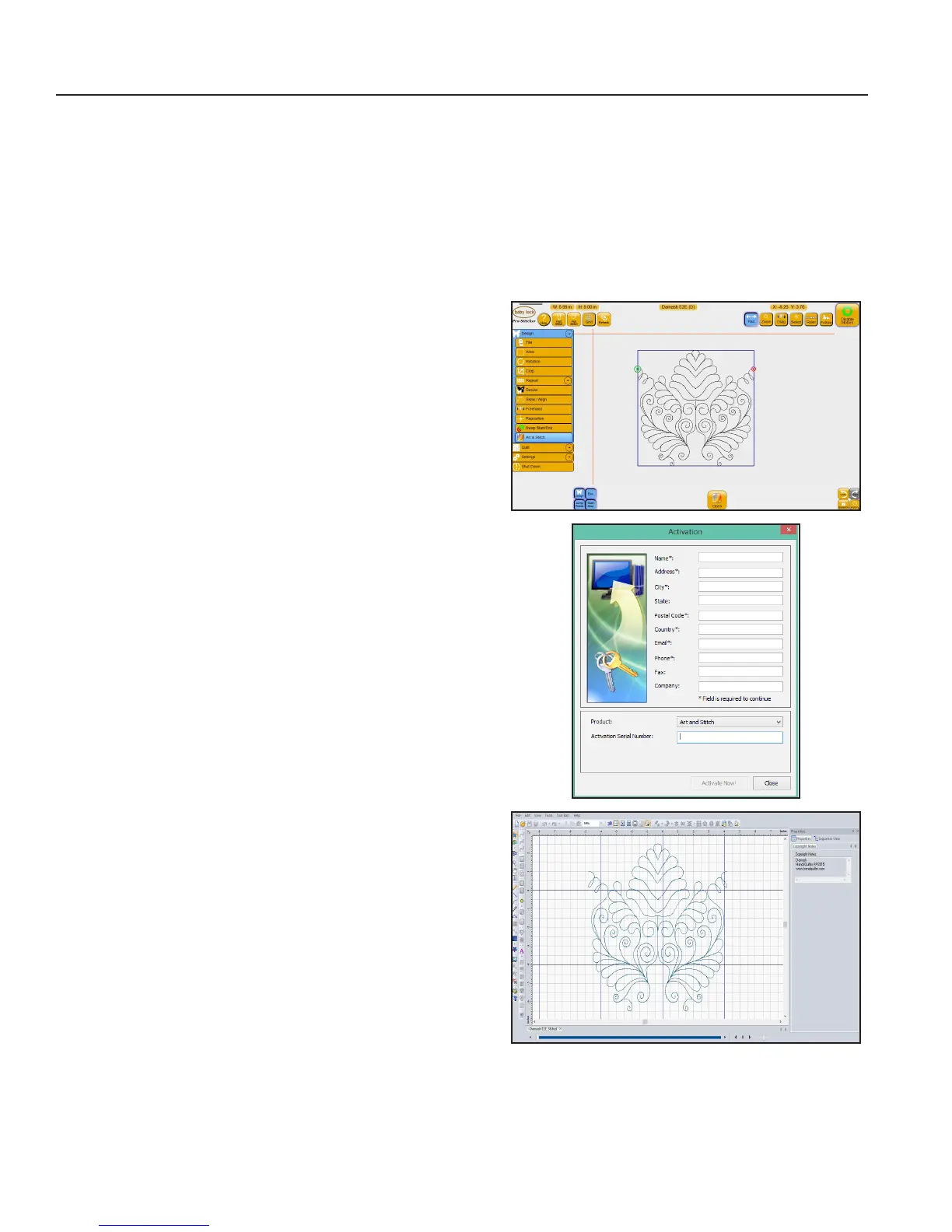
1. Select Design, and then Art & Stitch. Press Open
screen to open the Art & Stch soware. If Art & Stch
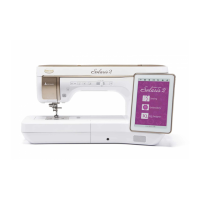
is open and has been licensed, the design will open in
Art & Stch.
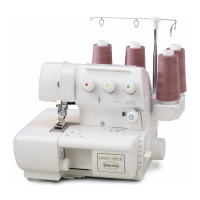
NOTE: If Art & Stch has not yet been licensed, a
licensing screen will appear for entering license
informaon. You will not be able to save any
changes to the design unl you acvate the Art &
Stch license. Follow the instrucons in the Art &
Stch instrucon manual for oine acvaon.
2. Press Close to bypass registraon and open the design.
When the design is passed into Art & Stch, the
posion informaon is maintained; as long as the
design is not moved in Art & Stch, it will be in the
same locaon when it is passed back to Pro-Stcher.
Pass the modied design back to Pro-Stcher by
pressing the Pro-Stcher buon on the Art & Stch
toolbar on the le-hand side of the Art & Stch
screen.




 To Next Page