6.2 | Art & Stch Pro-Stcher User Manual
U CAUTION: If a design is opened in Art & Stch without using the Pro-Stcher soware and the
Pro-Stcher buon is pressed to pass the design into the Pro-Stcher soware, the design will
be saved in its current state with the same name it had when it was opened. This could lead to
unintenonally wring over a design. To avoid this, always save the design with a new working
name when it is directly loaded in Art & Stitch.
Licensing
When using Art & Stch for the rst me, the quilter must enter some informaon to acvate the license.
Refer to the instrucons in the Art & Stch soware box for oine acvaon. All network connecons
have intenonally been disabled on the Pro-Stcher computer to prevent the computer from downloading
updates or viruses that would adversely aect the performance of Pro-Stcher.
Using a mouse or keyboard
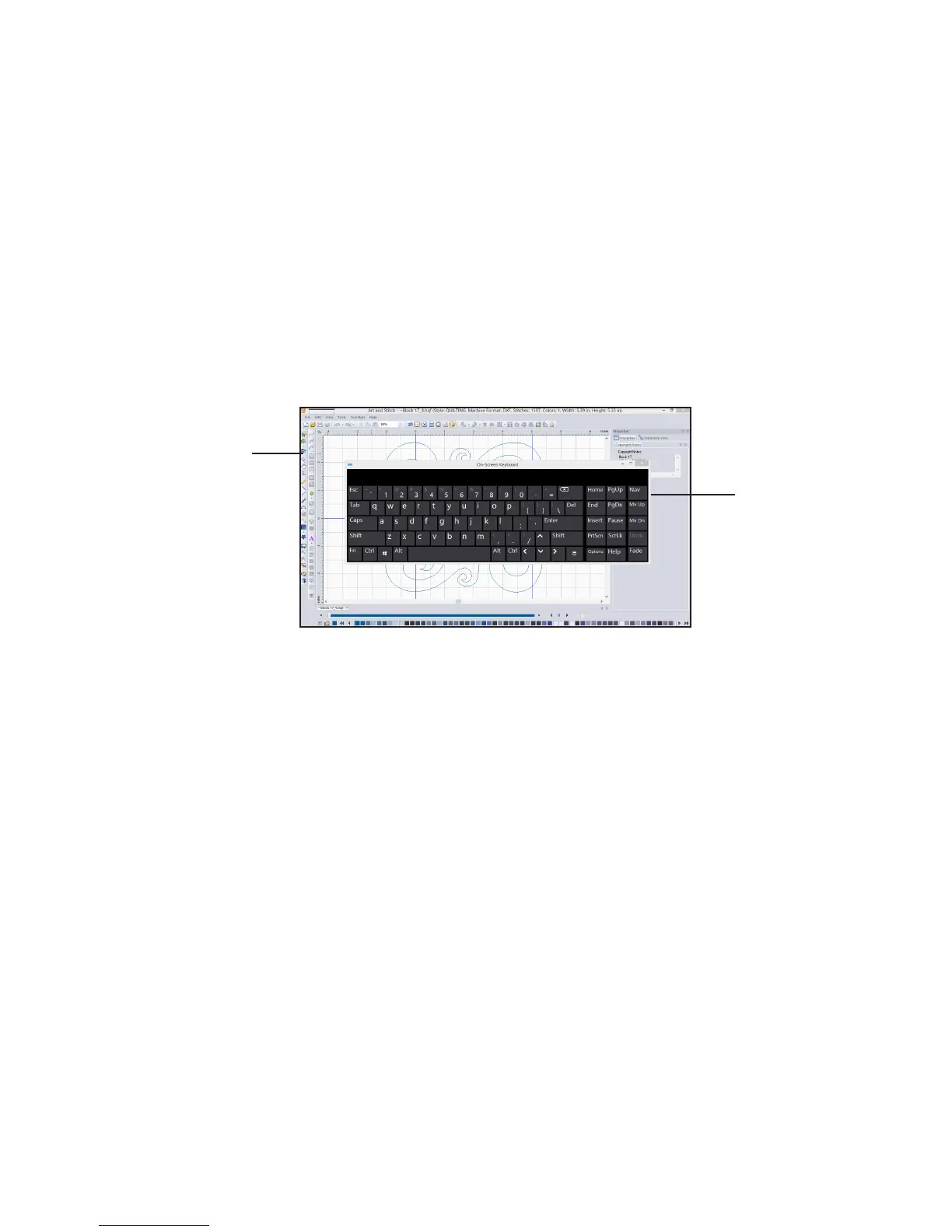
Many funcons in Art & Stch are much simpler when using a mouse and keyboard. When using the
pop-up keyboard, it may be necessary to press an area on the screen where the text is to be entered
before typing on the keyboard. While the pop-up keyboard is a quick keyboard soluon, it may be more
convenient to use a convenonal mouse and keyboard. The Pro-Stcher computer works with most wired
and wireless USB keyboards and mice. Just plug the keyboard, mouse, or wireless dongle into an available
USB port, wait a minute for Windows to install appropriate drivers, and then use the keyboard or mouse. A
USB hub may be used to expand the number of available USB ports. Keyboards, mice, and USB hubs can be
purchased from most electronics retailers.
Updang Art & Stch
Art & Stch may need to be updated to the latest version for Pro-Stcher to properly pass designs back and
forth. To download the latest version, use a computer that is connected to the Internet and go to the Baby
Lock website: www.babylock.com.
To update Art & Stch
1. Go to the Products tab at the top of the page and select Upgrades/Updates. Follow the instrucons to
download the latest version of Art & Stch for Pro-Stcher. Aer downloading this installaon le, copy
it to a USB ash drive and plug it into the Pro-Stcher computer.
2. Wait approximately 10 seconds for the Pro-Stcher computer to set up the USB ash drive. Then select
Design, File, and press Update.
Touch the gray bar
to open the pop-up
keyboard.
Press to close the
keyboard.
Use these buons
to keep track of
changes you make
to the design.




 To Next Page