Pro-Stcher User Manual Sengs Menu | 8.7
 IMPORTANT: You must have administrator rights for the Windows computer you will use for the
Pro-Stcher simulaon.
3. Insert the USB ash drive into a USB port on the Windows computer you will use for simulaon mode.
View the les on the USB drive. Right-click the Pro-Stcher executable le (PSUpdate15.04.0071.exe,
in this example) and select Run as administrator. Pro-Stcher will install onto the Windows computer
and then start.
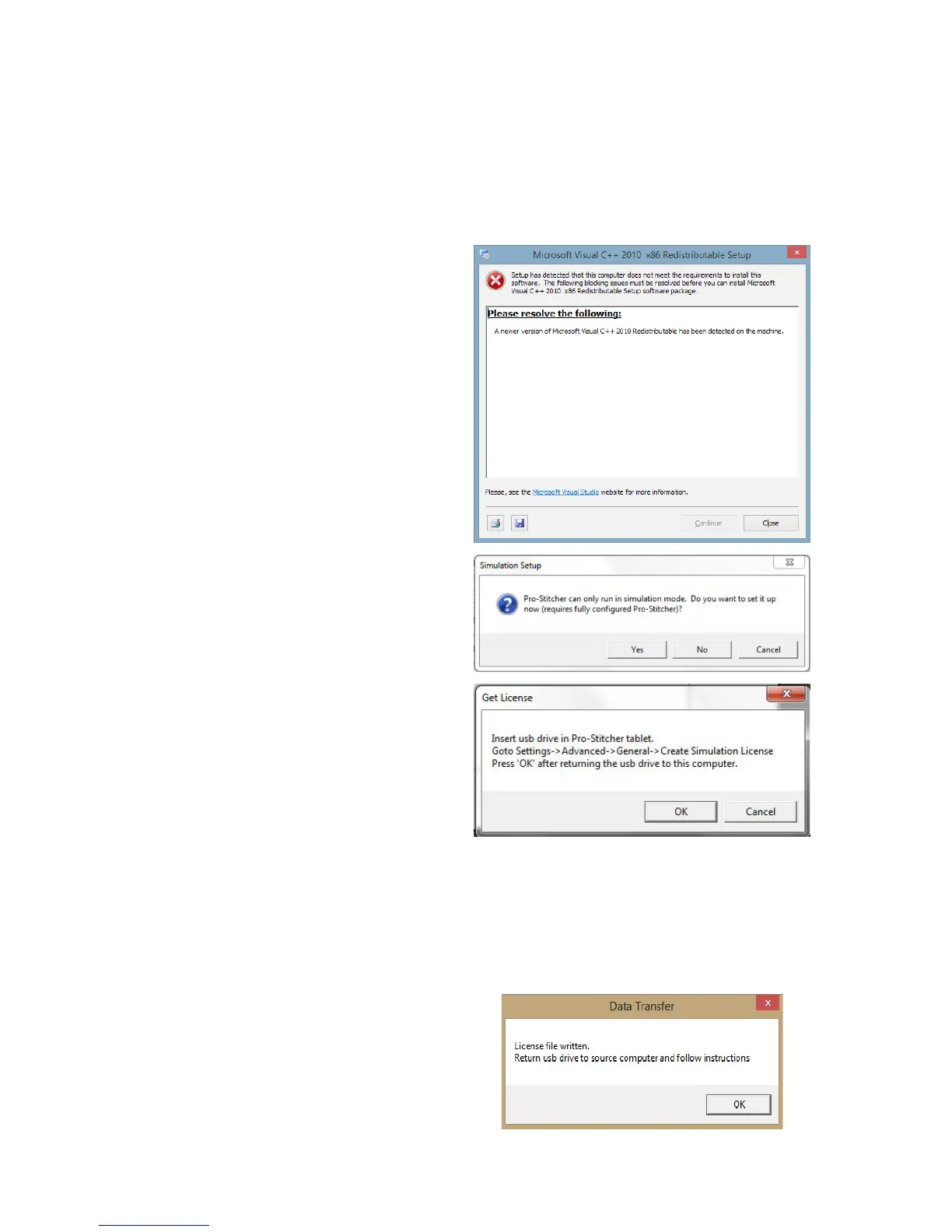
NOTE: If you receive the error
message at the right, simply select
Close.
4. You will see a pop-up message asking
whether you want to be able to run Pro-
Stcher in simulaon mode. Select Yes. If
you select No, Pro-Stcher will not run.
5. When you receive this message, do not
yet select OK.
6. Remove the USB drive from the Windows computer and insert it into the Pro-Stcher tablet computer
that is aached to the quilng machine’s carriage.
7. On the Pro-Stcher tablet, select Sengs, Advanced, General. Then select the Create Simulaon
License buon.
8. When you receive the message License
le wrien, select OK. Remove the USB
drive.





 To Next Page