INTRODUCTION
I-E96-192-5A 4 - 1
SECTION 4 - TROUBLESHOOTING
INTRODUCTION
This section explains how to troubleshoot the OIC operator
interface. It contains a troubleshooting table and techniques
for gathering information on software faults.
Replace components by following the procedures in Section 6.
Refer to information in Section 3 when replacing parts. Review
specific adjustments associated with replaceable parts before
returning the system to normal operation. Close and secure
cabinet doors on applicable models after troubleshooting or
replacing parts and before returning the system to normal
operation.
Be sure to follow all warnings, cautions and notes. Put circuit
boards containing MOS devices into antistatic bags when
stored or shipped back to the factory. Do not repair printed cir-
cuit boards in the field. All repairs and adjustments should be
performed by qualified personnel.
TROUBLESHOOTING
The OIC consoles are shipped ready for operation. After com-
pleting the instructions given in Section 3, prepare the unit for
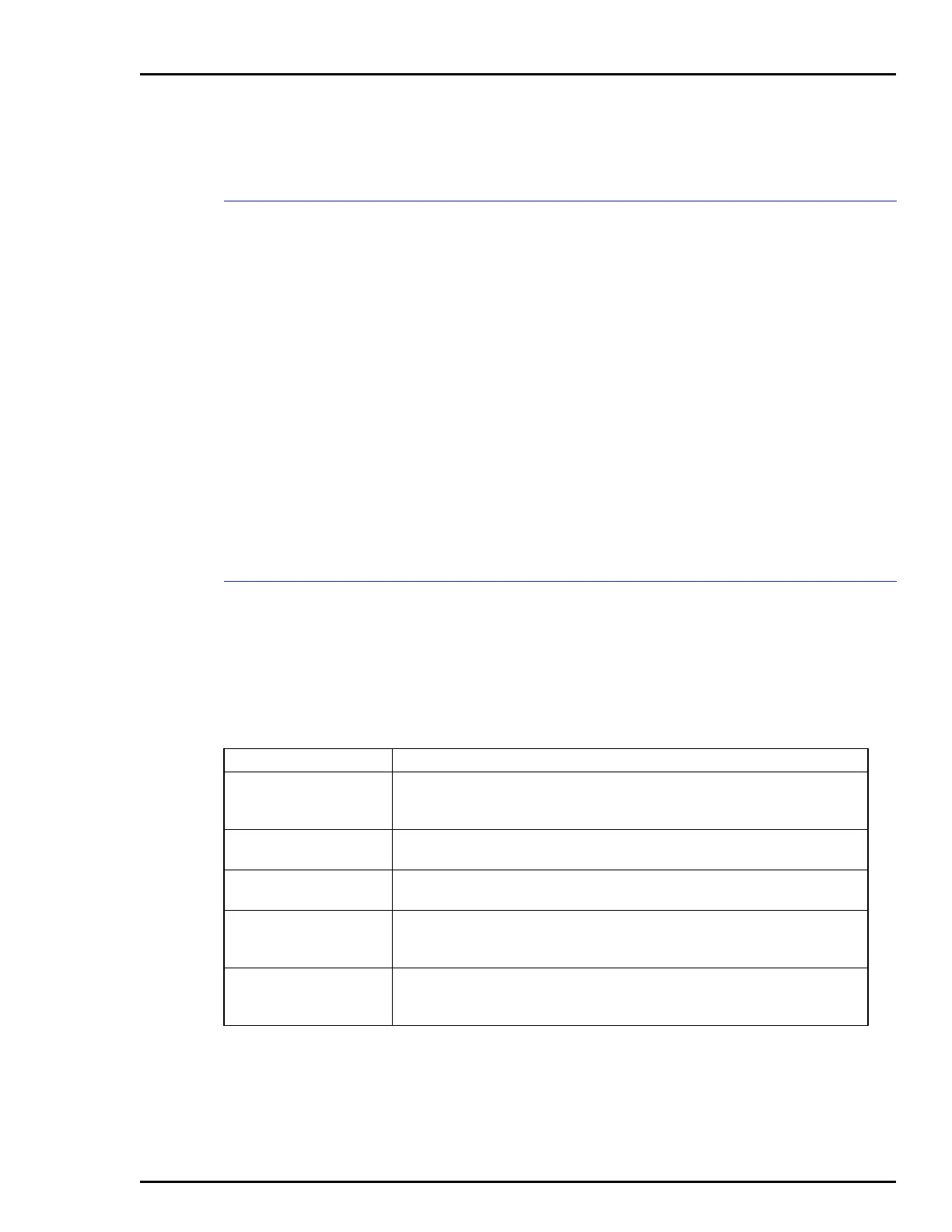
service. The troubleshooting guide in Table 4-1 helps identify
problems and suggest solutions.
Table 4-1. Troubleshooting Guide
Symptom Possible Problem or Solution
No power indicator on
circuit
No AC power at console. Check AC wiring on input. Check AC on power
entry panel or keyboard interface assembly. Check breaker light on power
entry panel or keyboard interface.
Breaker off but
indicator on
Check breaker contacts. Check breaker wiring. Check AC input wiring.
Improper/ incomplete
start-up
Refer to the CPU customer hardware information
instruction shipped with
the console.
Start-up OK but no
keyboard response
Check keyboard assignment. Check all cables. Check caps lock position.
Check IIMKM02A module seating and jumpers. Check main OIS configura-
tion (keyboards/printers).
Start-up OK but no CRT
picture
Check monitor AC power. Check RGB cables. Check monitor switch (sync
on green). Check resistor switches for 75 ohm termination. Check bright-
ness and contrast controls.



 To Next Page