88 PDS • User’s Guide
5. GUI Operations
GUI Operations on a PC
drf=léÉê~íáçåë=çå=~=m`
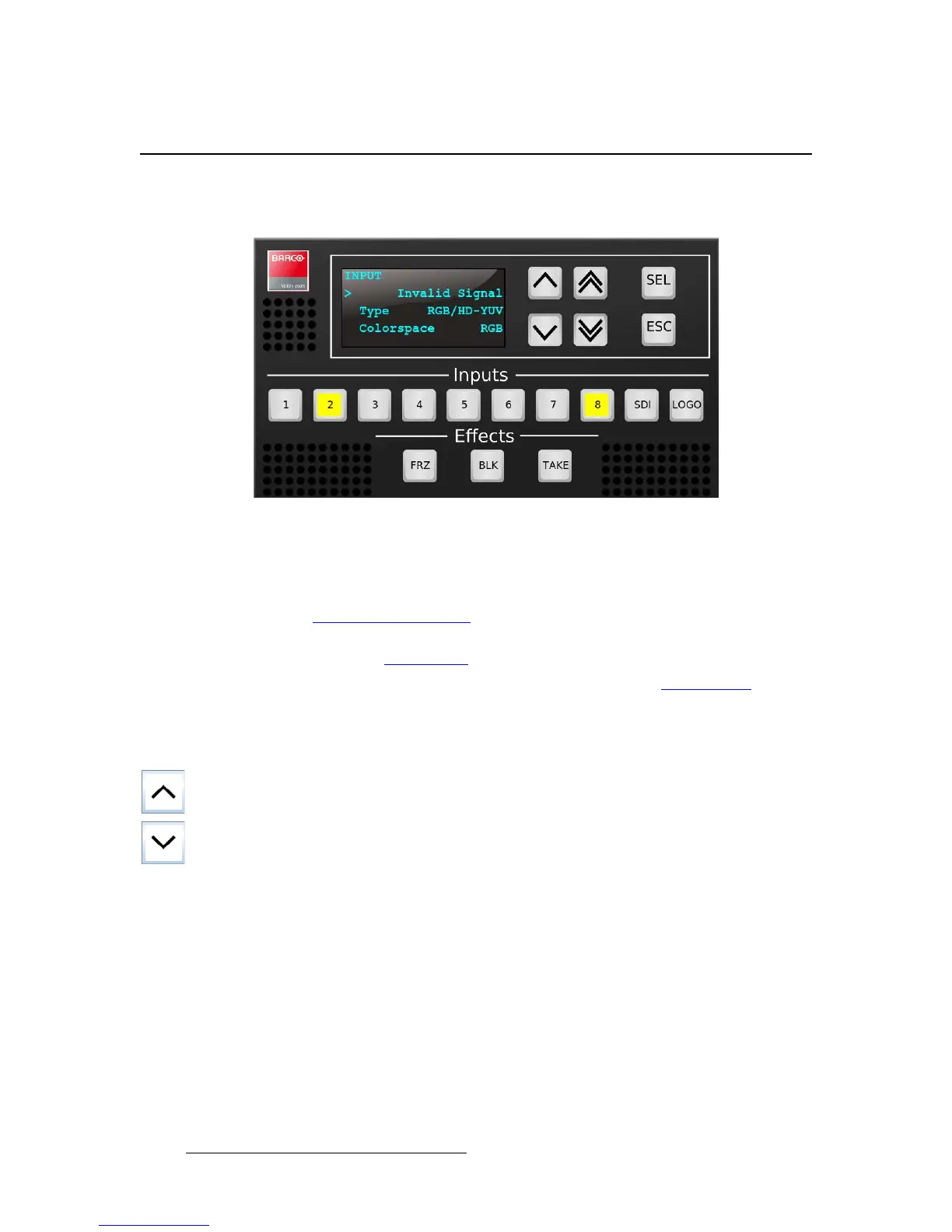
The figure below illustrates a sample GUI screen, as seen on a PC:
Figure 5-4. PDS PC GUI Setup Menu
Running the PDS GUI is virtually identical to running the system from the physical front
panel. The similarities are:
• All control panel sections and menus are the same. In Chapter 4, refer to the
“U
sing the Menu System” section on page 28 for details.
• All input, transition, and “effect” selection methods are the same. In Chapter 4,
refer to the “Using Inputs
” section on page 75 for details.
• All button states are the same. In Chapter 4, refer to the “Button States” section
on page 25 for details.
The differences are:
• “Click” instead of press.
• Use the Up/Down arrows in place of the ADJUST knob:
~ Click the Up Arrow to scroll up the menu tree.
~ Click the Down Arrow to scroll down the menu tree.
• All actions taken on the GUI are mirrored on the physical front panel.
• You can not enter or leave the Front Panel Lockout mode from the GUI.
The double up/down arrows can be used to make coarse menu adjustments. For example,
the “Brightness” field is a percentage, 100.0. The single up/down arrow will adjust this field
in 0.1% increments; the double up/down arrow will adjust the field if 4.0% increments.


 To Next Page