7 | Commissioning Baumer
36 Operating Manual IDC200 | V1.0
7 Commissioning
7.1 Connecting the sensor to the PC
INFO
Requirements for use of web interface:Web browser Mozilla Firefox from version 69 or Google
Chrome from version 77.
Internet Explorer is not supported in any version, there will be no sensor connection.
Microsoft Edge is not supported. However, most of the cases allow for use without restrictions.
Condition:
ð PC with web browser Mozilla Firefox from version 69 or Google Chrome from version77.
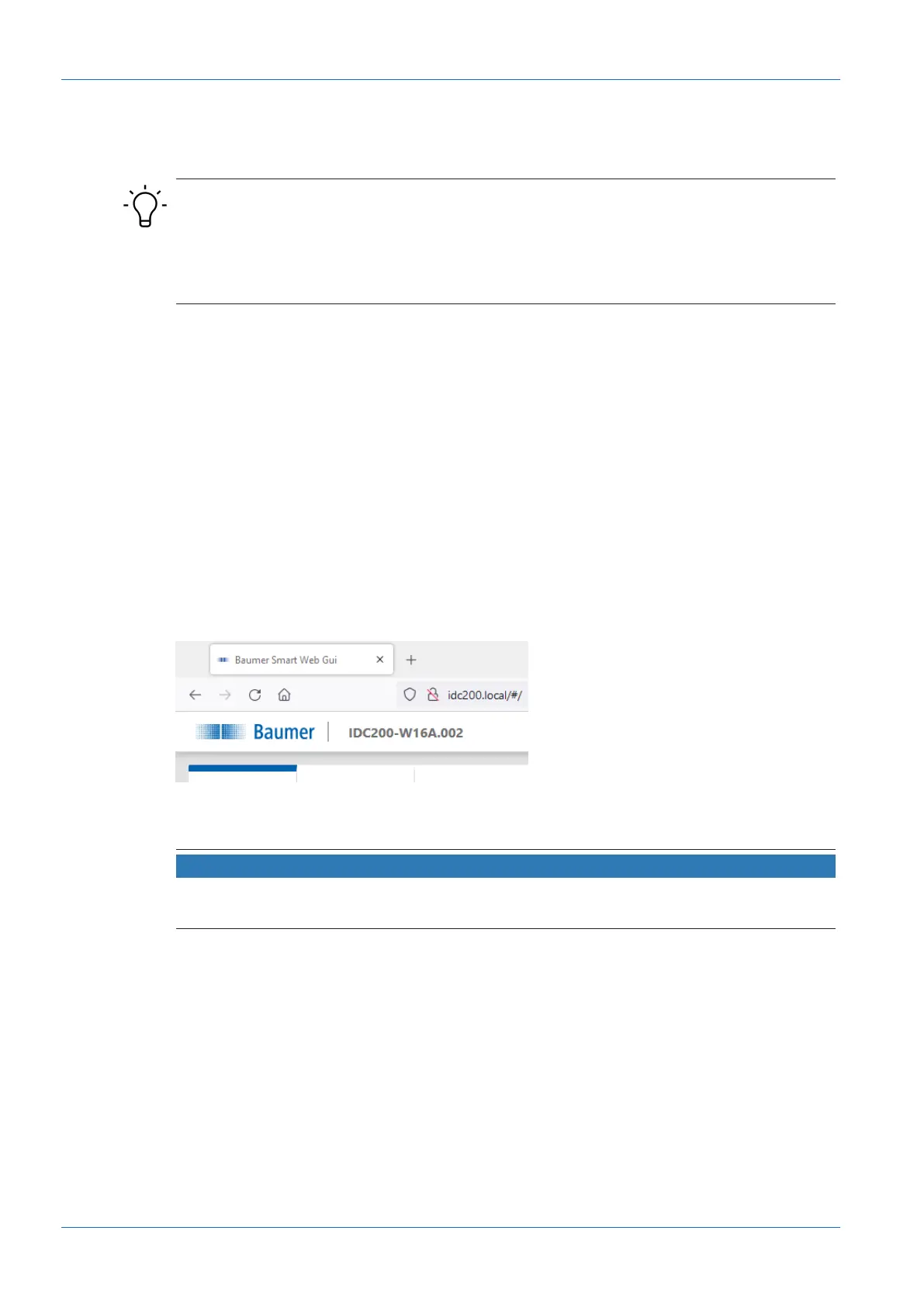
ð Local domain (idc200.local) resp. the sensor's IP-address (see sensor display).
Instruction:
a) Connect sensor to a PC via a USB C cable.
b) Establish power supply with 12-pin M12 connector.
c) Open the web browser on your PC.
d) In the address bar of web browser enter: -
- IDC200.local
or
- the sensor's IP address
Result:
ü The sensor is now connected to the PC.
7.1.1 Allocating an IP address to the PC
NOTICE
Network errors due to multiple allocations of IP addresses.
a) Make sure that each IP address within the network is unique and not already allocated.
The following section describes how to allocate a unique IP address to the PC. Prerequisite
here is that the IP address of the sensor was not The prerequisite for this is that the IP address
of the sensor has not been changed.changed.
Instruction:
a) In Windows select Start | System control | Network and Internet | show network status
and tasks | edit adapter settings.
ü Window Network Connections opens.
b) Click the symbol of the network adapter in use.
If you do not know the network adapter, remove the network cable of the sensor from the
PC and observe which text changes in window Network Connections.
c) In the context menu (right-click on icon) of the network adapter select Properties.



 To Next Page