74
2. Select From Host(RX) in the Firmware File field.
3. Select the Button you want to upgrade and then click the Firmware Upgrade button in the
Upgrade Selected InstaShow Button field.
When performing any type of upgrade DO NOT do any of the following:
• Power off or press the reset button on the Host or Button.
• Close the browser window of the web management interface.
• The button of Firmware Upgrade becomes gray out when the version in Button is newer than the
version in Host.
Failure to follow these warnings will result in firmware upgrade failure and subsequent product failure.
If a new firmware upgrade via OTA is available the new firmware version will be listed in
the New Button Firmware Version on OTA Server field. To perform an OTA upgrade for the
Button follow the steps below:
To perform an OTA upgrade ensure that the Host is connected to a router with access to the Internet.
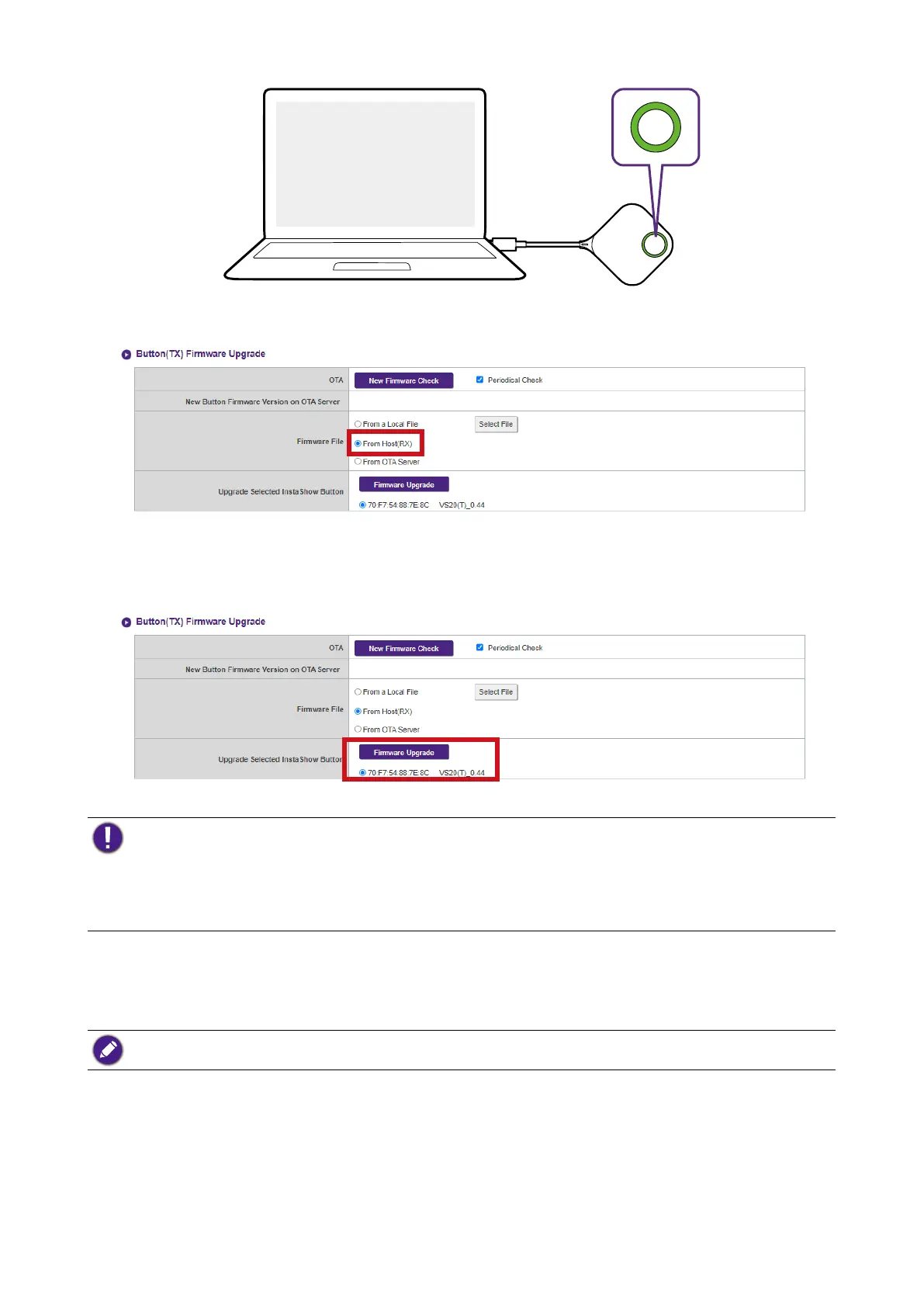
1. Connect the Button you want to upgrade to the laptop running the web management
interface and then wait for the Button to link up with the Host and the LED indicator to
light up green.


 To Next Page