34 of 109
Setting Up the Thread Tree
When the software is rst loaded, the thread tree will displayed in grey. To
assign appropriate colors to the tree, double-tap on the thread cone to be
changed. This will bring up the thread cone assignment screen.
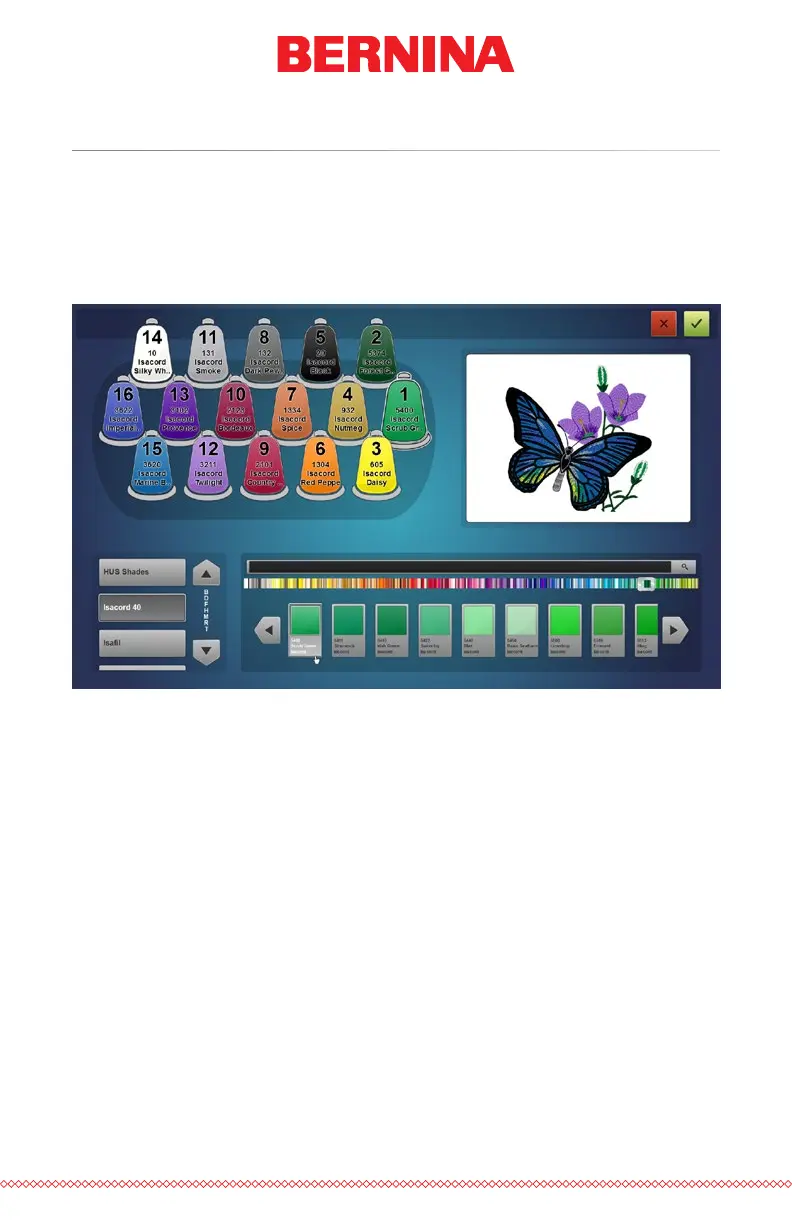
Thread Cone Assignment Screen
The thread cone assignment screen shows the same representation of the
thread tree and preview of the design as the previous screen. The second
half of the screen is now dedicated to the specic thread colors on the
machine.
A thread catalog is chosen on the left and the specic thread color is cho-
sen on the right.
Assign a Thread Color to a Needle
To assign a color to a needle:
1. Select the needle/cone that you wish to assign the new color to.
Do this by clicking or tapping the cone on the thread tree at the
top of the page. The selected cone will then be highlighted.



 To Next Page