CHAPTER 8: POD SWITCH MODE
99
To enable Pod Switch mode:
1. Press the hotkey sequence to display the Command Line.
Num Lock + - is the default Command Line hotkey sequence. For more information
about the Command Line, see the ServSwitch Octet Installer/User Guide.
2. The OSD Command Line will appear on the remote target device monitor (Monitor B
in Figure 8-1).
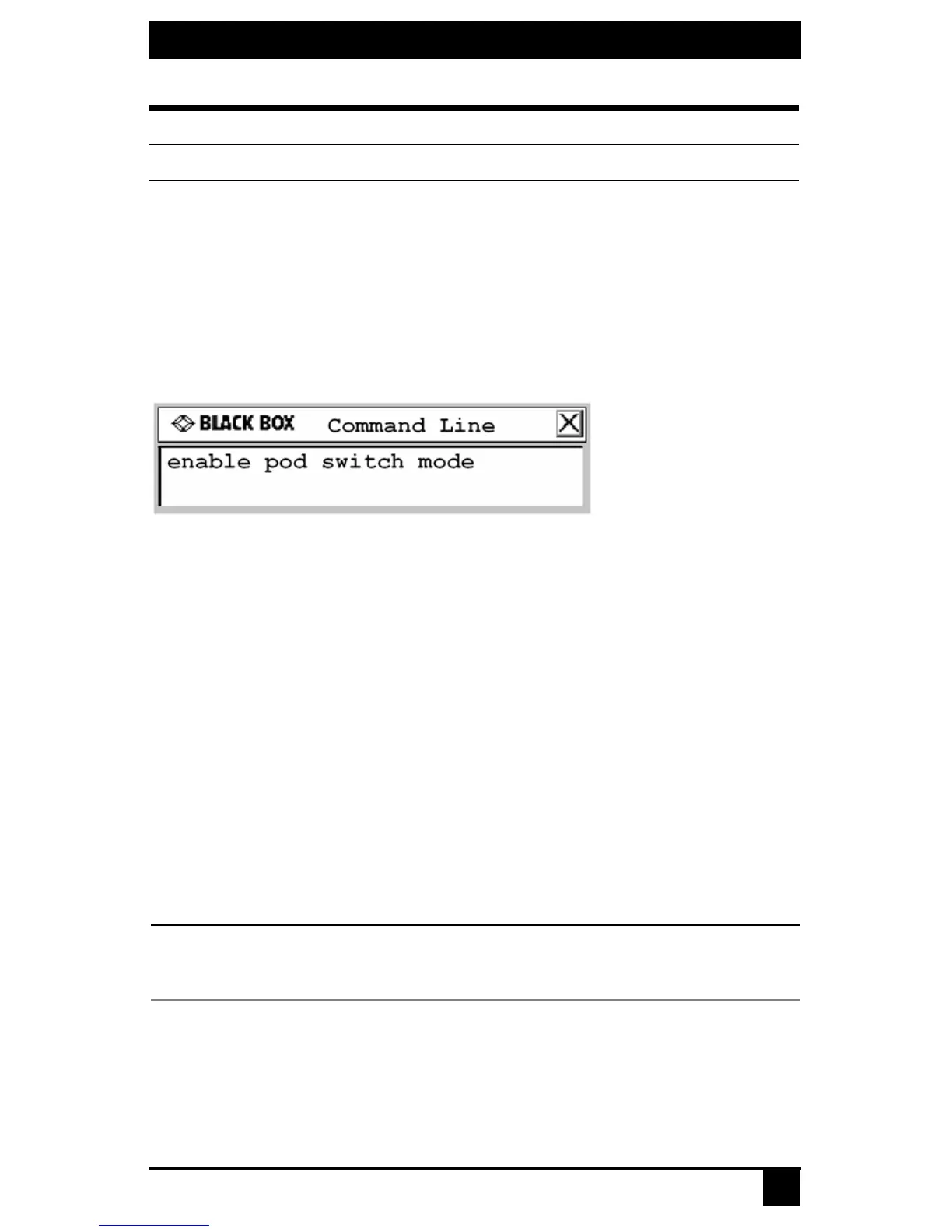
3. Type enable pod switch mode and press Enter.
Figure 8-2. Example of a Pod Switch Mode Command at the Command Line
4. When the command is entered successfully, a message box will display the current
Pod Switch mode status.
8.5 Performing a Pod Switch
A pod switch may be performed by simultaneously pressing the left Alt key and the 1 key
on the main keyboard (not the number pad).
To perform a pod switch:
1. Use the OSD interface to connect to a remote target device to which that you have
full access. (It’s best to connect to the target device while in Private mode; see Trou-
bleshooting on page 99 for more information.) Make sure that you can control this
target device with the keyboard and mouse.
2. Type the pod switch hotkey Alt + 1. You may now control the local target device
with the keyboard and mouse.
3. To switch back to the remote target device, type Alt + 1.
NOTE:
If the user station has been configured to display the Target Flag, the local target device Target Flag will
display as “Pod Switch On” when a pod switch is made. For more information about configuring the Target
Flag, see Setting a target flag on page 54.
8.6 Troubleshooting
If the pod switch is not successful, follow the corrective steps listed and try again:
• Make sure that the local target device is connected to the user station with a SAM
module, not a SAMDM module. If you use a SAMDM module to connect to the
show pod switch mode Display an OSD message showing Pod Switch mode status
Pod Switch Mode Commands
Command Result









 To Next Page